access_timeEstimated reading time for this article: 15 minutes
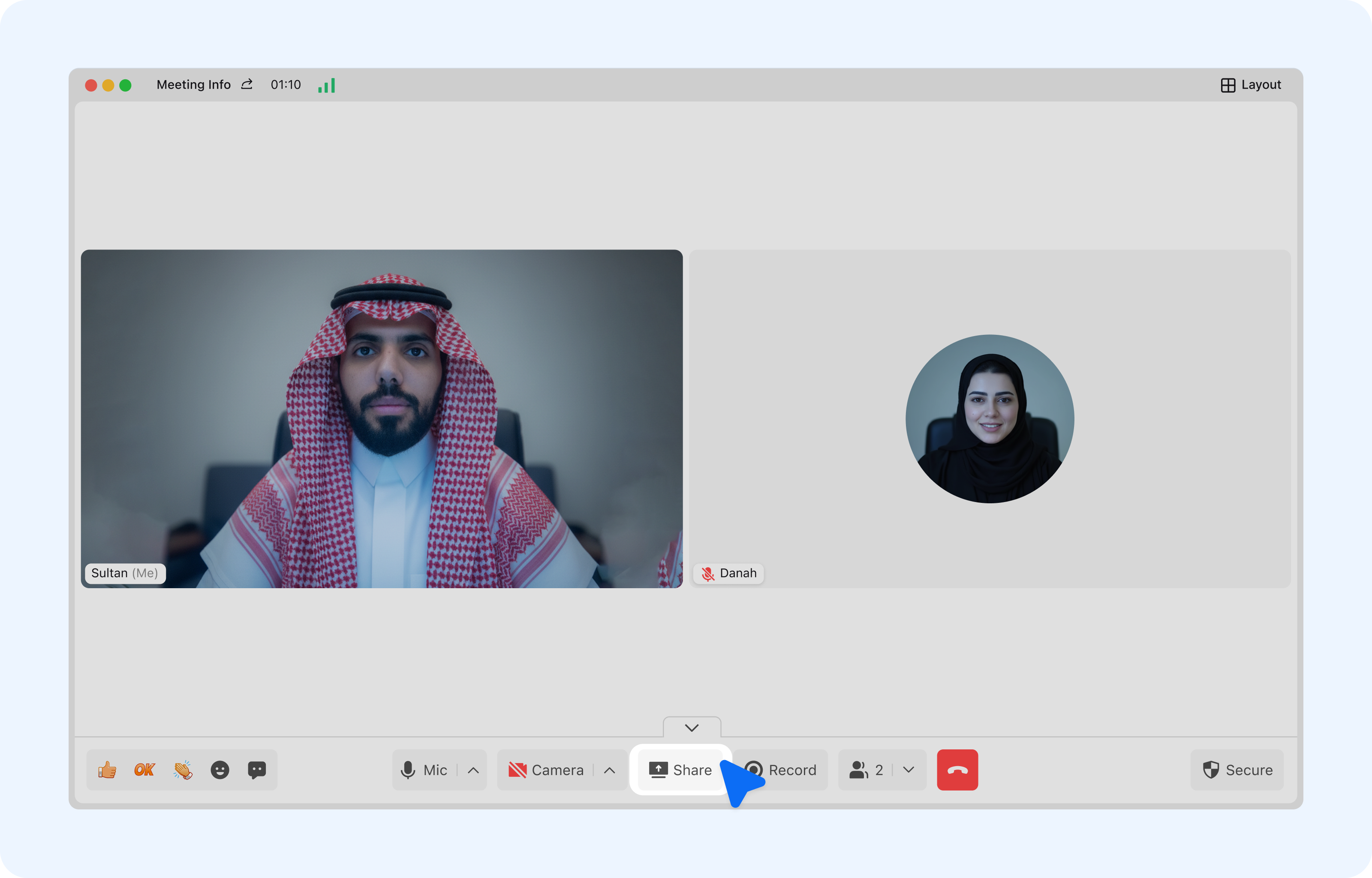
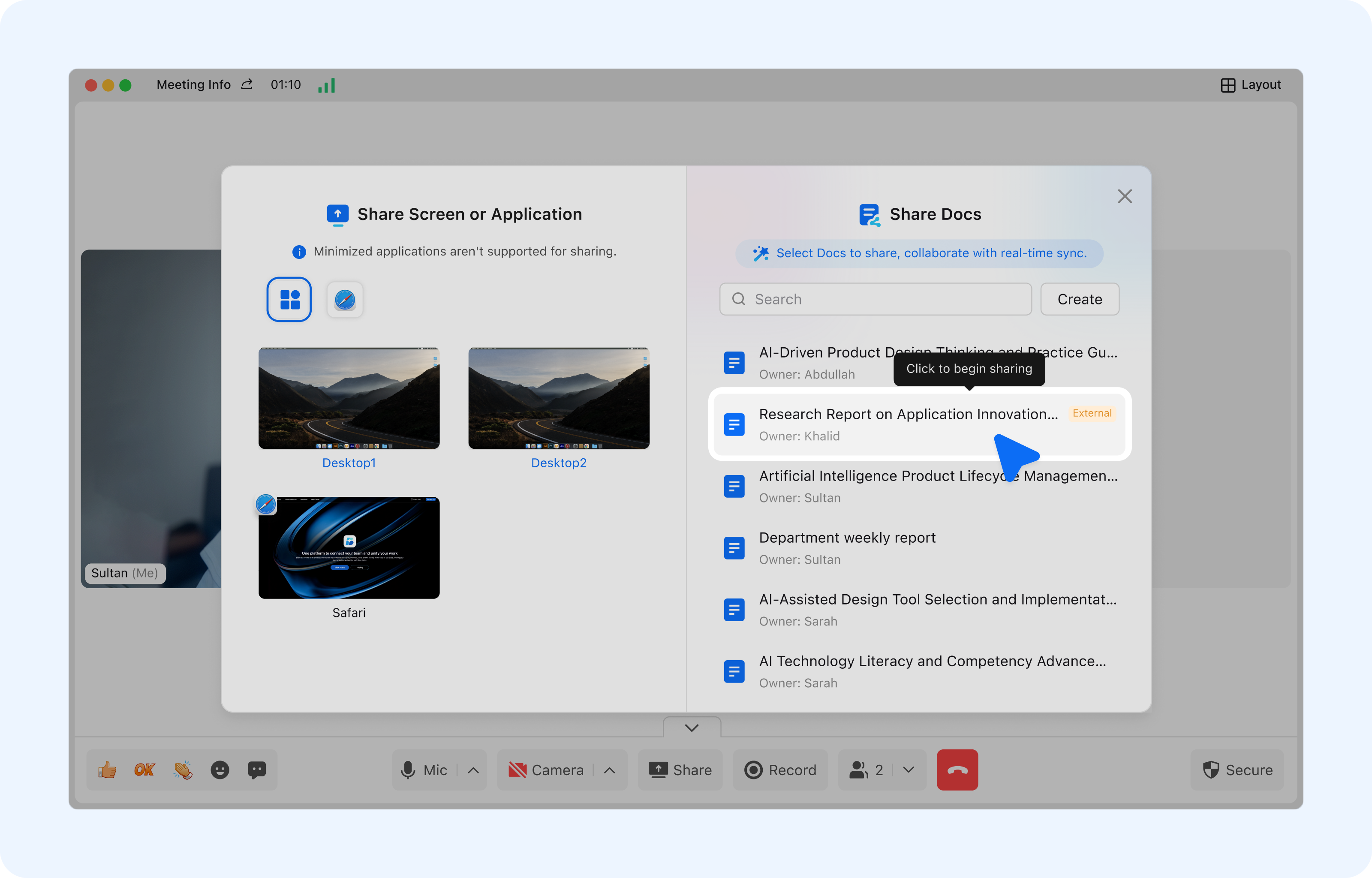
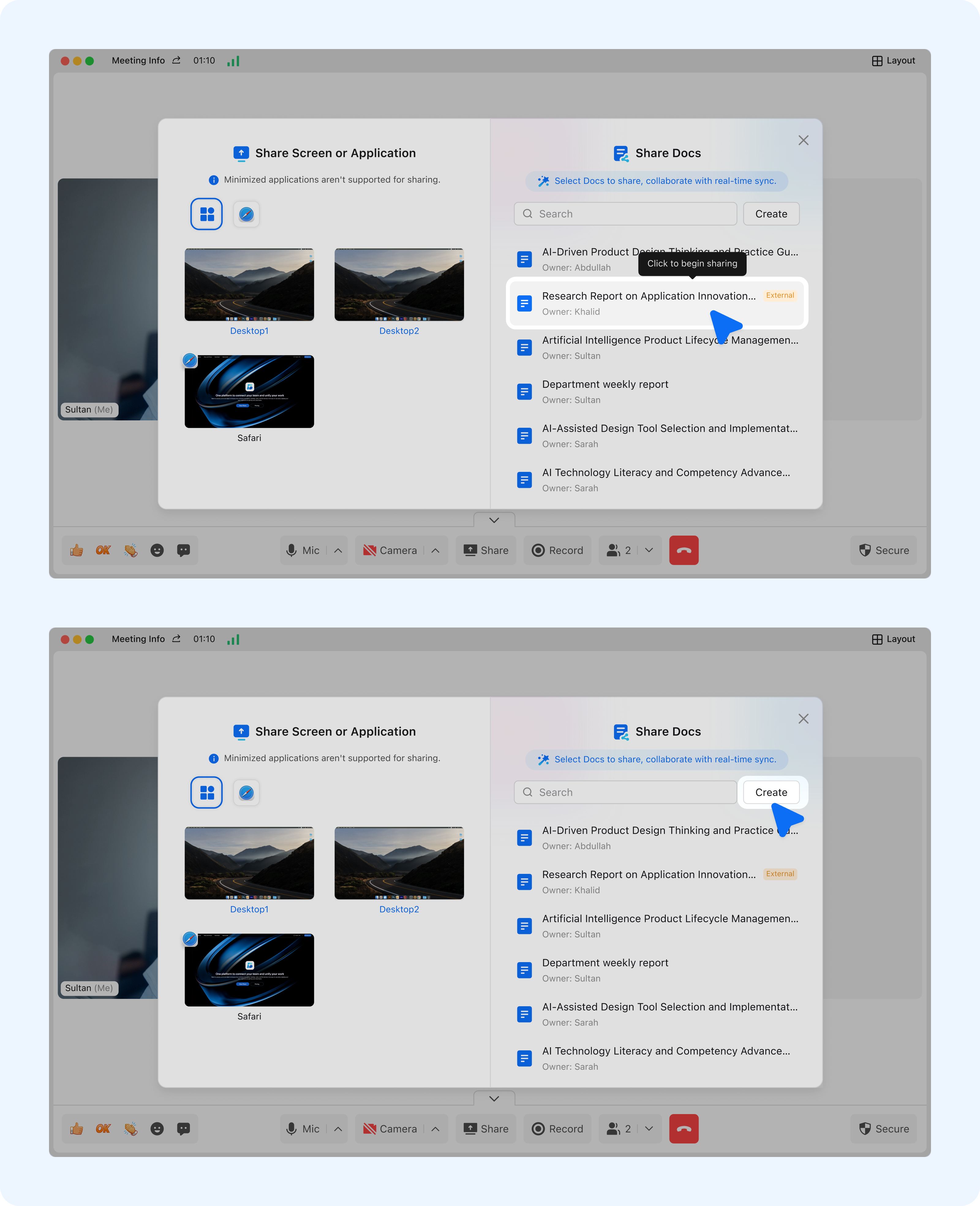
Document sharing during meetings allows participants to collaborate in real-time, control document access, and synchronize content across all attendees. Beem provides flexible sharing features on both desktop and mobile platforms, ensuring seamless collaboration whether participants are in or out the office.
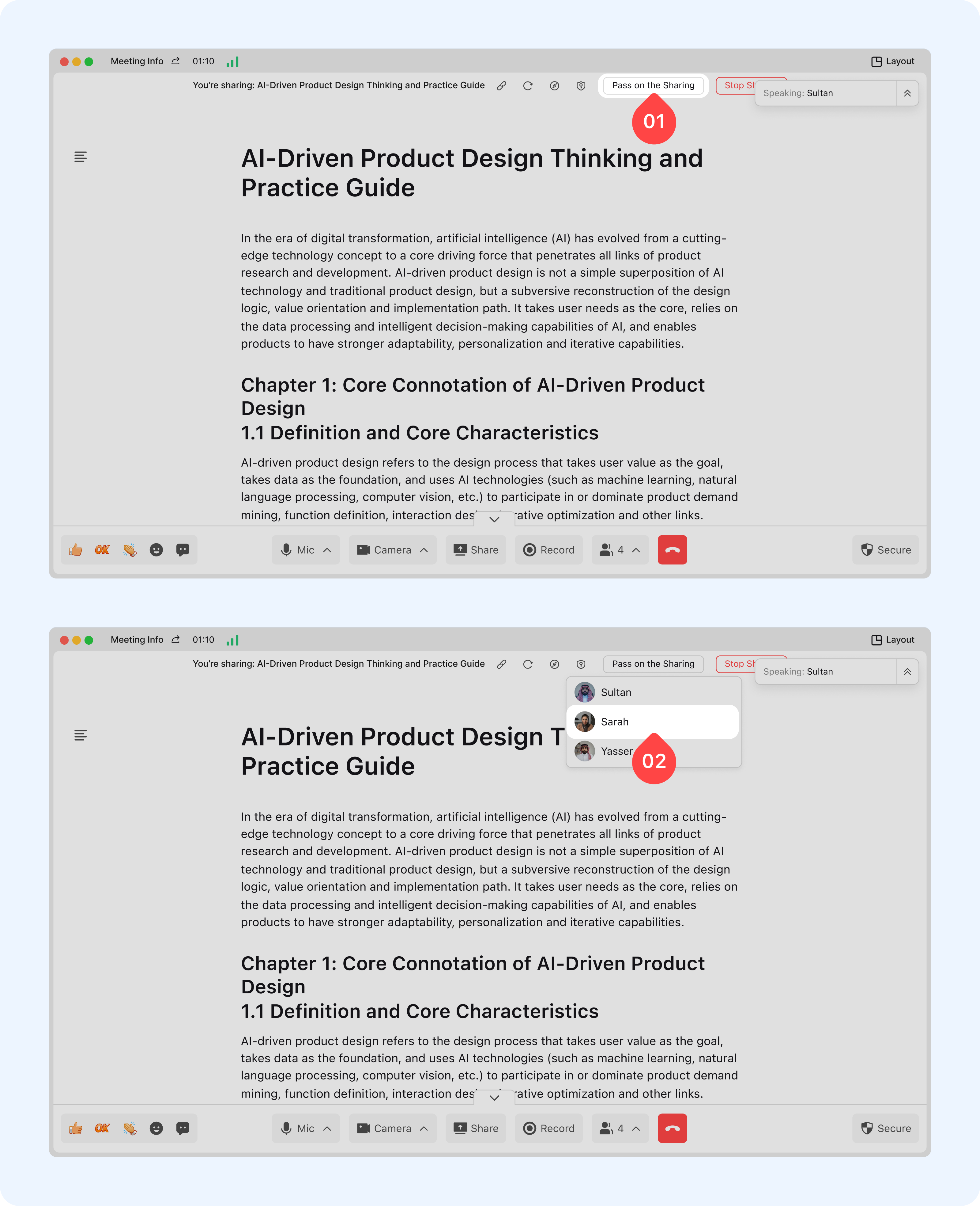
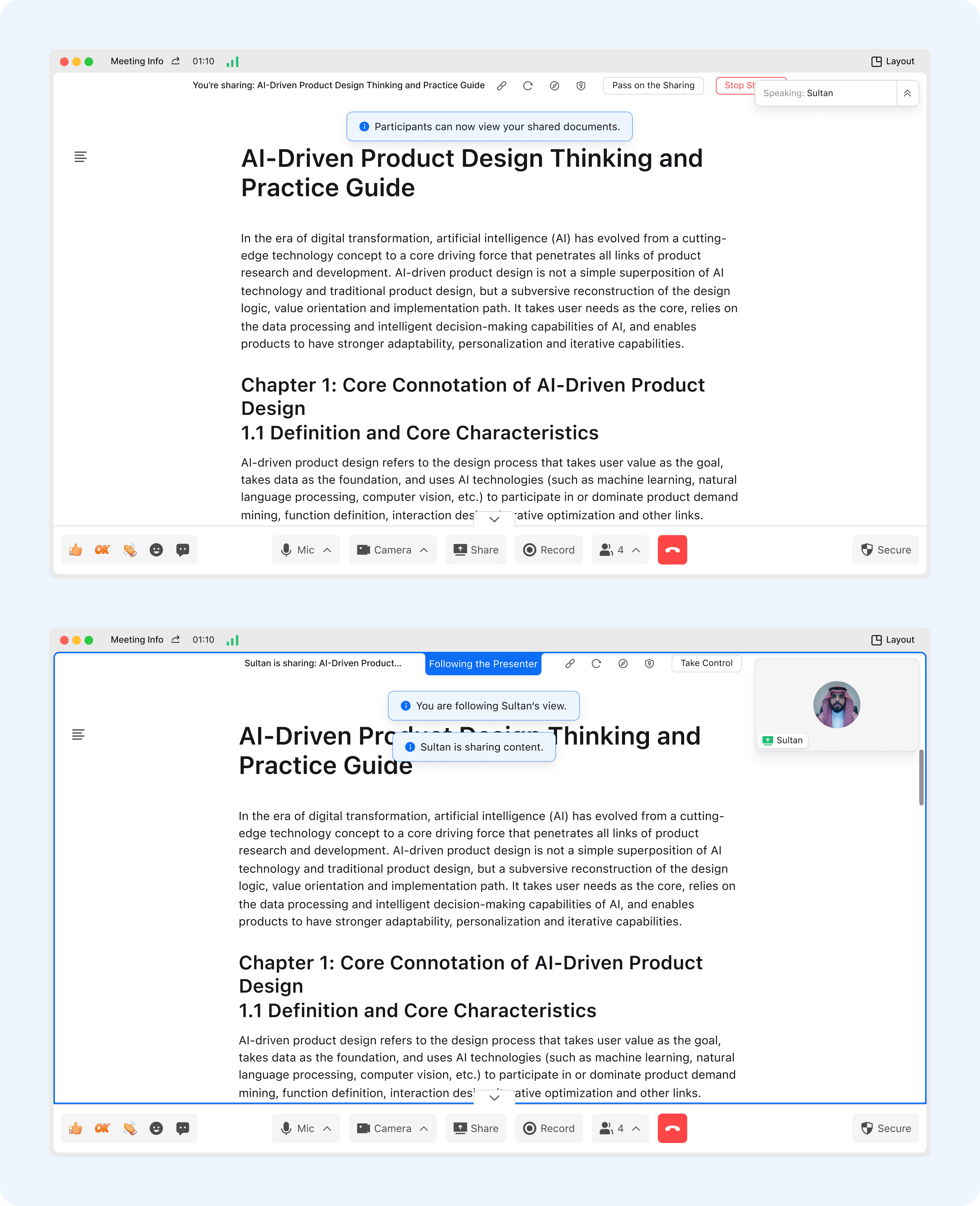
Transfer Sharing Permission: Click [Pass on the Sharing] above the document to proactively assign sharing permission to a specified participant.
After transferring, the recipient becomes the new sharer, and other participants follow their progress automatically.
Control sharing progress: Scroll or click to navigate through the document, and all participants in "following" mode will view the corresponding content in real time.
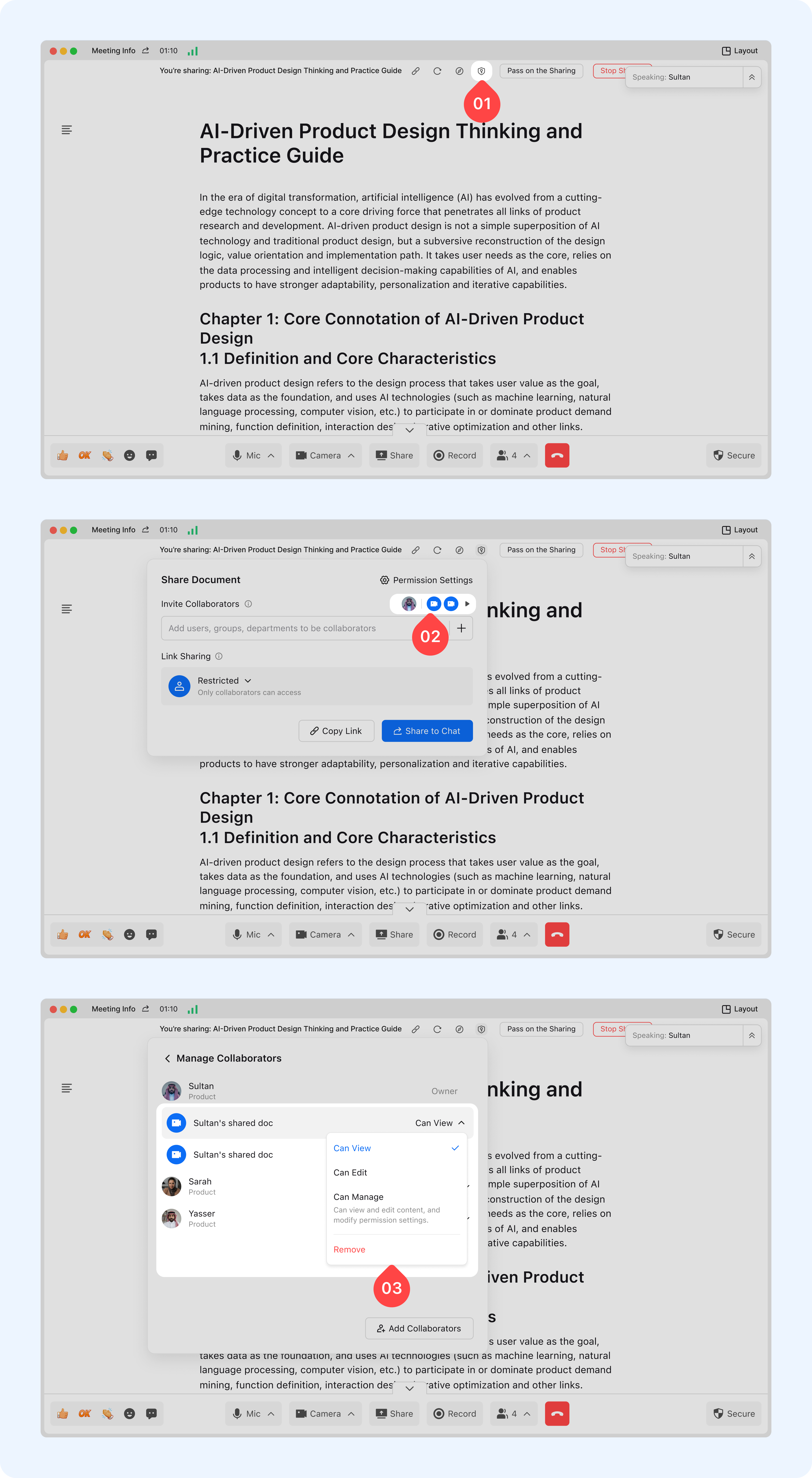
Set Document Permissions: Click [Set Doc Permissions] in the document toolbar to assign permissions to participants (options include "View Only" and "Editable"). Changes take effect immediately.
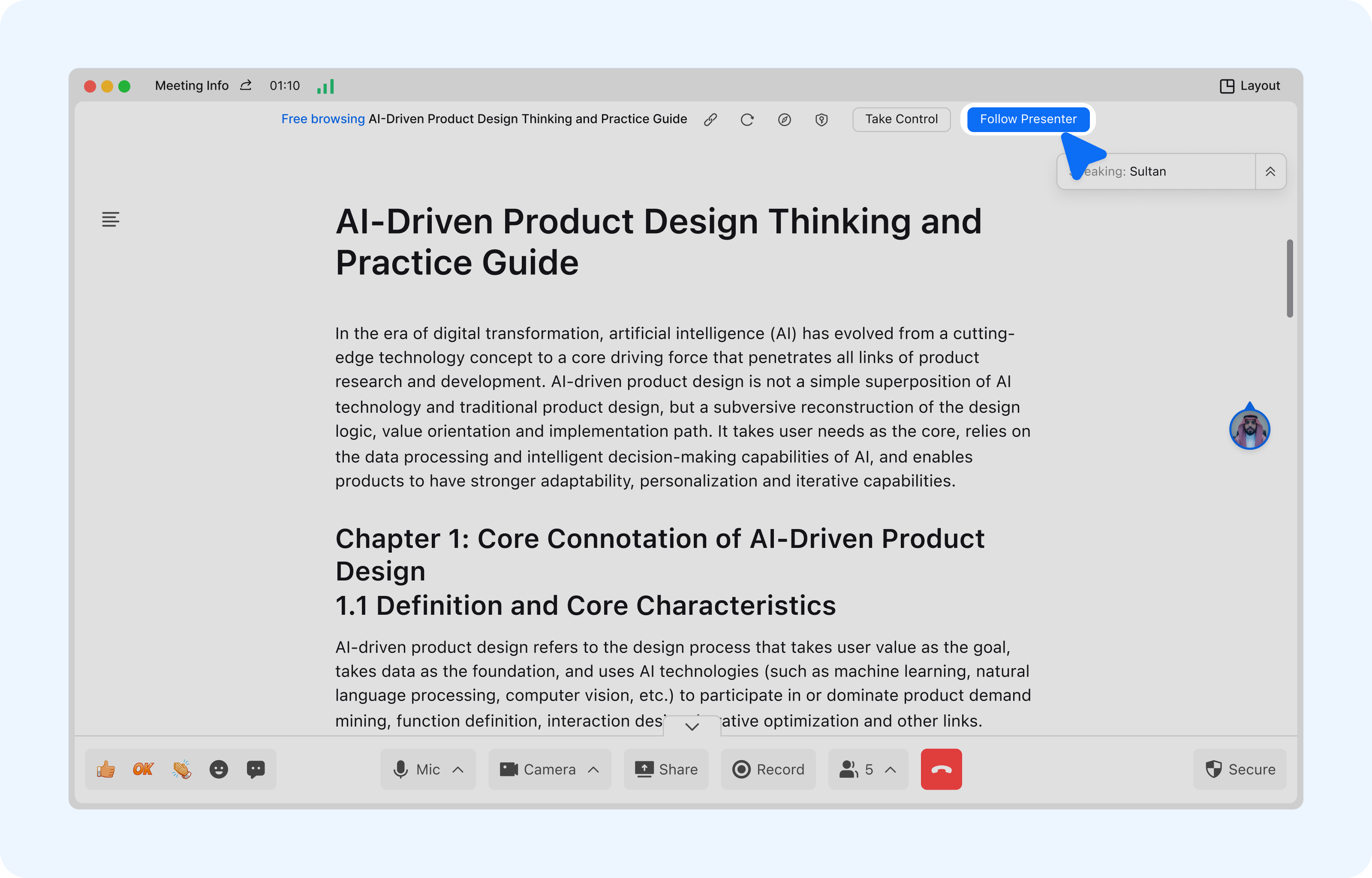
Switch Browsing Mode: By default, the document follows the sharer’s progress. Double-click the document area or swipe the screen to switch to [Free browsing] for independent navigation. Click [Follow Presenter] to resume synchronized viewing.
Copy Doc Link: Click the Copy Doc Link icon in the document toolbar to quickly copy the link of the currently shared document.
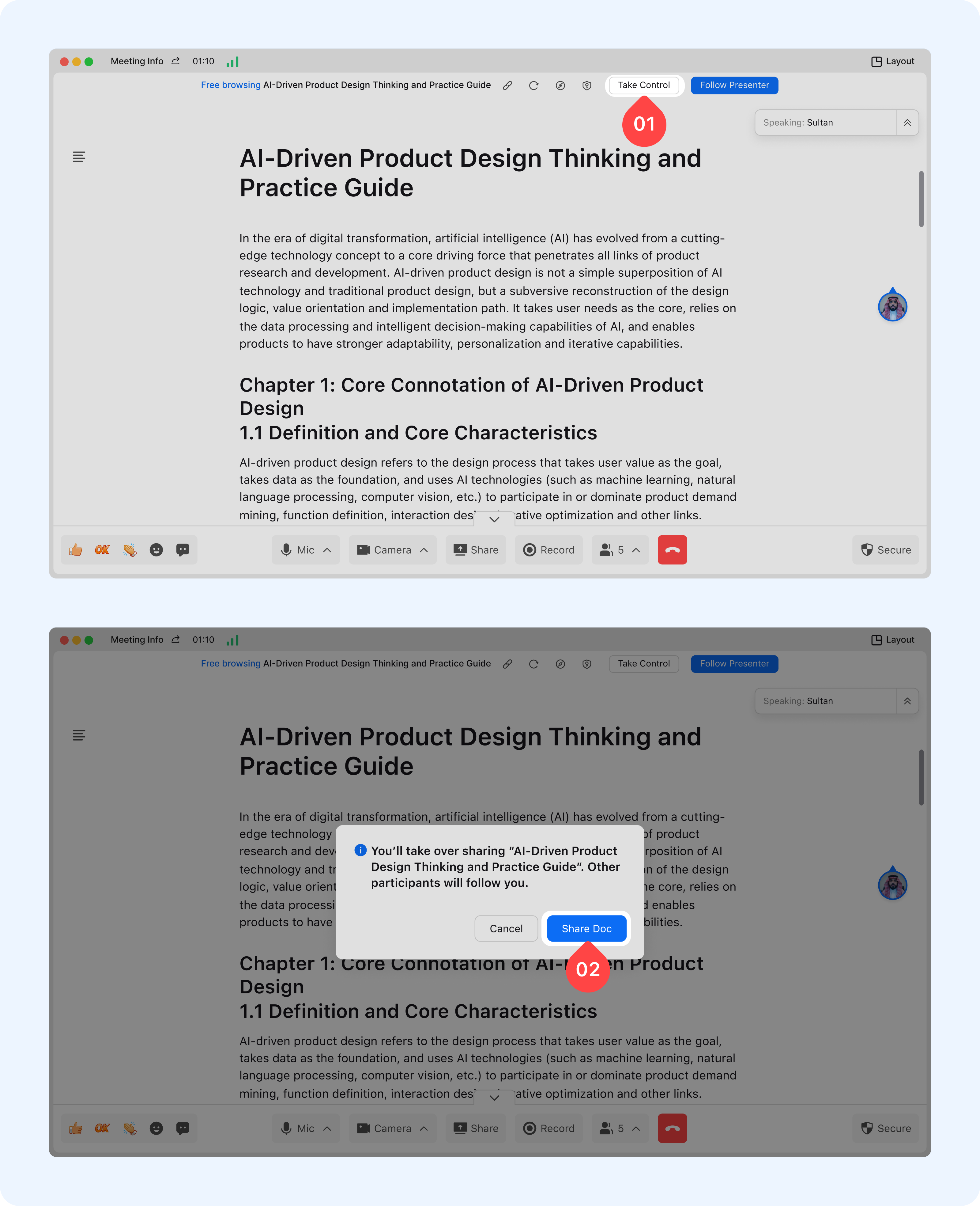
Take control of sharing: Click the [Take Control] button above the document, and after confirming, you become the new sharer.