
English (EN)
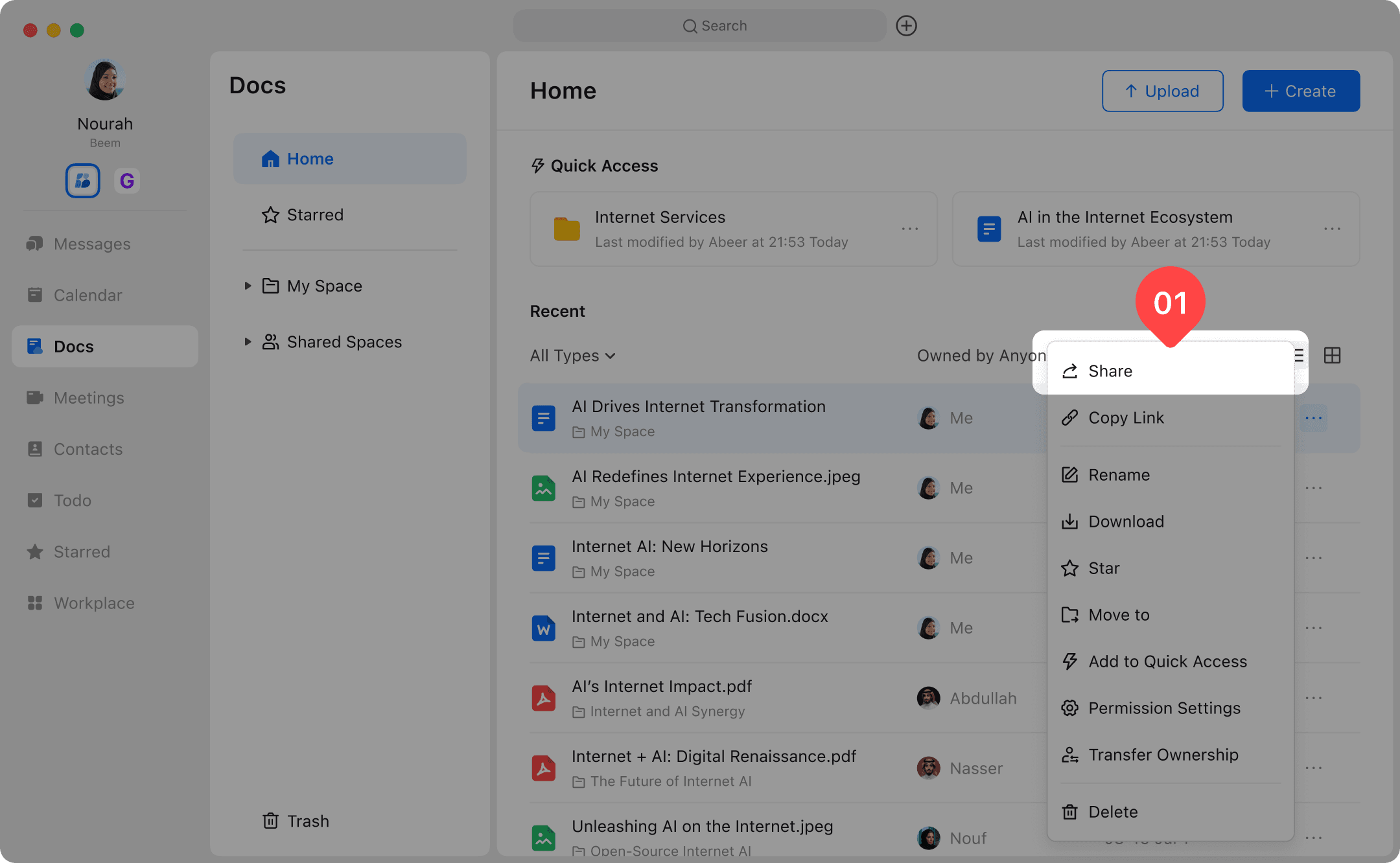
العربيةOption1: In the Docs list, click "..." menu and select the Share button to open the share panel.
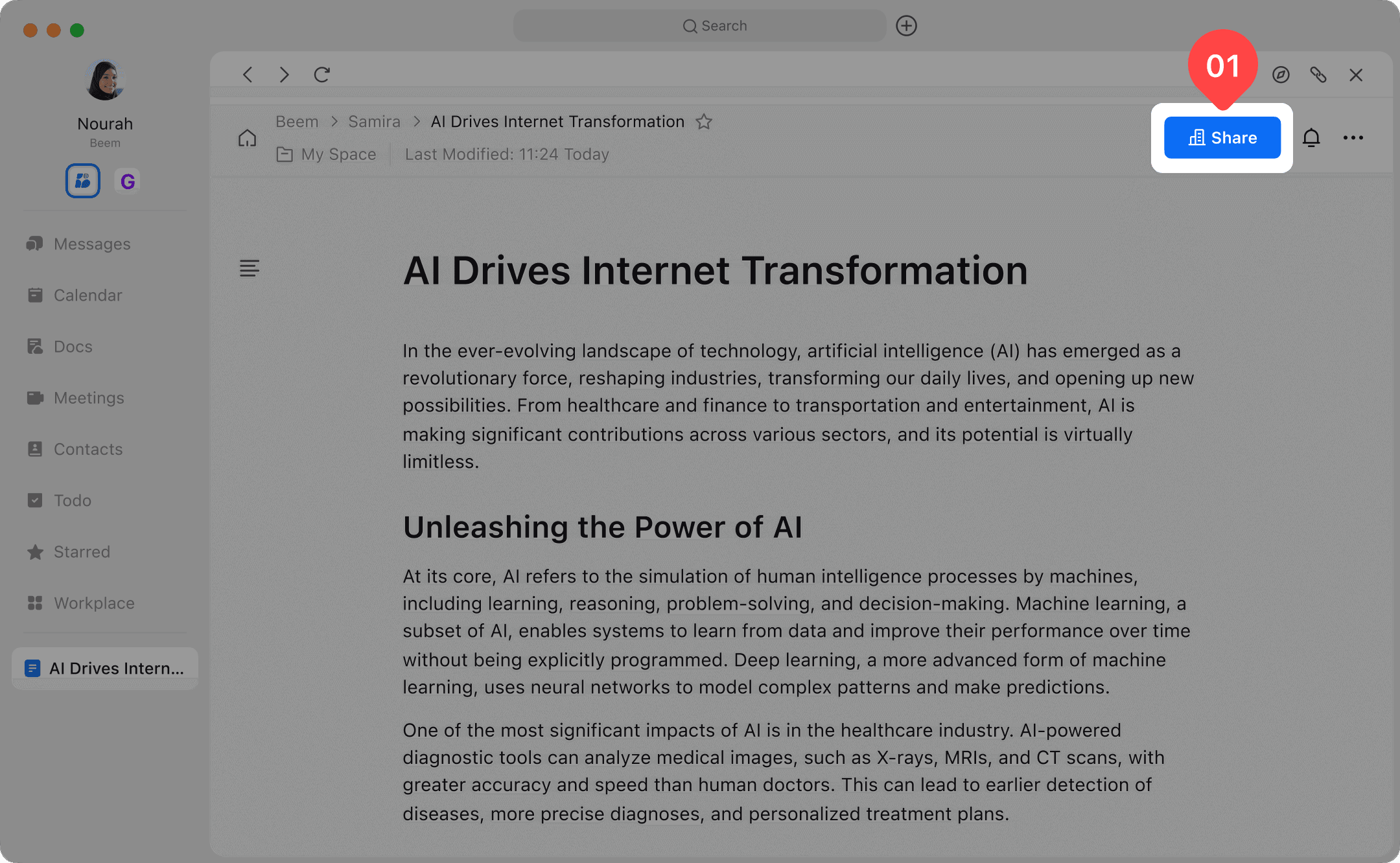
Option2: In the document details page, click the Share button to expand the share panel.
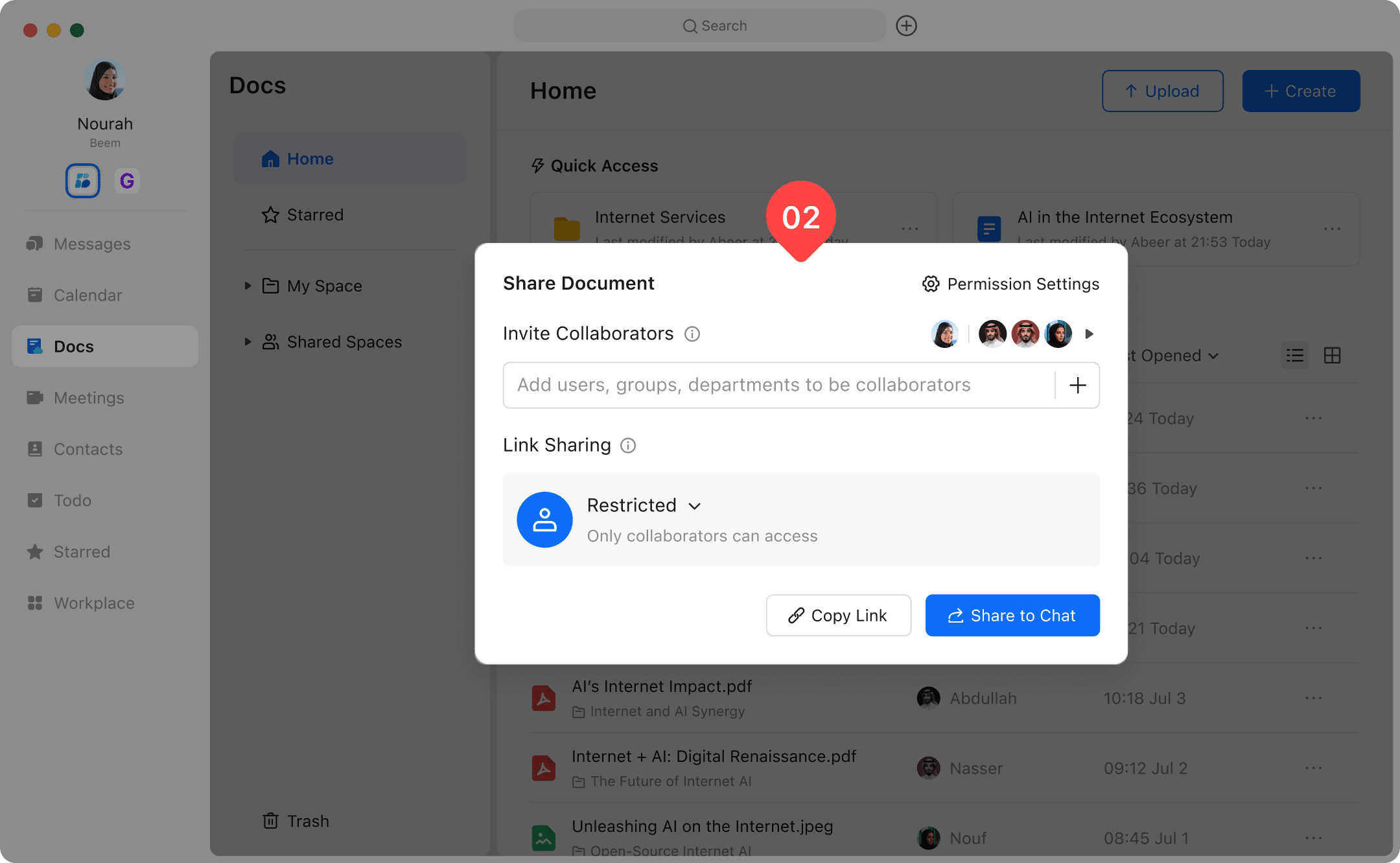
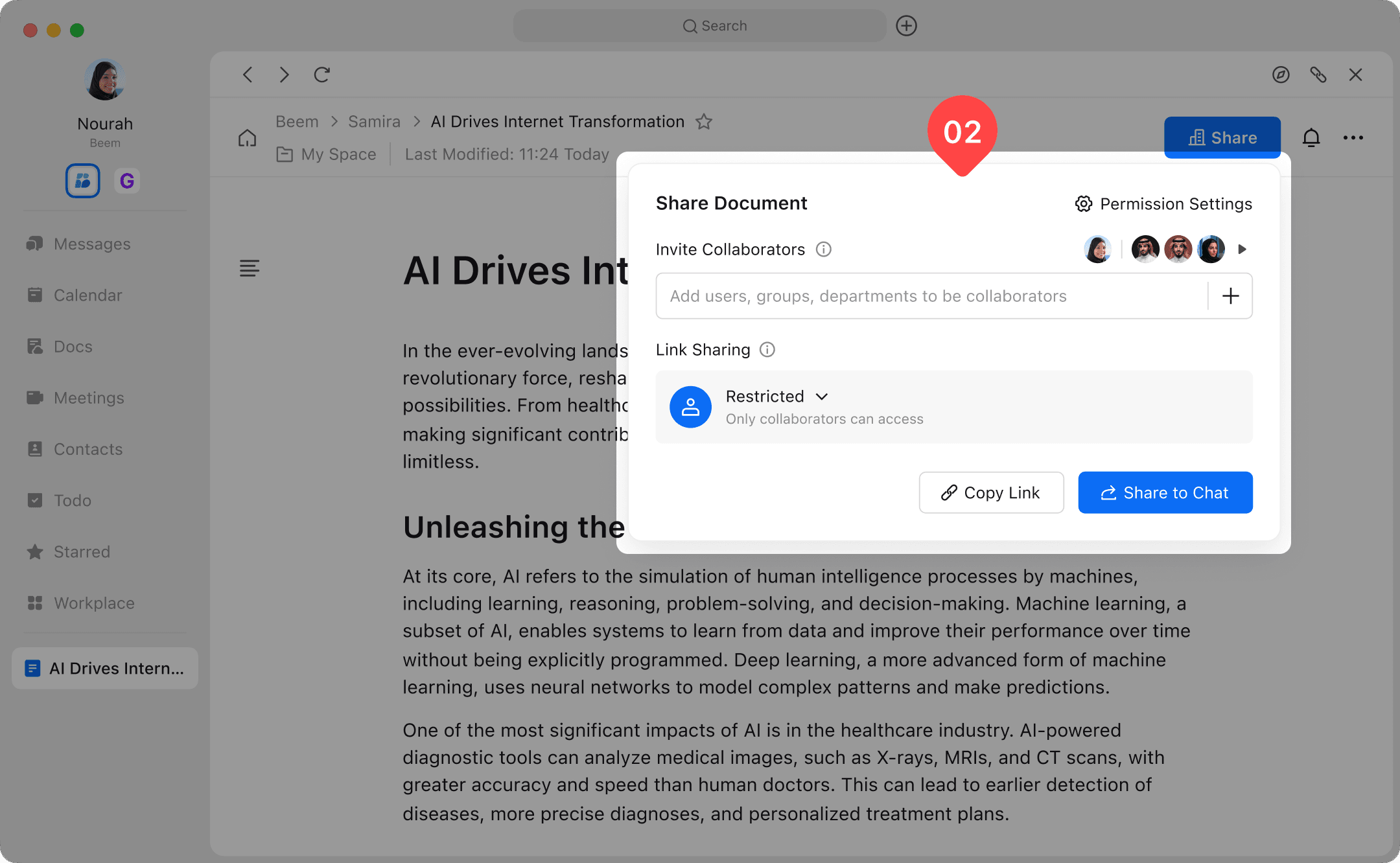
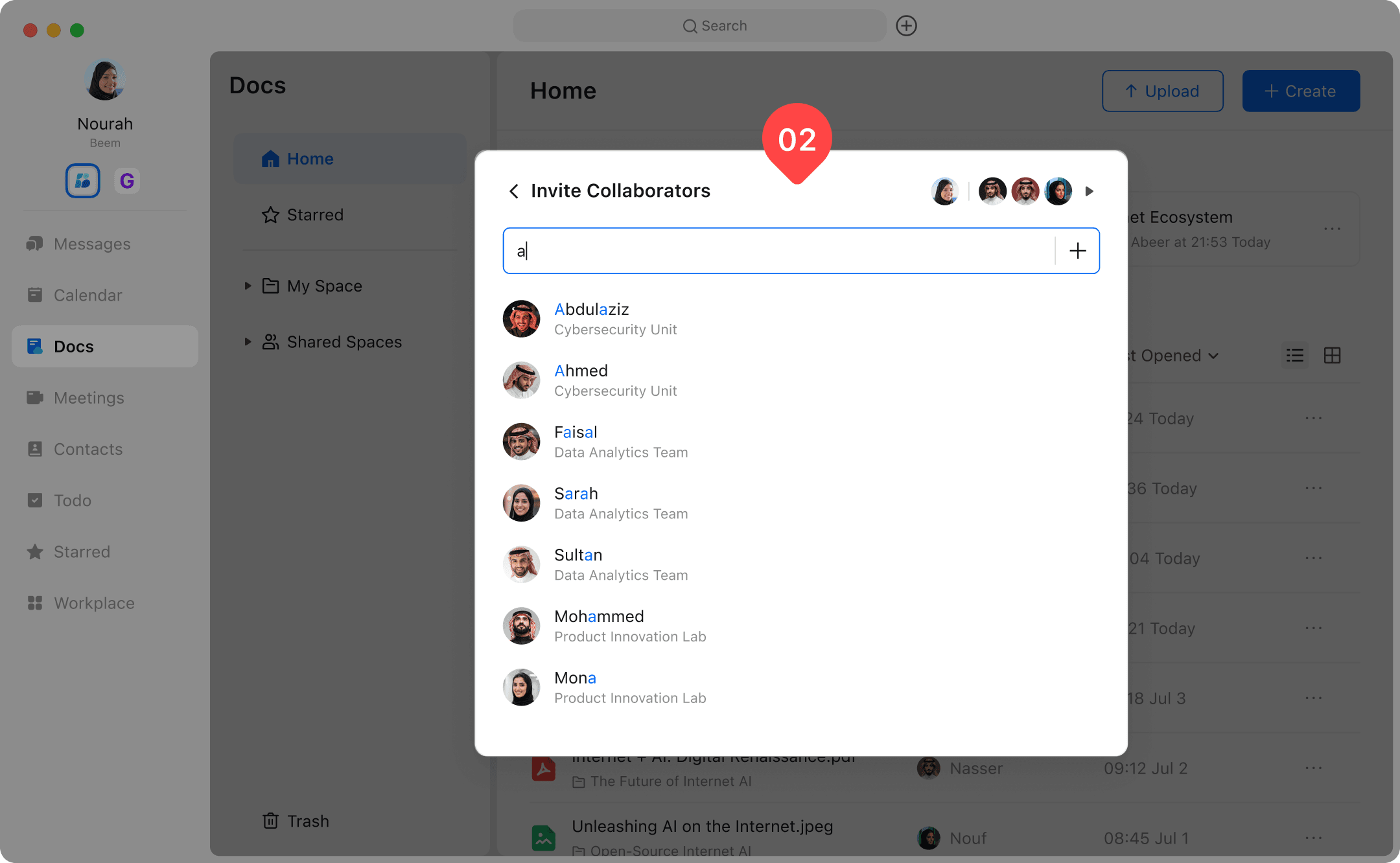
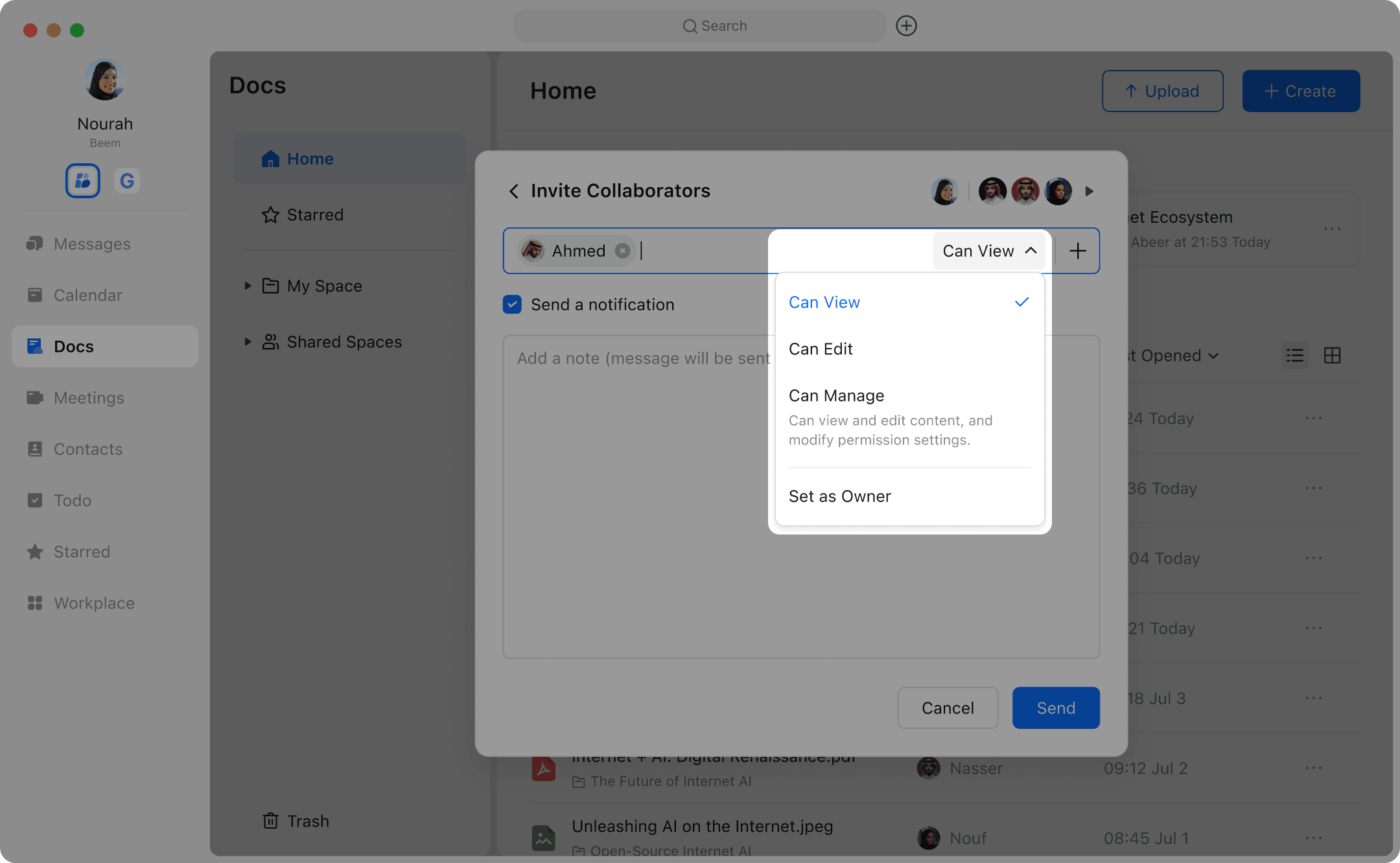
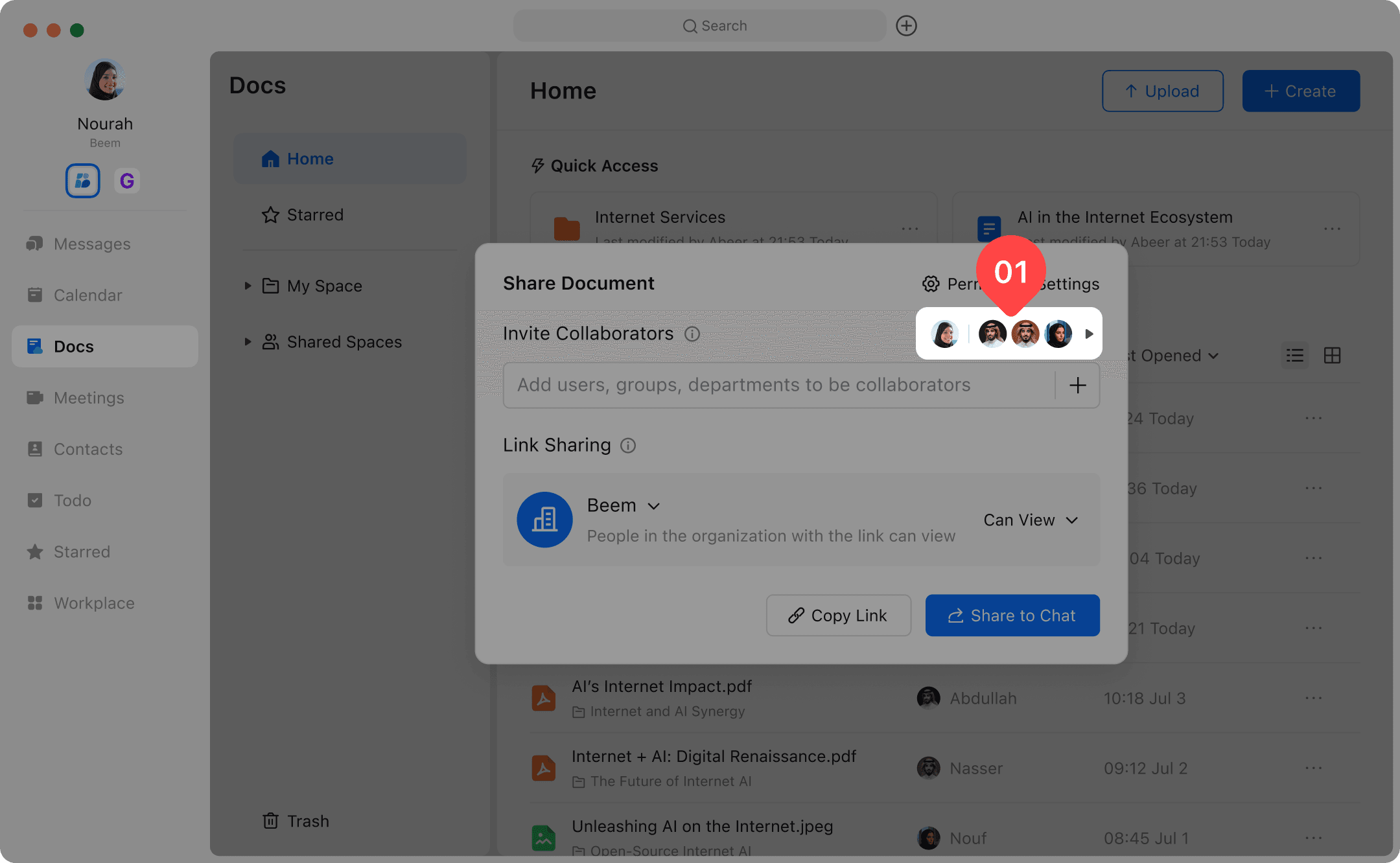
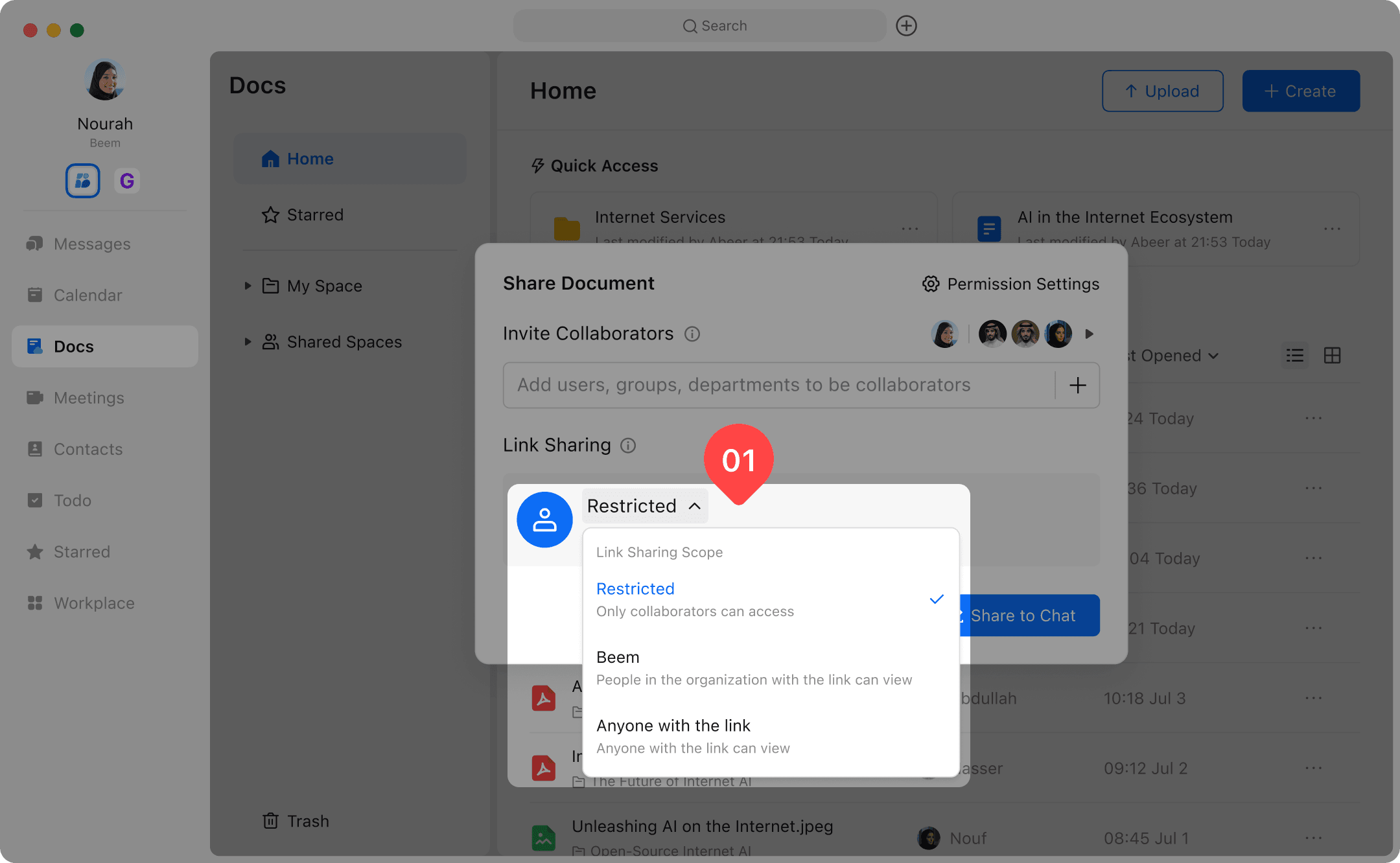
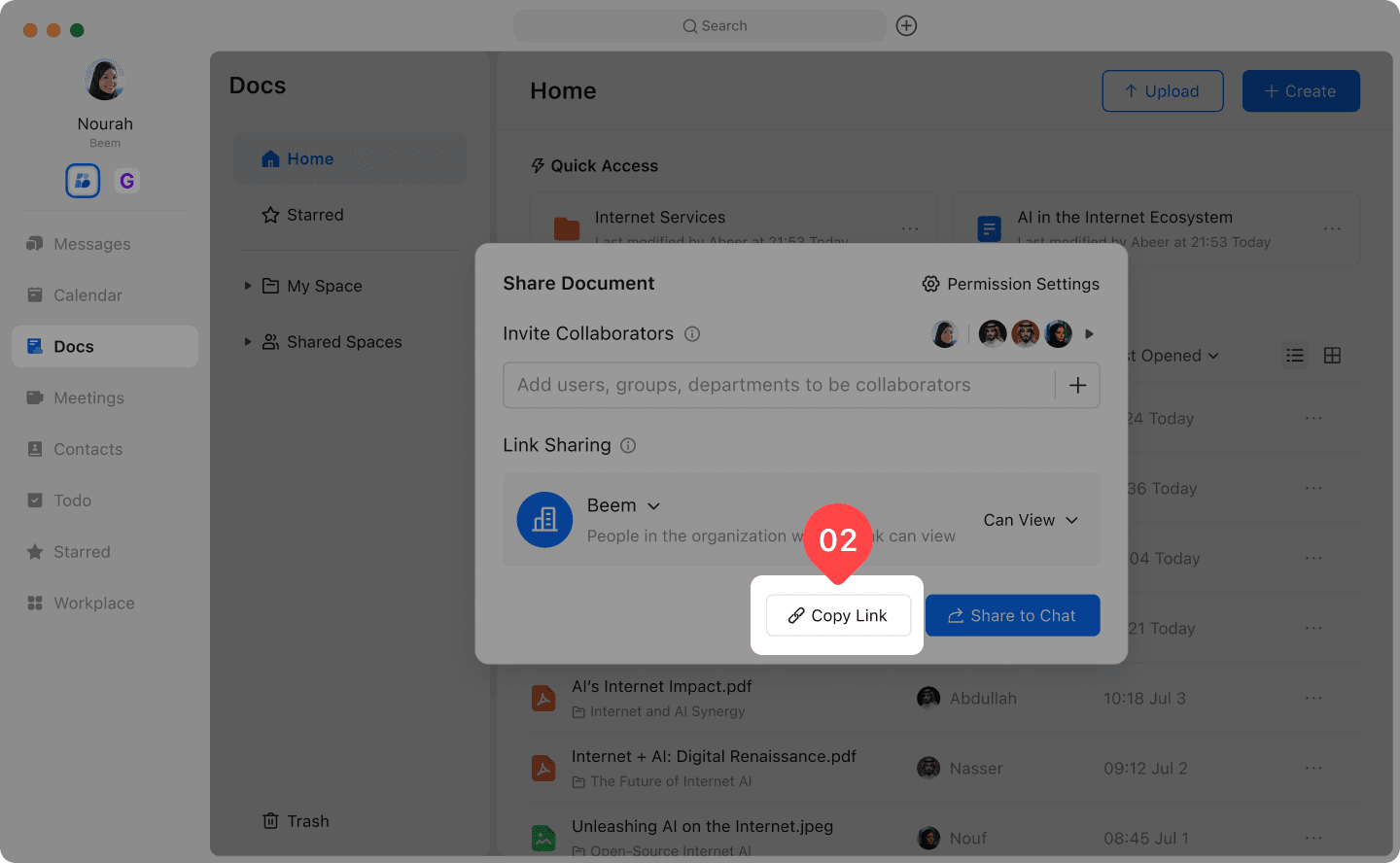
If you have manage permissions, you can adjust the link sharing scope by setting it to either Accessible within the organization or Anyone with the link.
After setting the link sharing option, you can click Copy Link to share it with others.
| Set the link sharing scope on the left | Set permissions on the right | Instructions |
|---|---|---|
| Not enabled | Setting is not supported | Link sharing is not enabled. Only collaborators in the collaborator list can access the current content, and collaborator permissions need to be set in the collaborator list. |
| within the organization | readable Editable | Any user within the organization who has obtained a link can access the current content. You can grant view permission or edit permission to members within the organization. |
| People who obtain links on the Internet | readable Editable | Any user who obtains a link on the Internet can access the current content. You can grant Internet users view permission or edit permission. Selecting "Anyone with the link on the Internet can view and edit" means that this document has been shared outside the organization, and the External label will appear to the right of the name. |
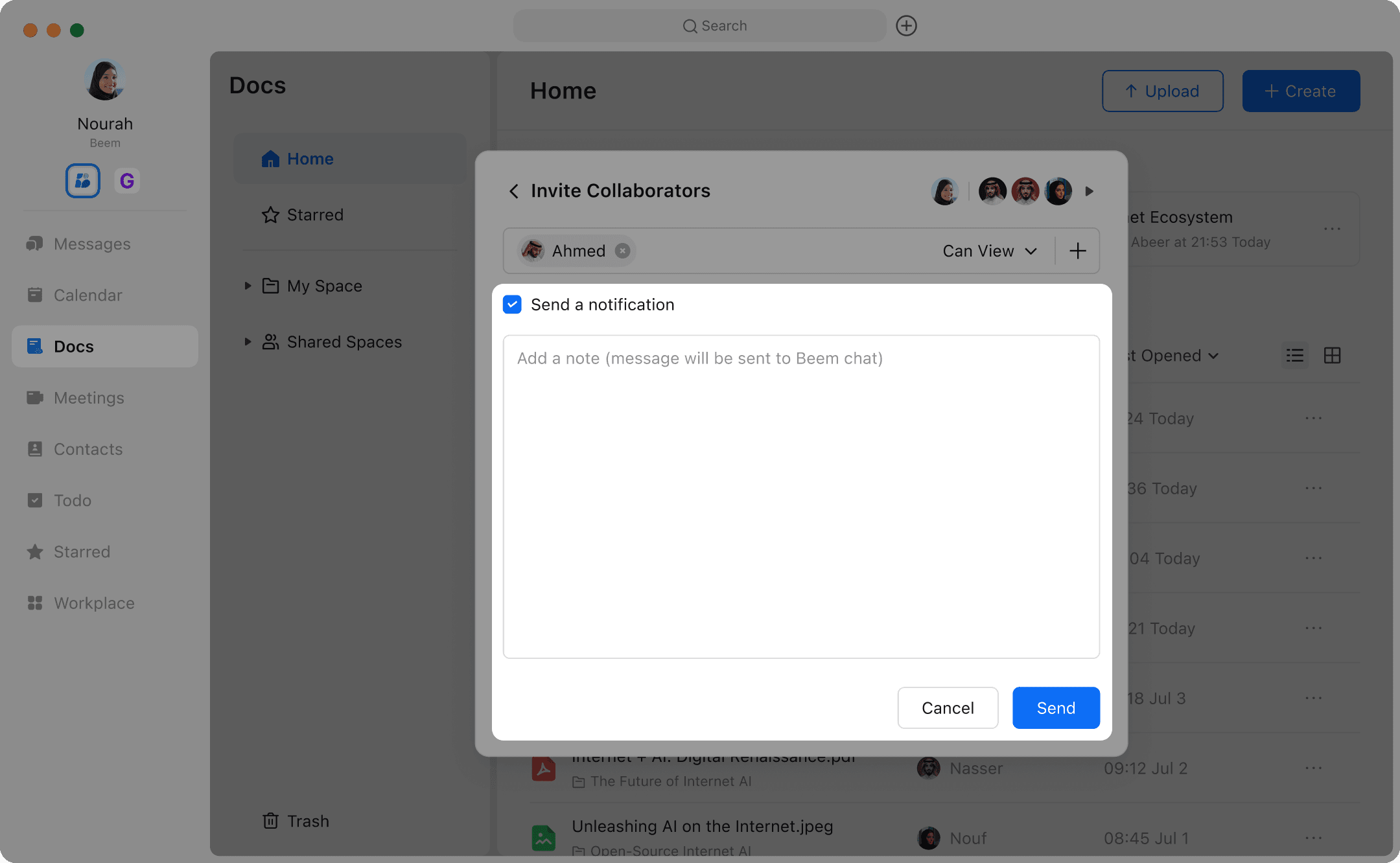
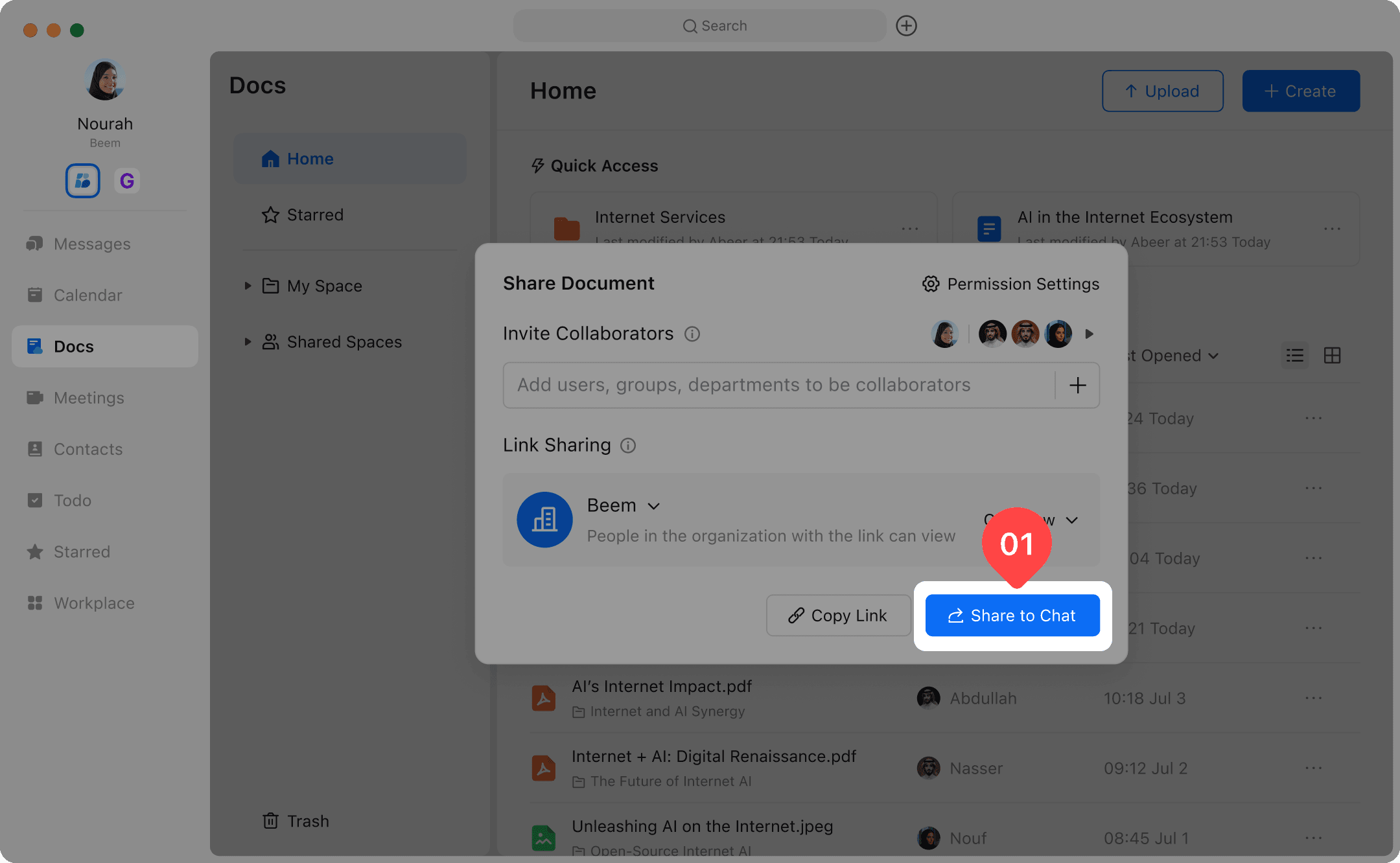
You can share documents or folders with others using the Share to Chat feature. If you have sharing permissions for the document or folder, you can directly send it to specific users, groups, or departments, who will then receive access to the document.
If you select the option to send a notification, the recipients will also receive a link with the granted permissions.
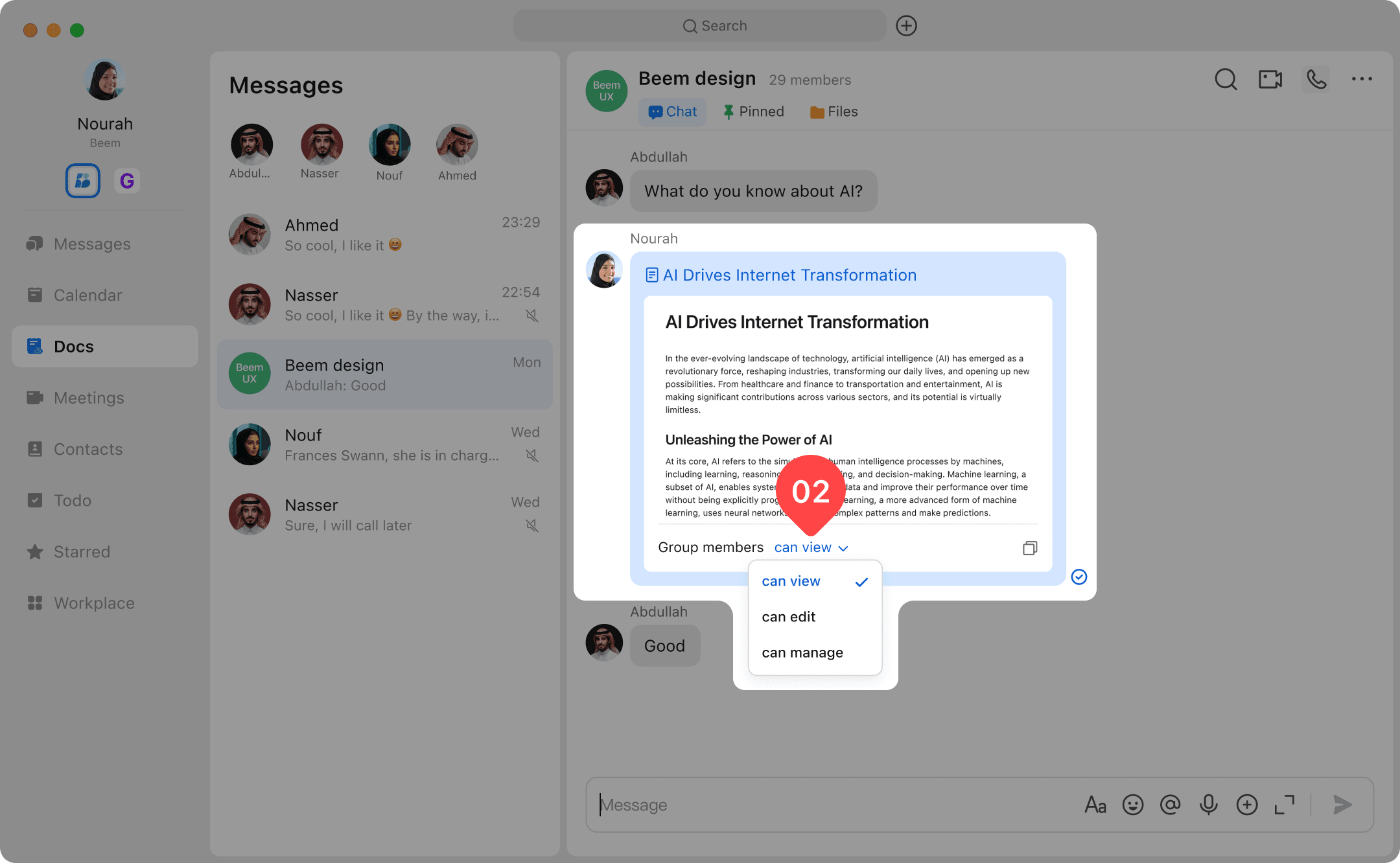
When sharing to users or groups, you can modify their permissions directly within the corresponding chat.
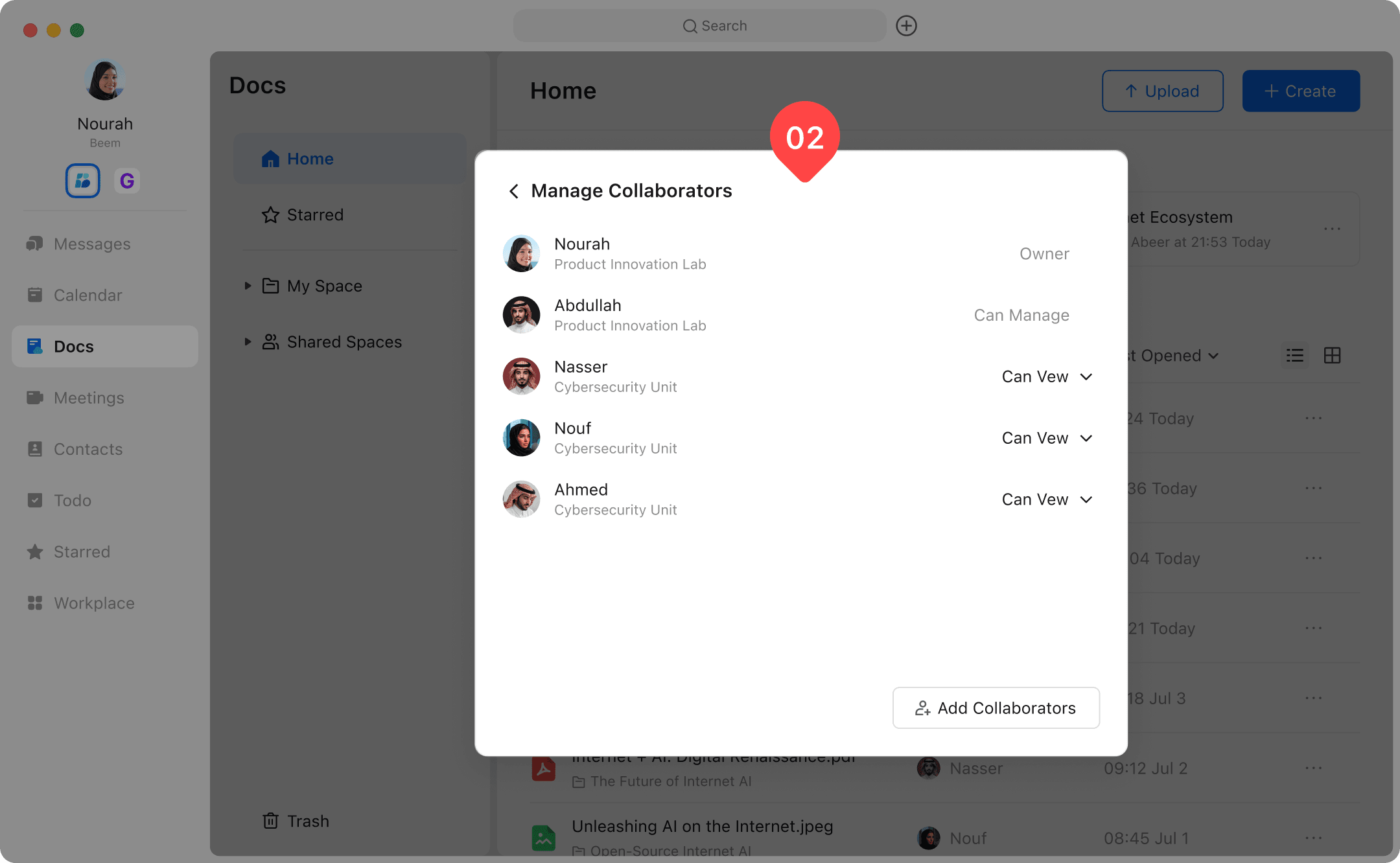
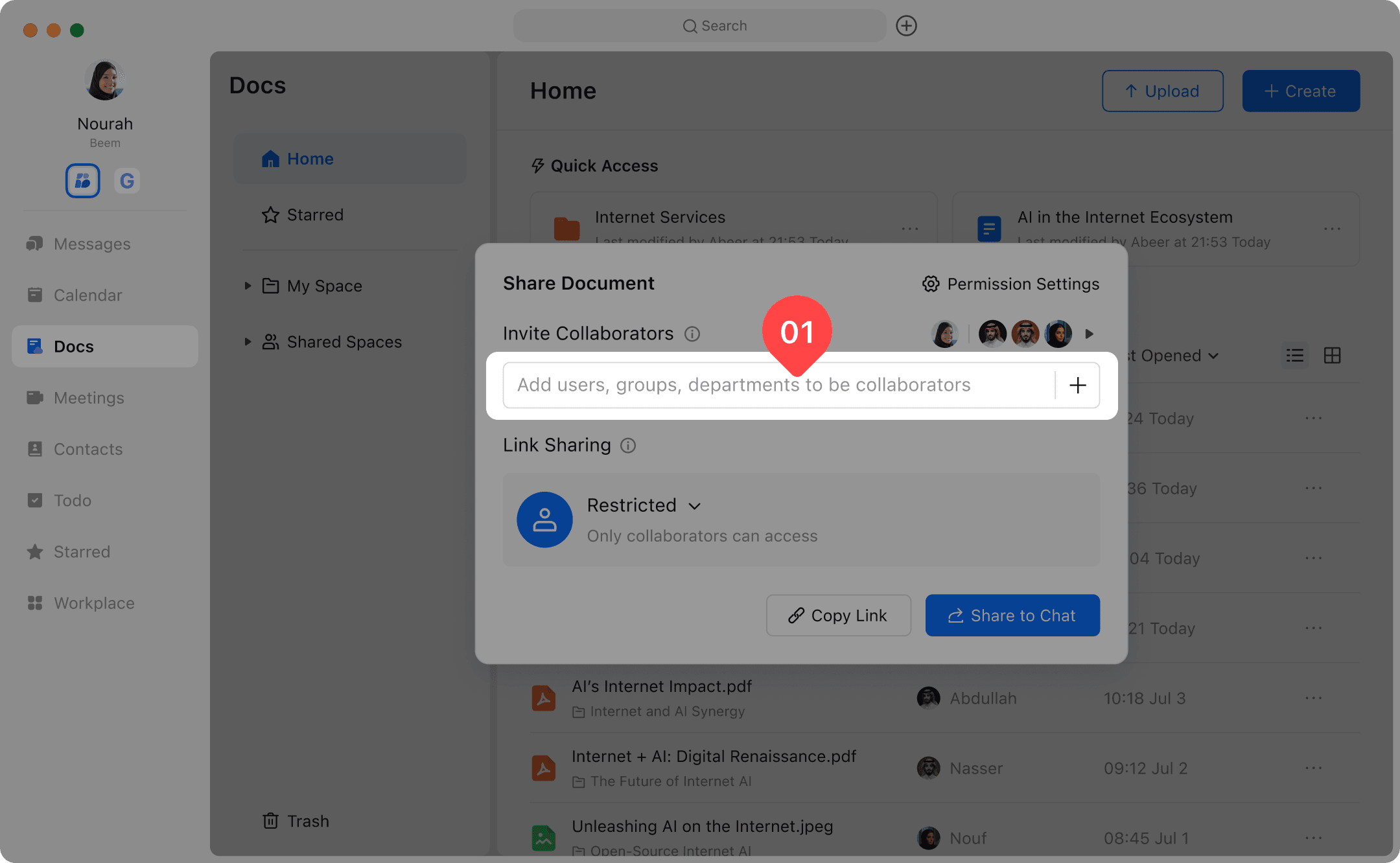
If you have permission to view, invite, and remove collaborators, you can click the collaborators section in the Share panel to access the collaborator management list.
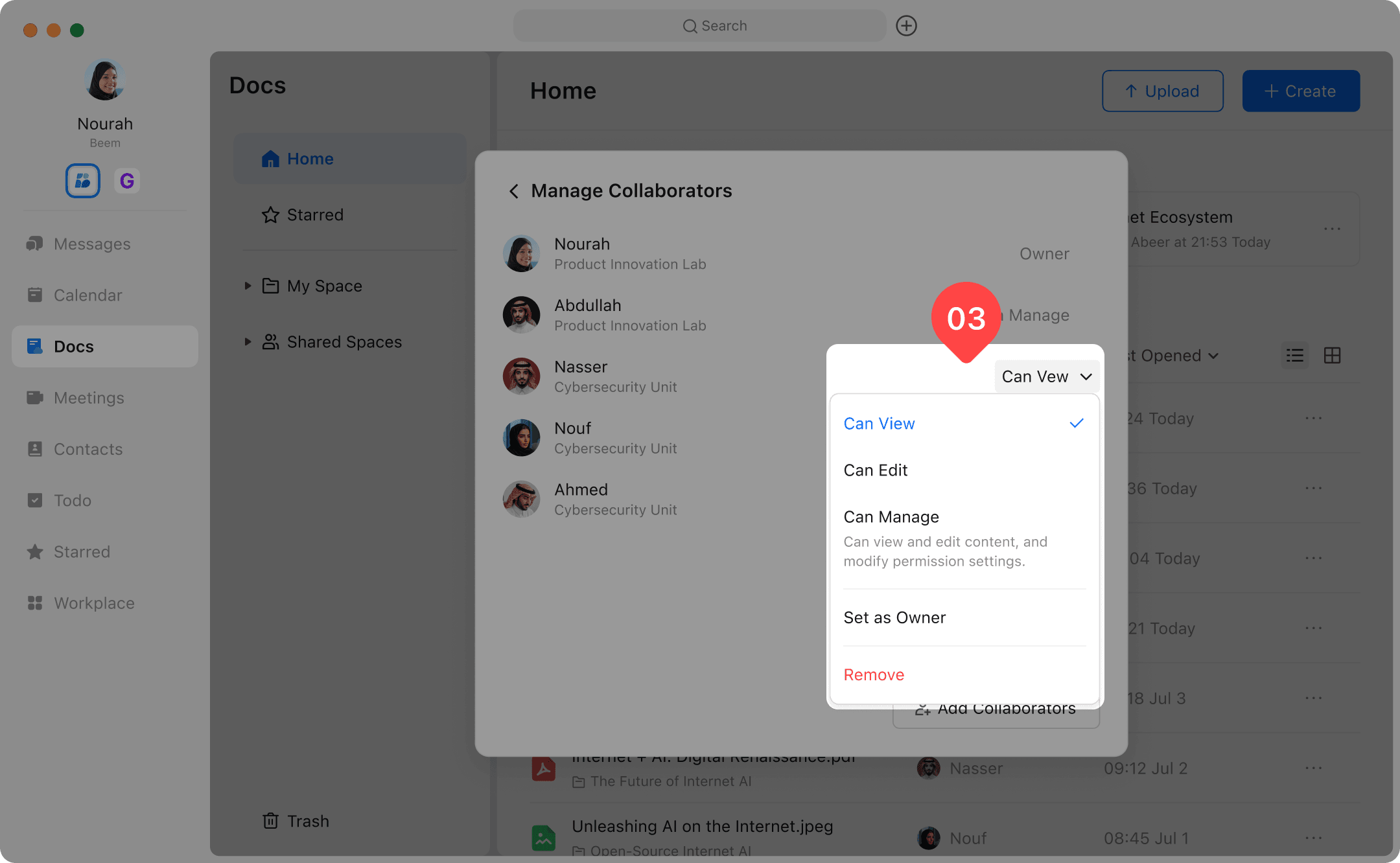
On this page, you can change collaborators’ permissions and remove collaborators; however, you can only modify the permissions of users at the same or lower permission level than yourself.