access_timeEstimated reading time for this article: 15 minutes
Beem Calendar enables you to seamlessly integrate your Exchange Calendar, allowing you to manage your meetings, schedules, and important events. This integration is especially useful for users who rely on Exchange for work scheduling while using Beem for communication and collaboration.
Follow the steps below to connect your Exchange account to Beem Calendar:
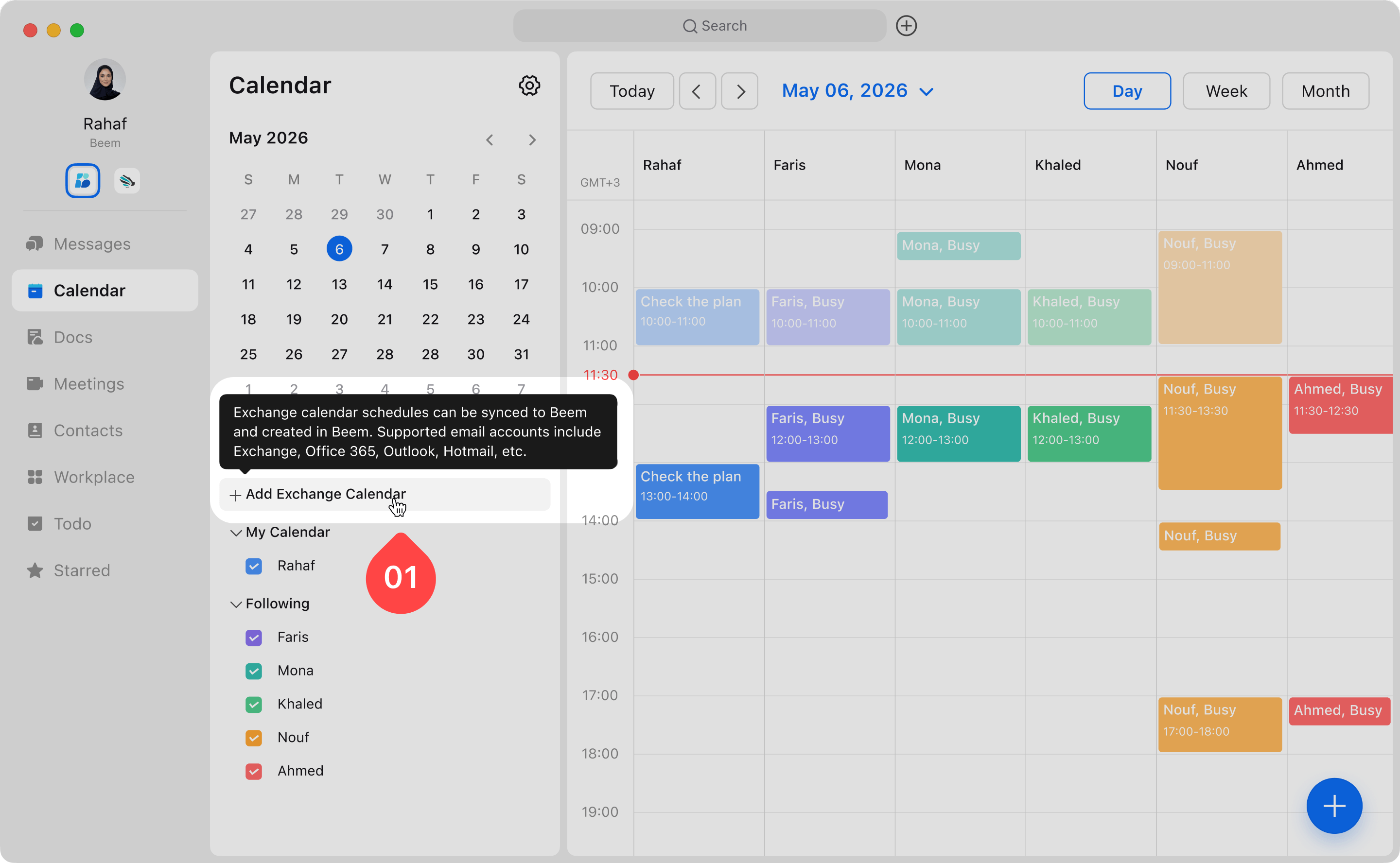
Navigate to Beem Calendar and click 'Add Exchange Calendar' to start the connection process.
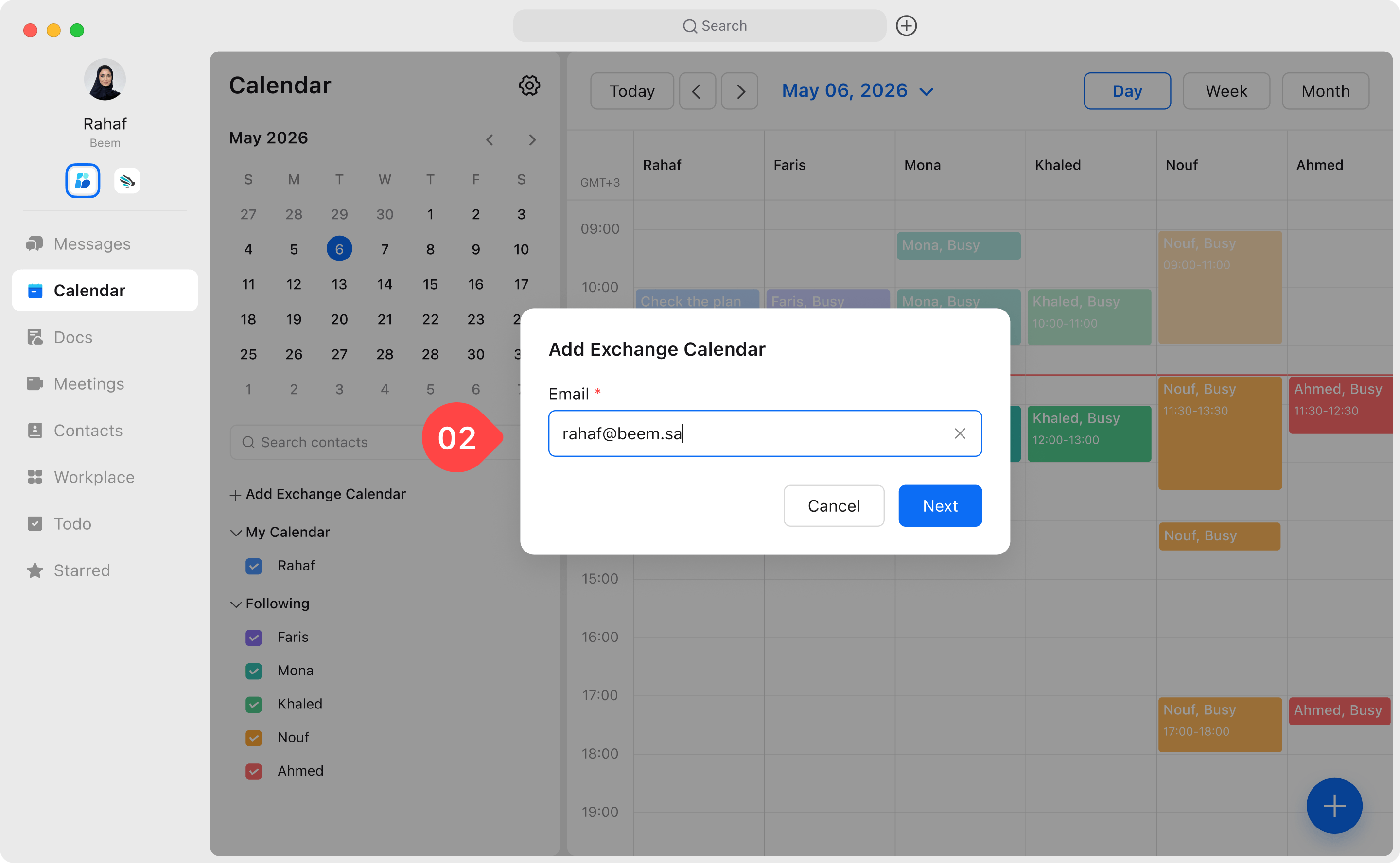
Enter your Microsoft work email address in the required field.
WARNING
Note: Make sure the email belongs to your organization, as personal accounts are not supported.
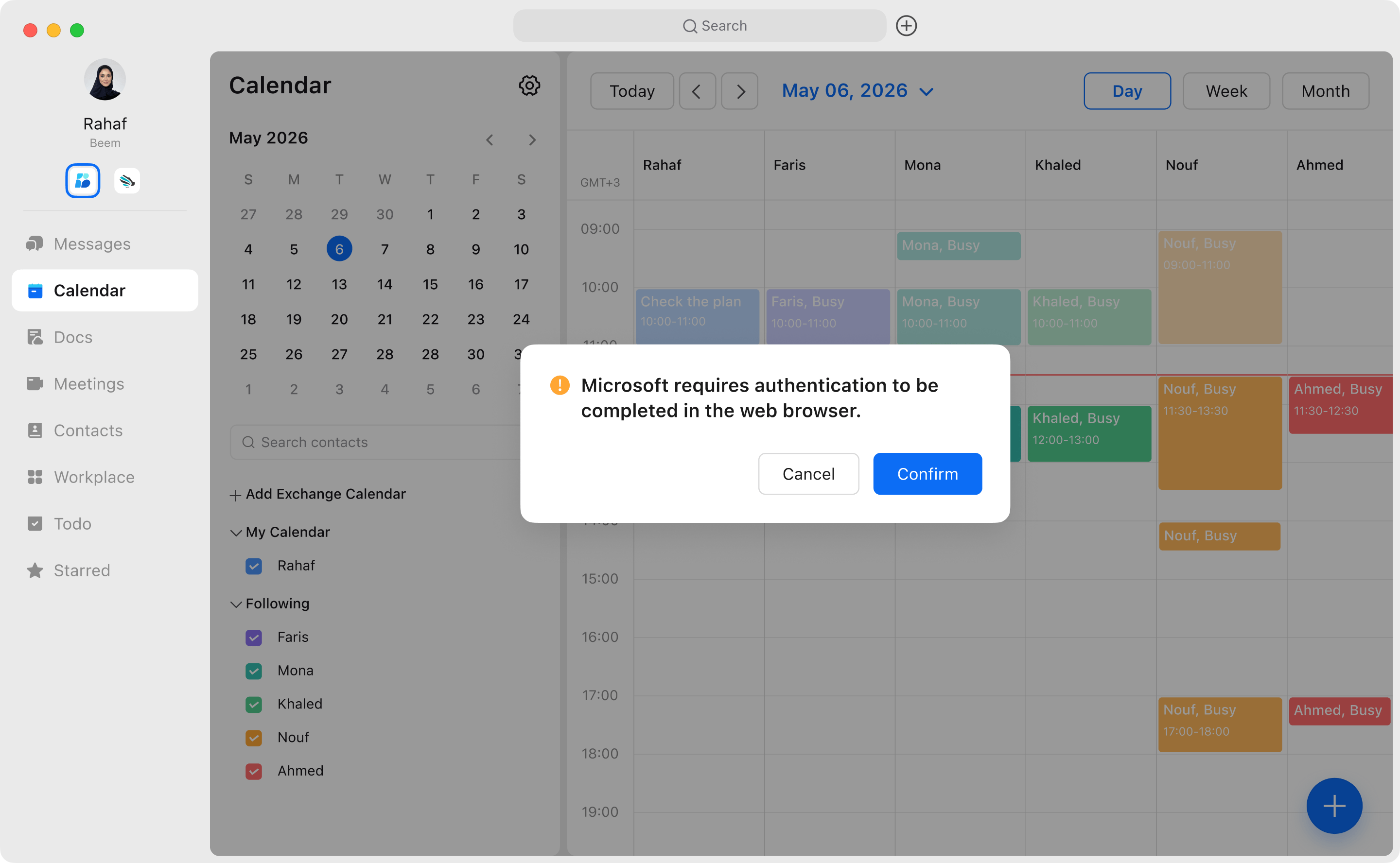
You will be automatically redirected to your default web browser to continue the authentication process.
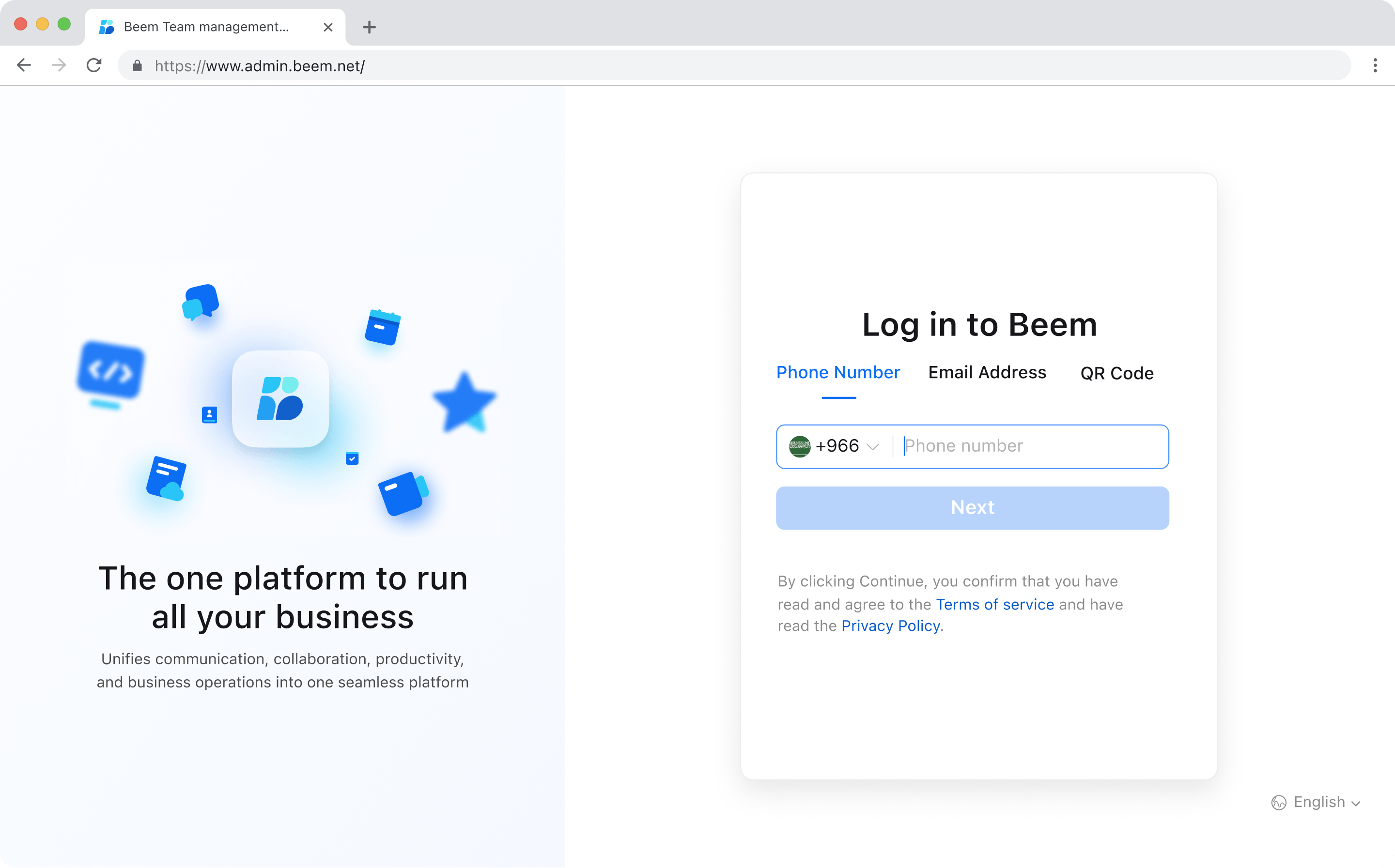
If you are not already logged into Beem on the browser, you will be prompted to log in.
It is essential that the Beem account used in the browser matches the one used in the app. Any mismatch between the accounts may cause the connection process to fail or prevent it from completing correctly within the organization.
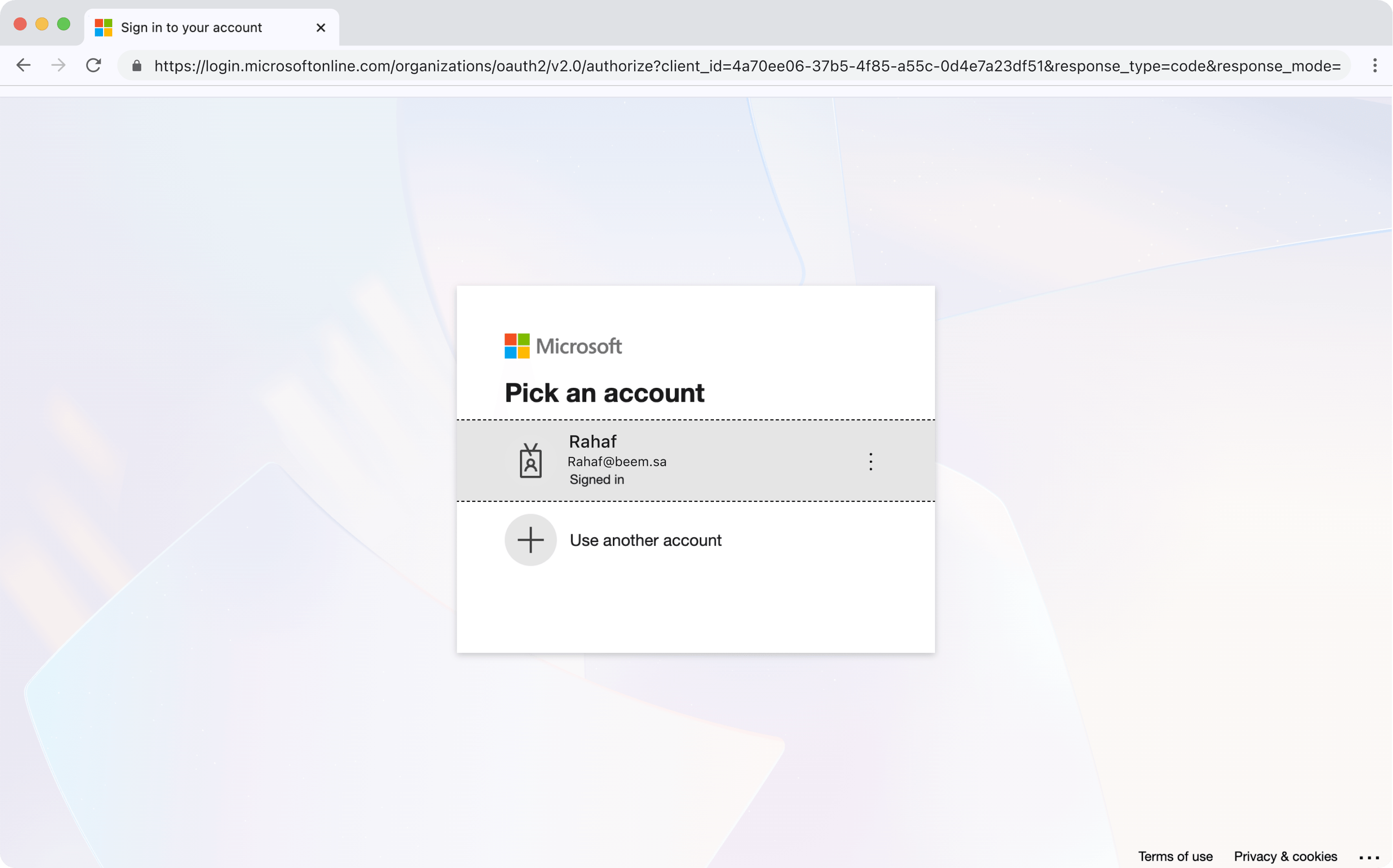
After verifying your Beem identity, you will be redirected to the Microsoft login page to enter your Exchange credentials and grant the required permissions.
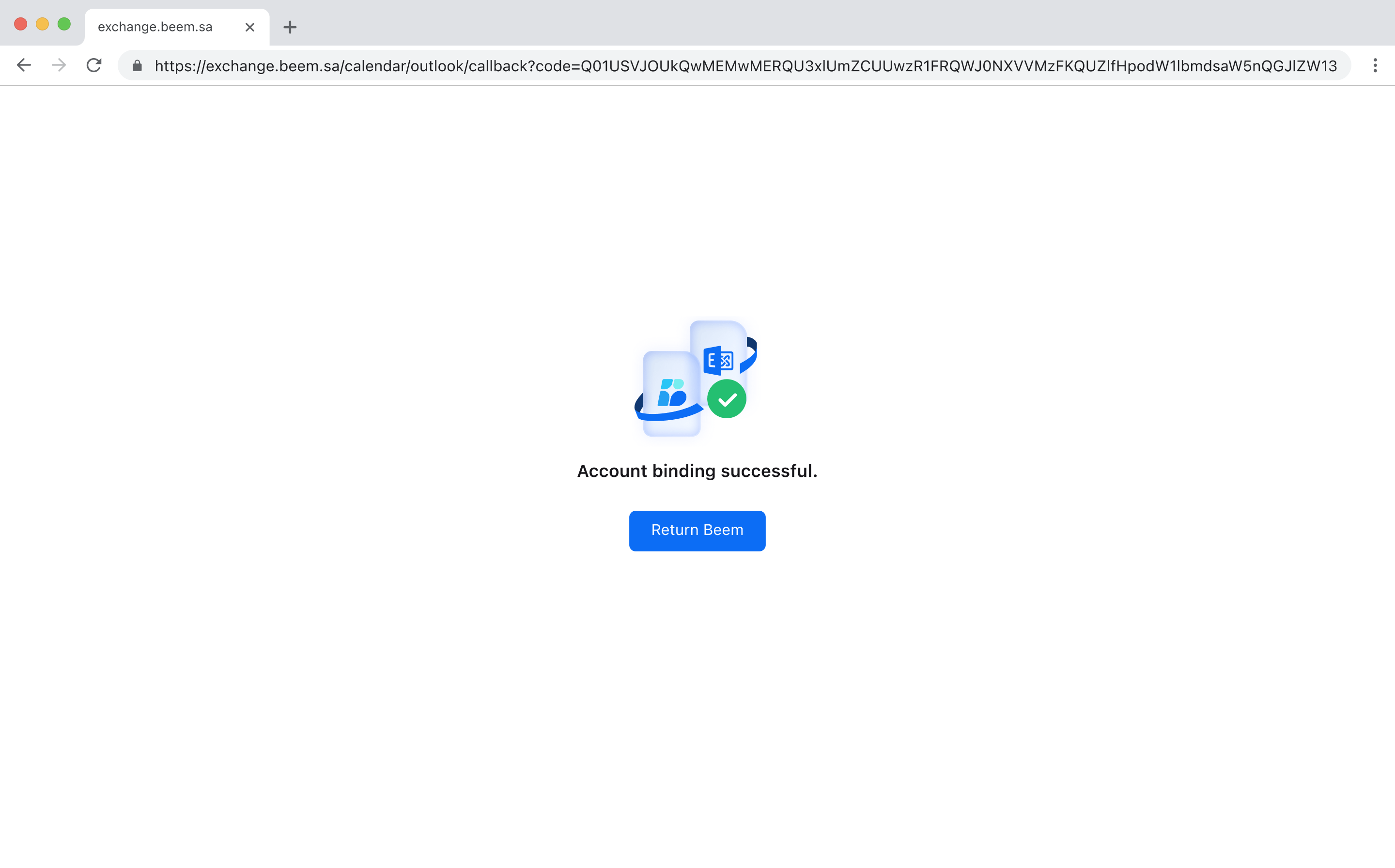
Once the process is completed successfully, a confirmation page will appear indicating that your Exchange Calendar has been connected.
Once your Exchange account is connected, you can start creating events directly from Beem and have them automatically synced to your Exchange Calendar.
Follow the steps below to create an Exchange event:
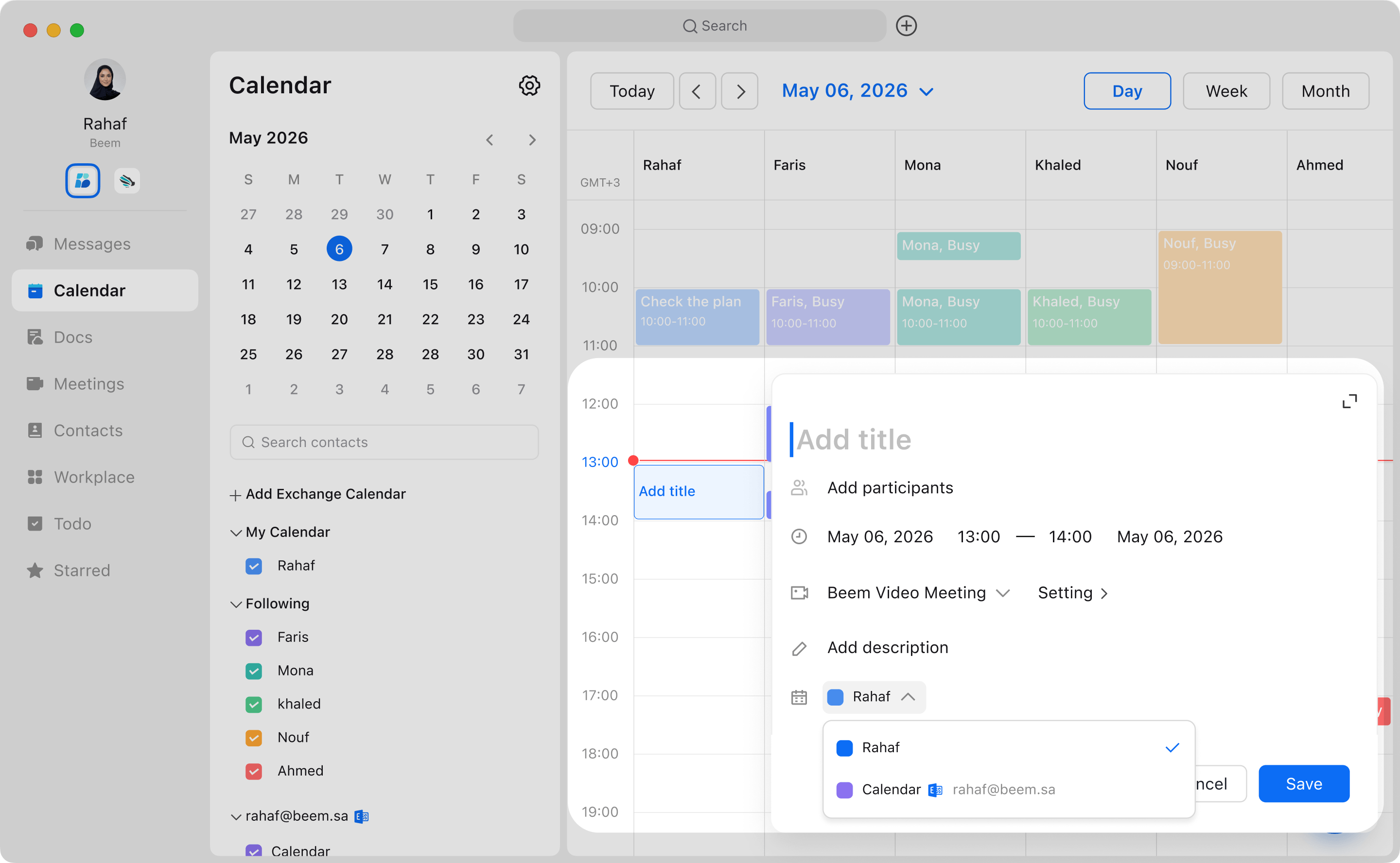
Open Beem Calendar and start creating a new event using your usual method.
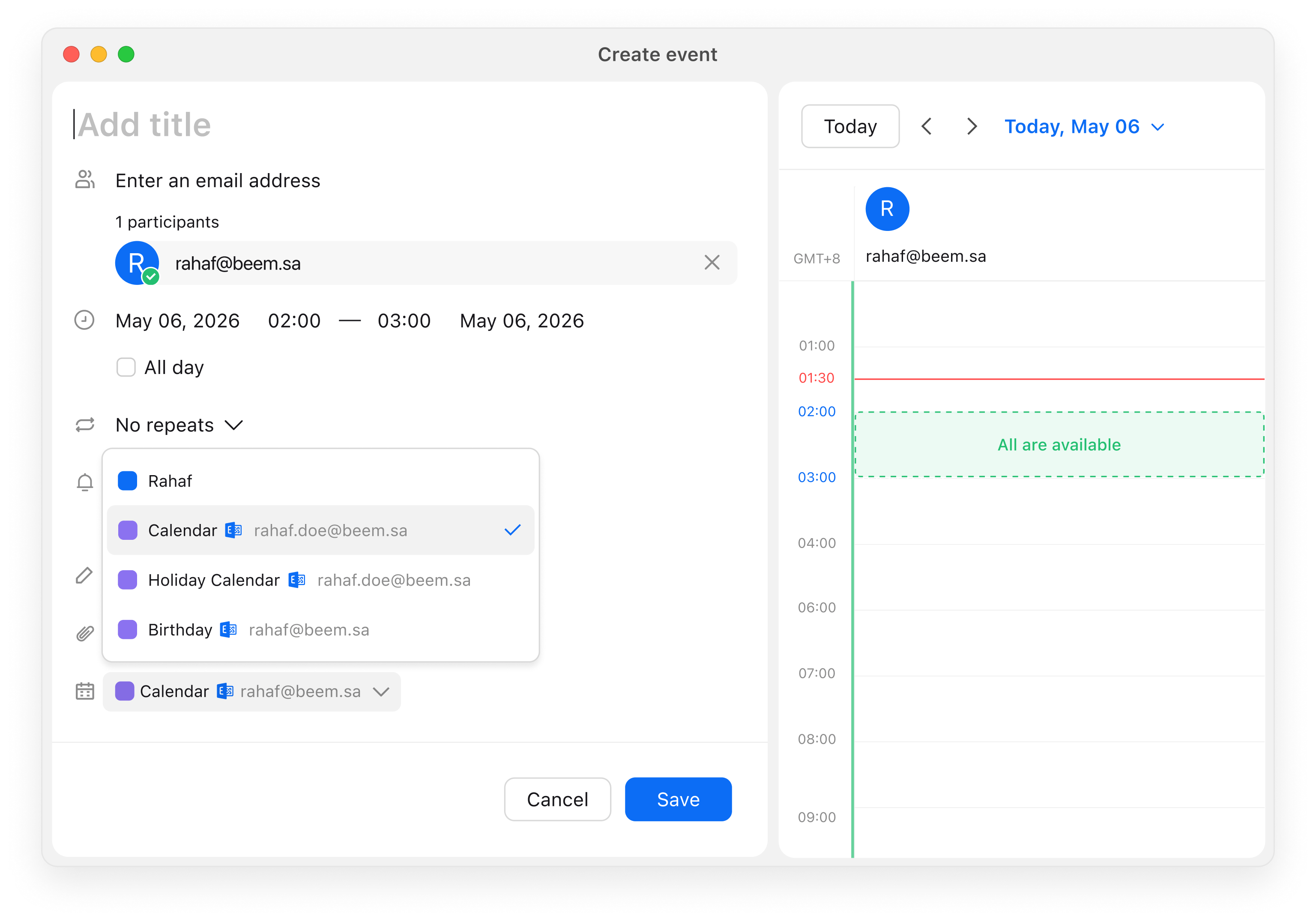
Scroll down to the bottom of the page, locate the "Select Calendar" field, then switch to your Exchange calendar instead of the default Beem Calendar.
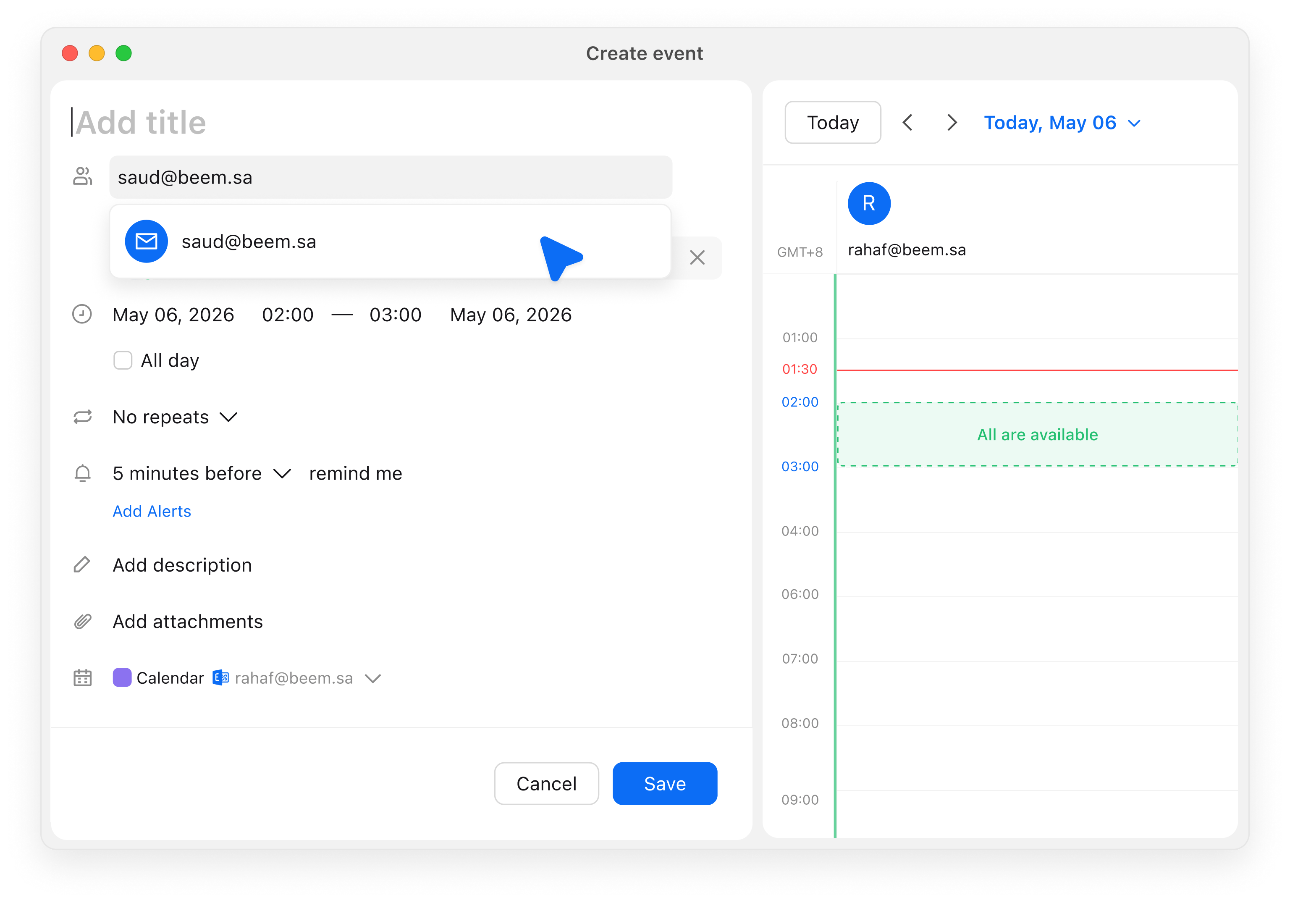
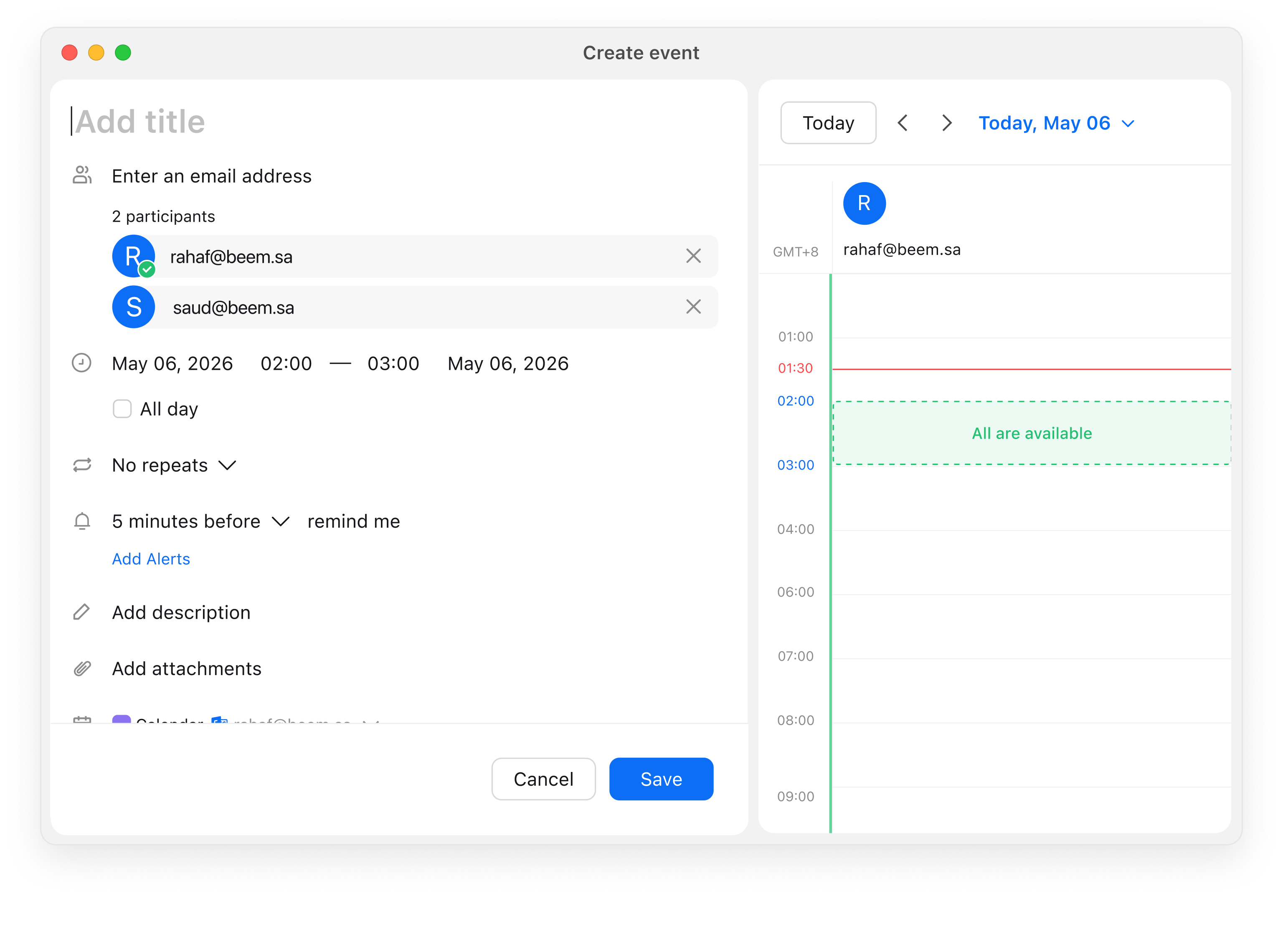
After switching, you will need to fill in the event details such as title, date, time, and participants email addresses.
Ensure you type the complete email address before selecting the result from the list.
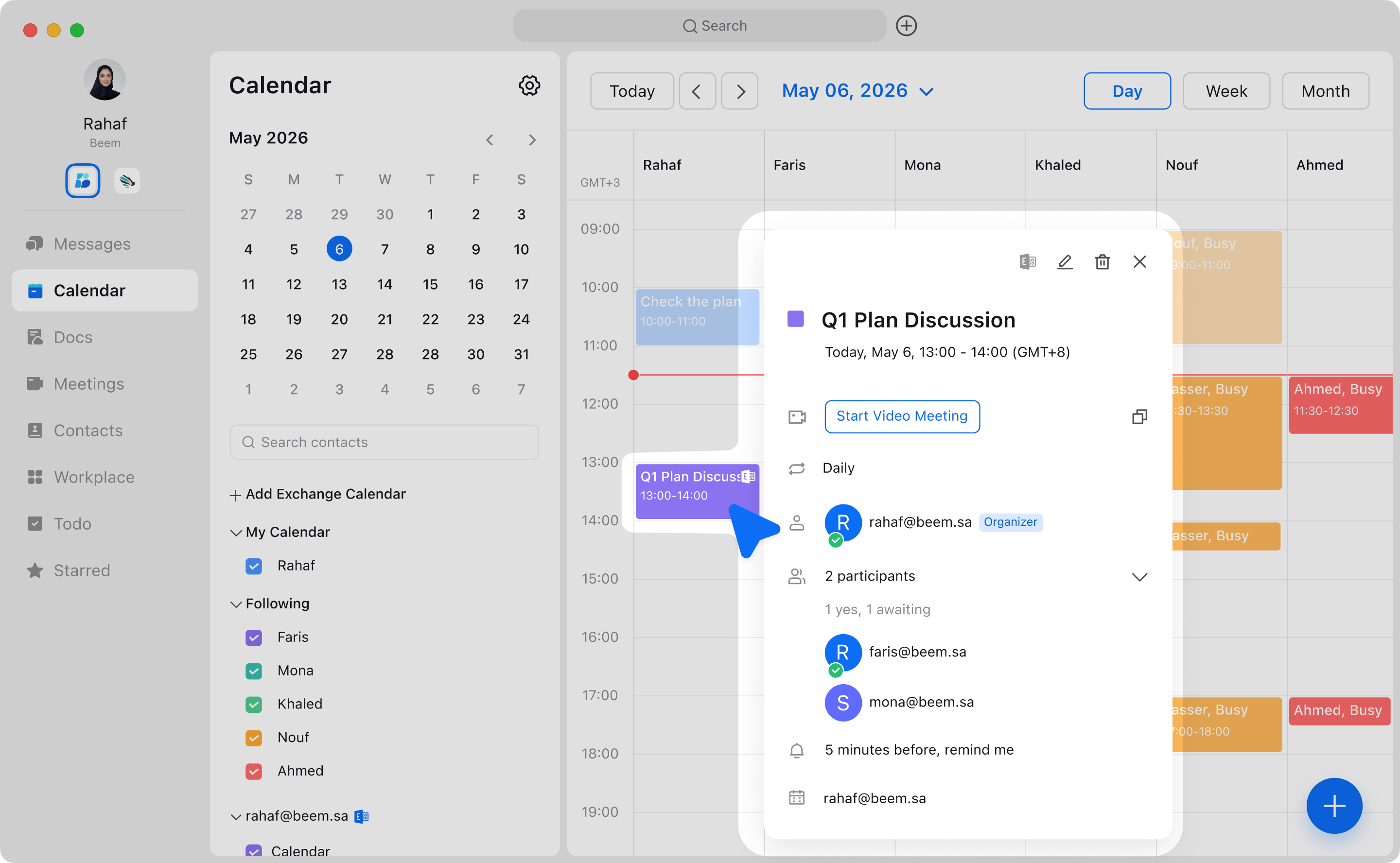
Once saved, the event will be created in Beem and automatically synced to your Exchange account.