access_timeEstimated reading time for this article: 20 minutes
Easily scheduled or join meetings to collaborate with your team in real time. Whether you are hosting a meeting or joining one, the platform provides seamless access, clear controls, and interactive features to make your communication effective. Follow these guidelines to initiate or join meetings smoothly.
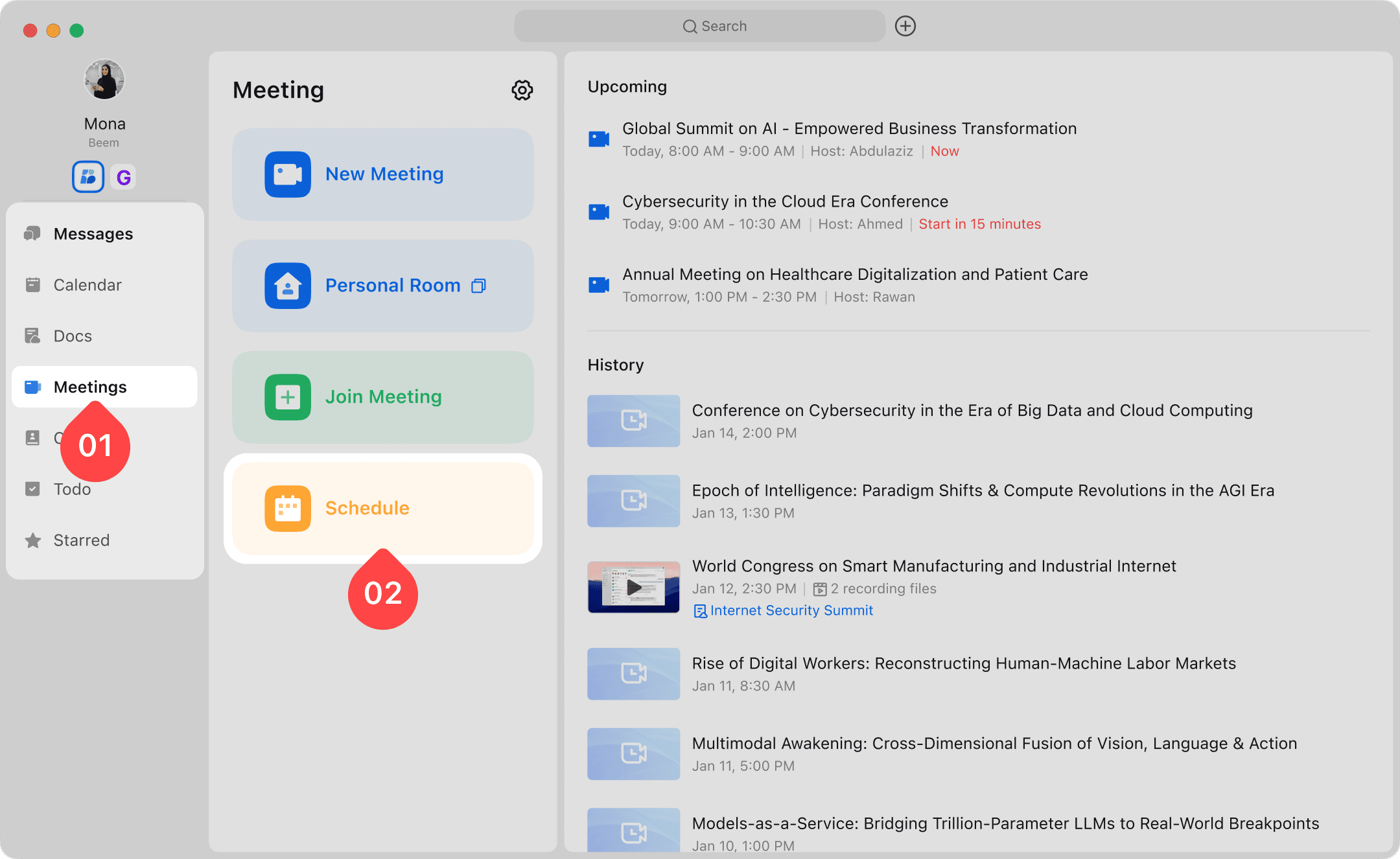
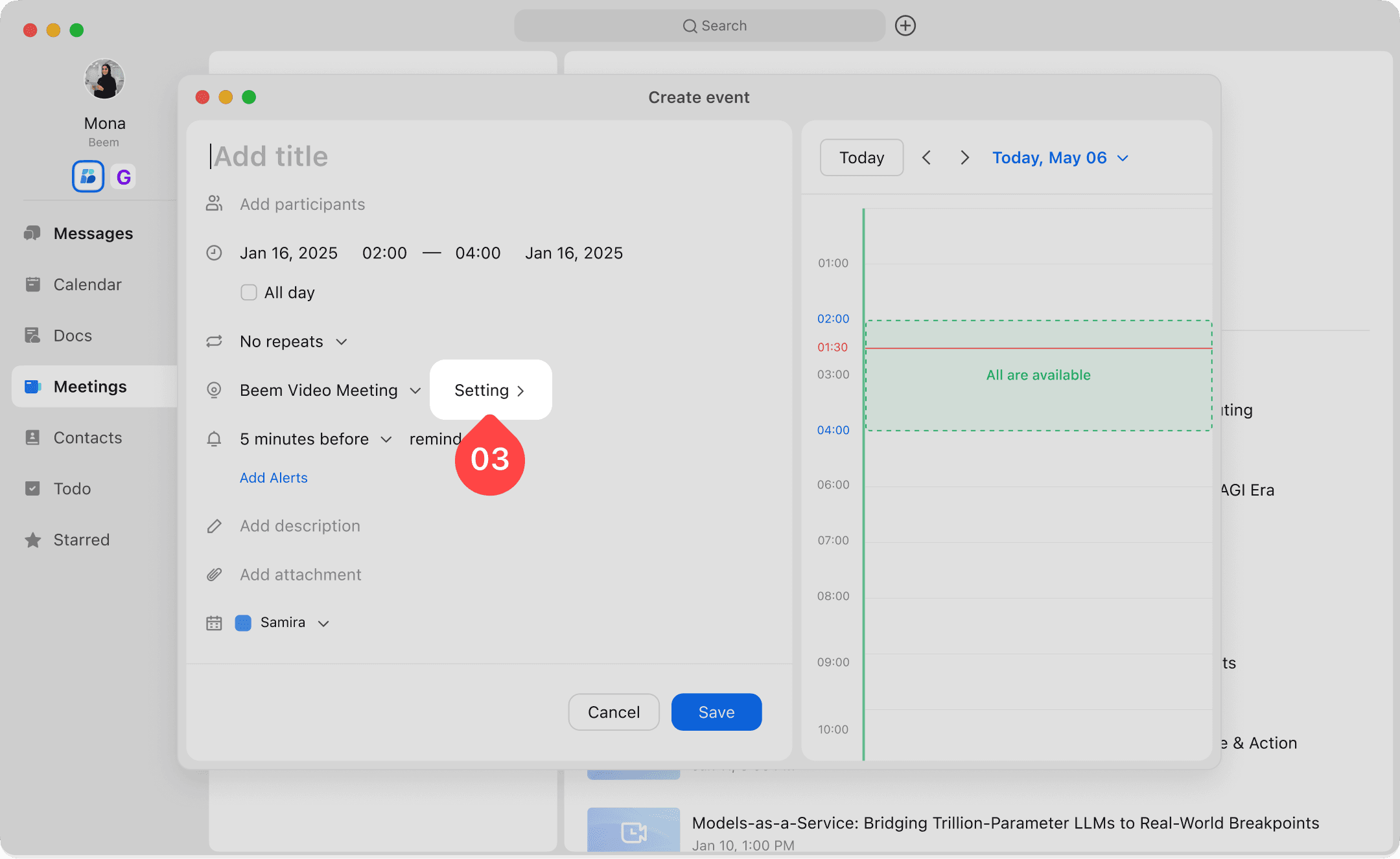
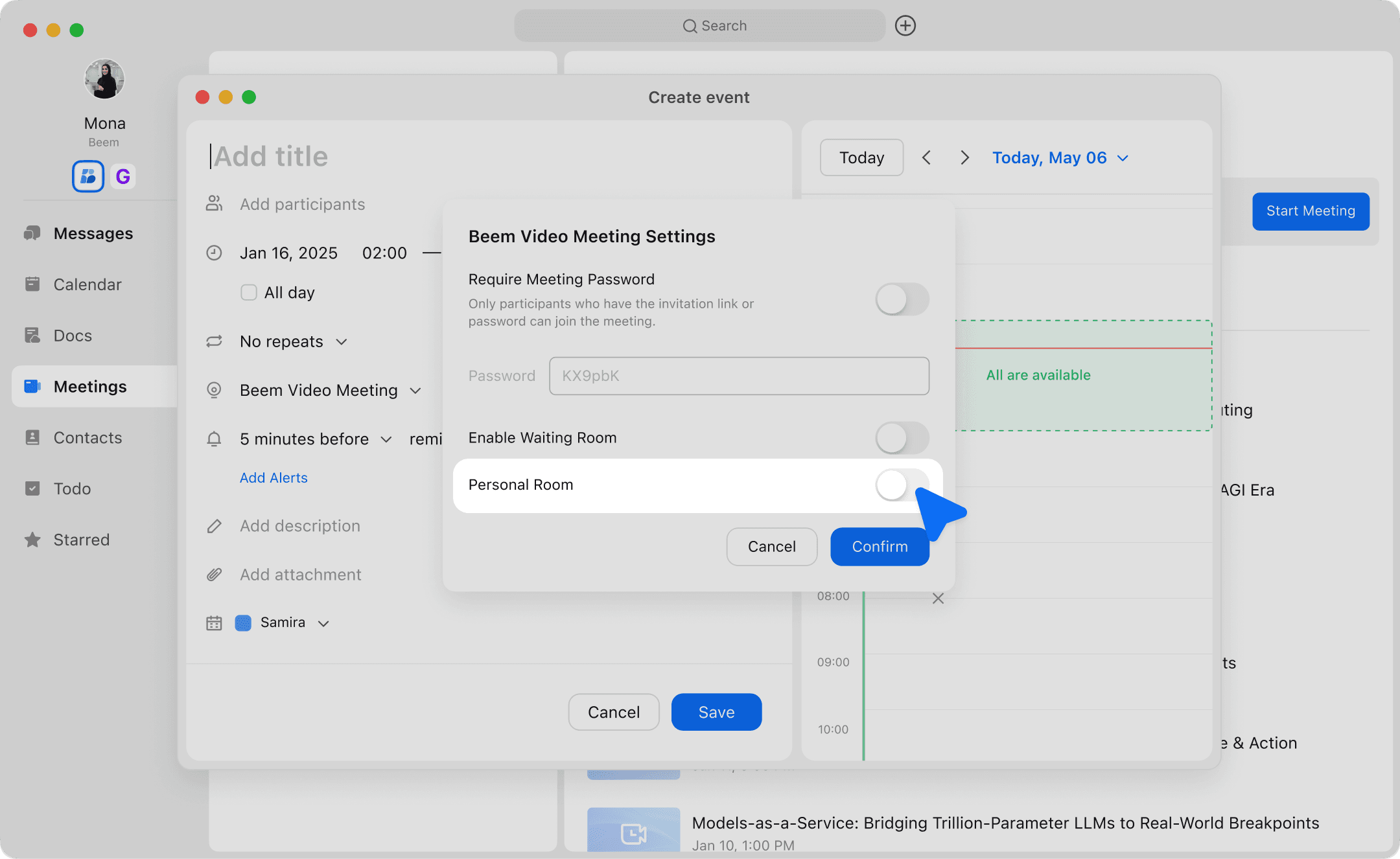
Click the "Meetings" icon in the navigation bar, then select "Schedule" to book an event that includes an online meeting. You can choose either a random meeting room or a personal meeting room for the meeting.
Click the "Calendar" icon in the navigation bar, select the appointment time in the calendar view, and create a new event (online meeting) on the opened schedule page.
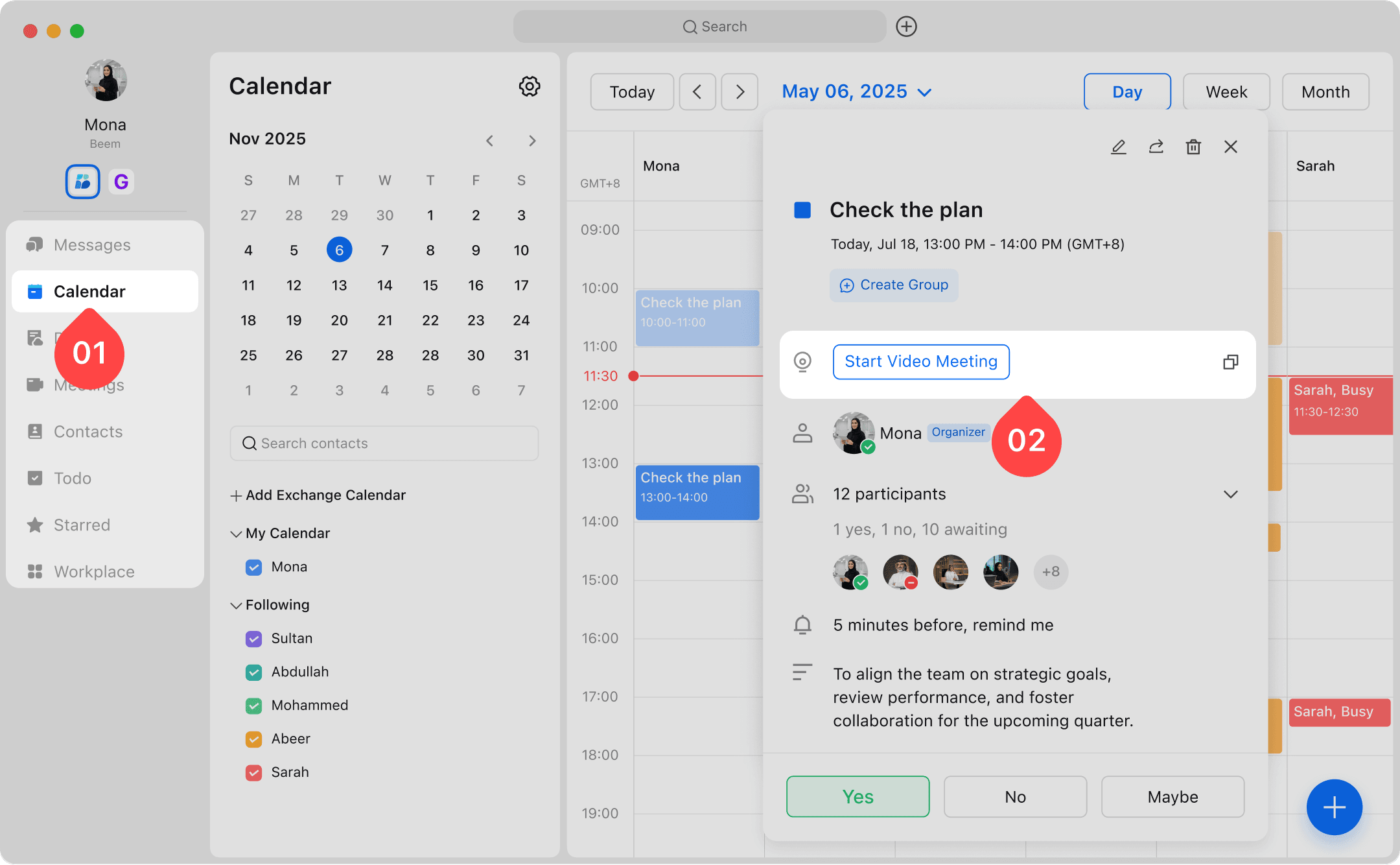
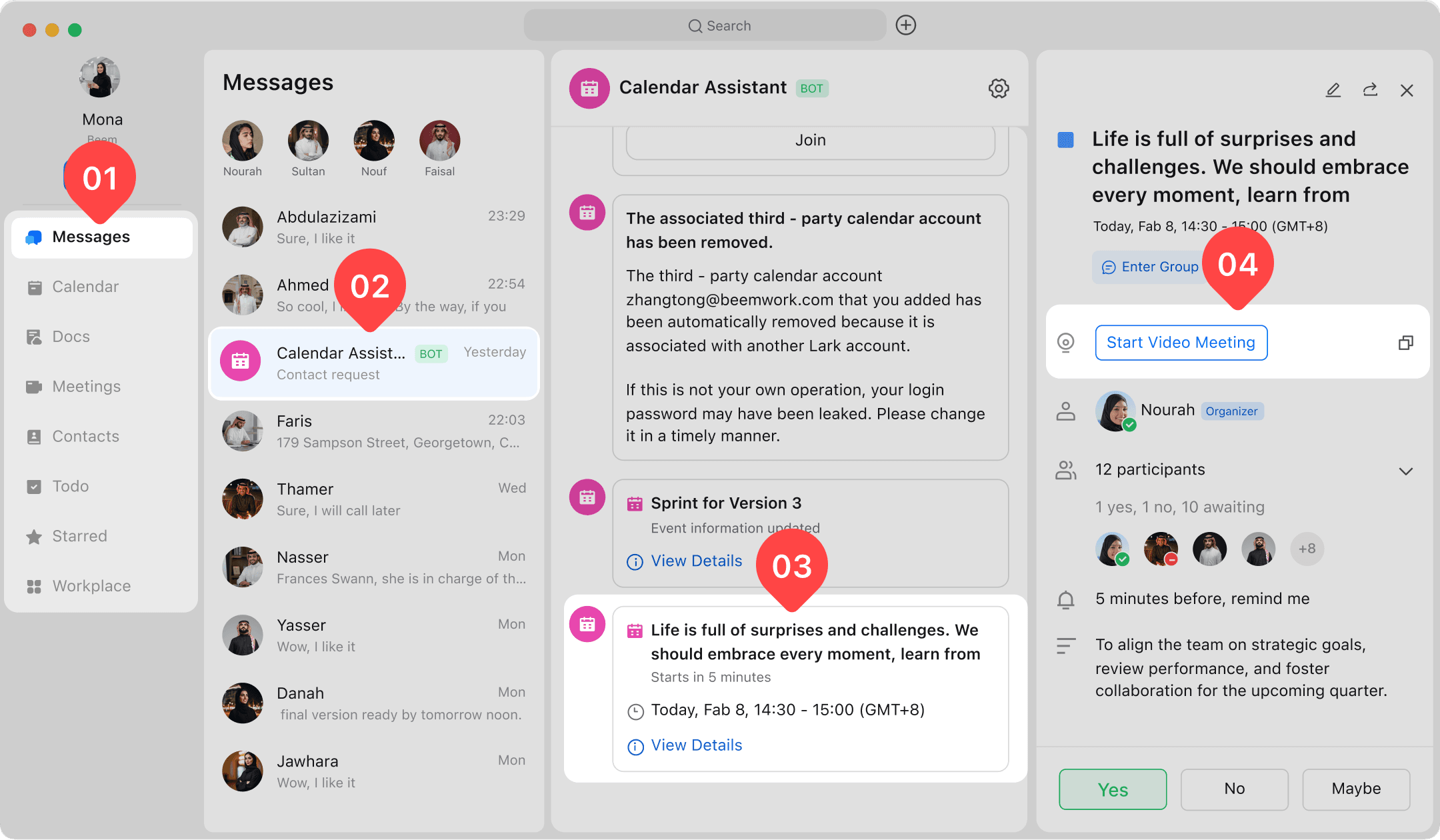
Enter the calendar page, click on the corresponding schedule, and click "Start Video Meeting" on the schedule details page to initiate the scheduled meeting. If you need to share the meeting information, click "Copy Meeting Information" next to the meeting link in the schedule reminder to copy the content including the meeting topic, time, ID and link.
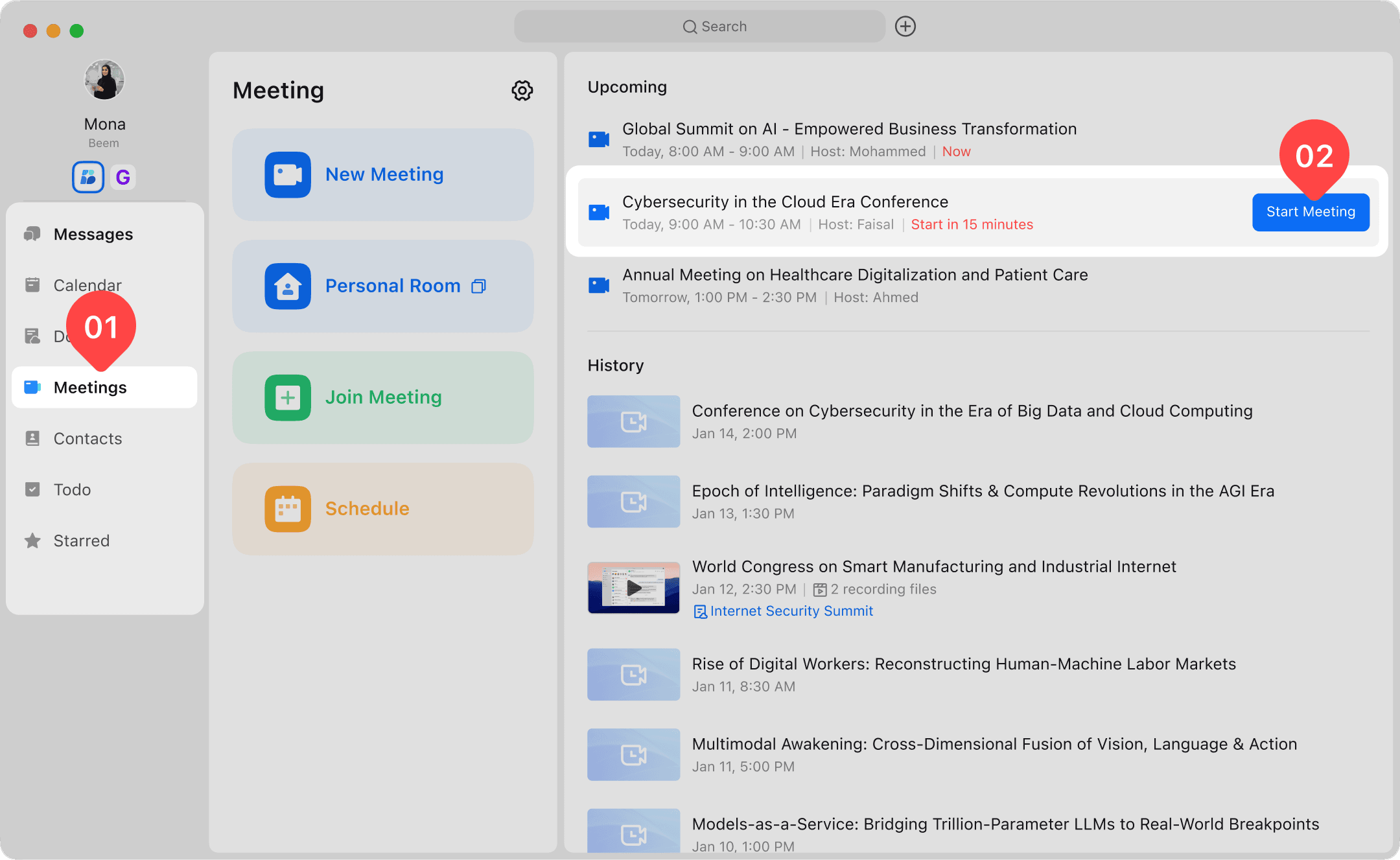
Click the "Meetings" icon in the navigation bar, then click "Start Meeting" in the "Upcoming" list on the right to start a scheduled meeting.
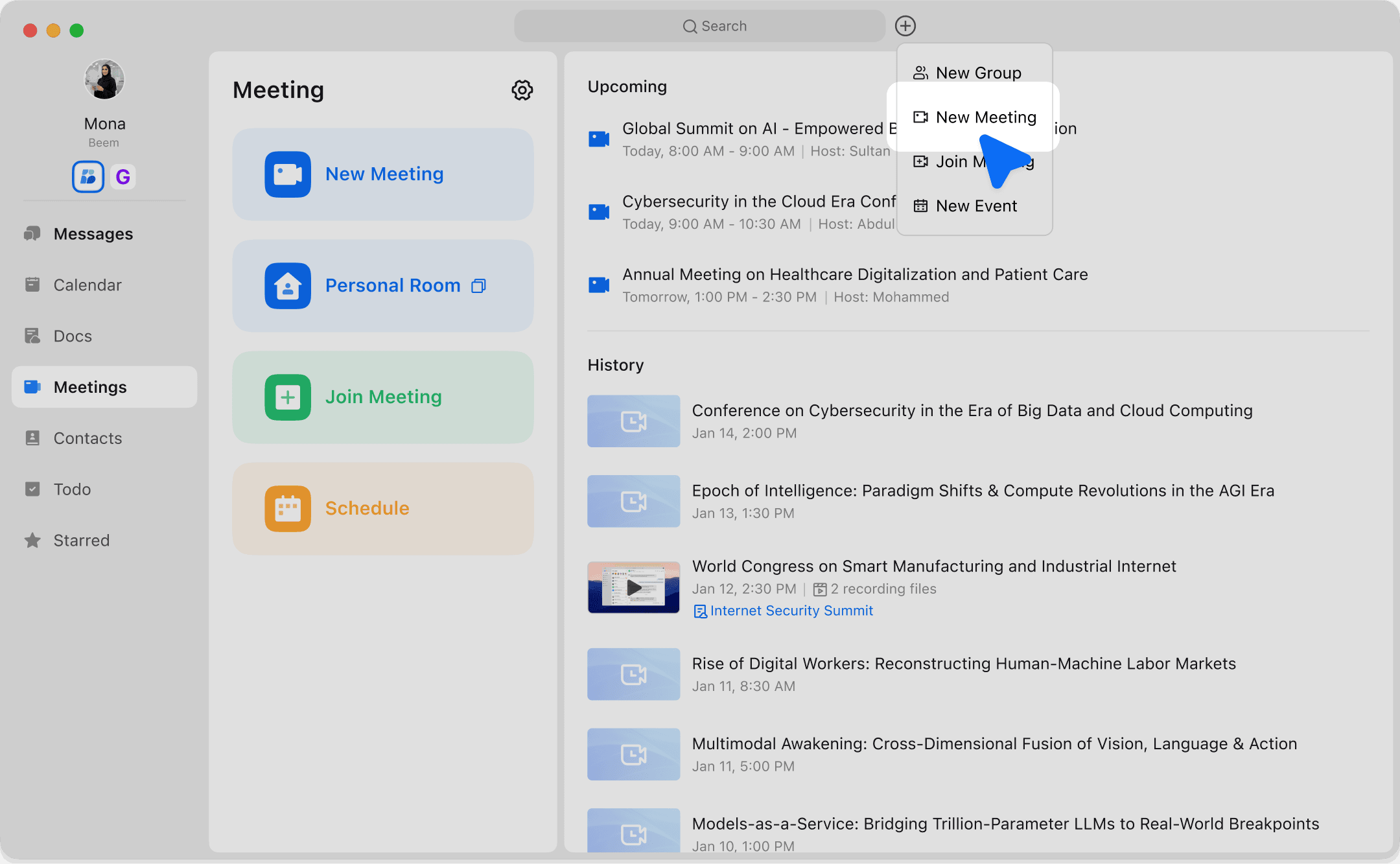
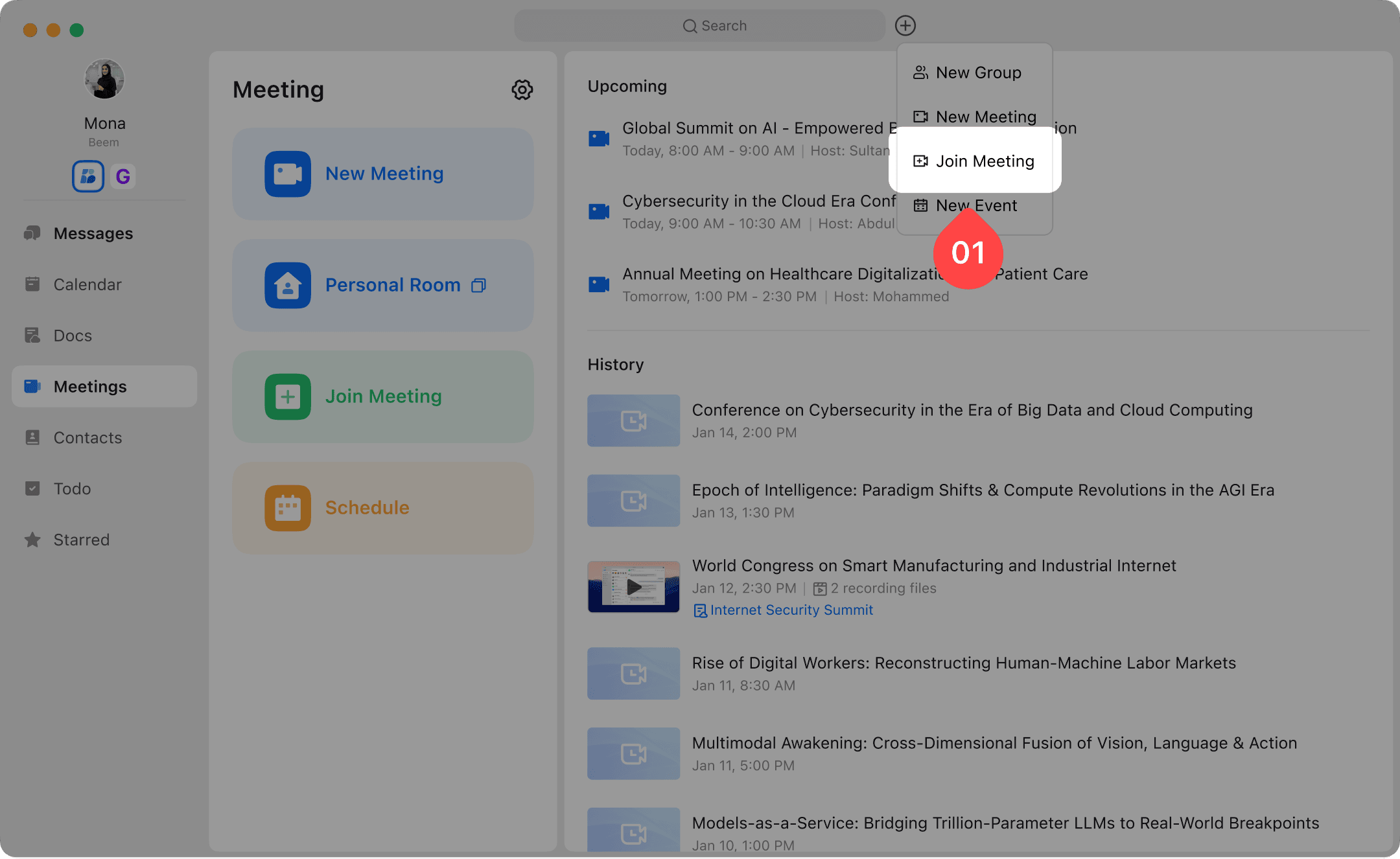
Click the "+" sign in the search box at the top of the Client, select "New Meeting", and you can initiate an instant meeting.
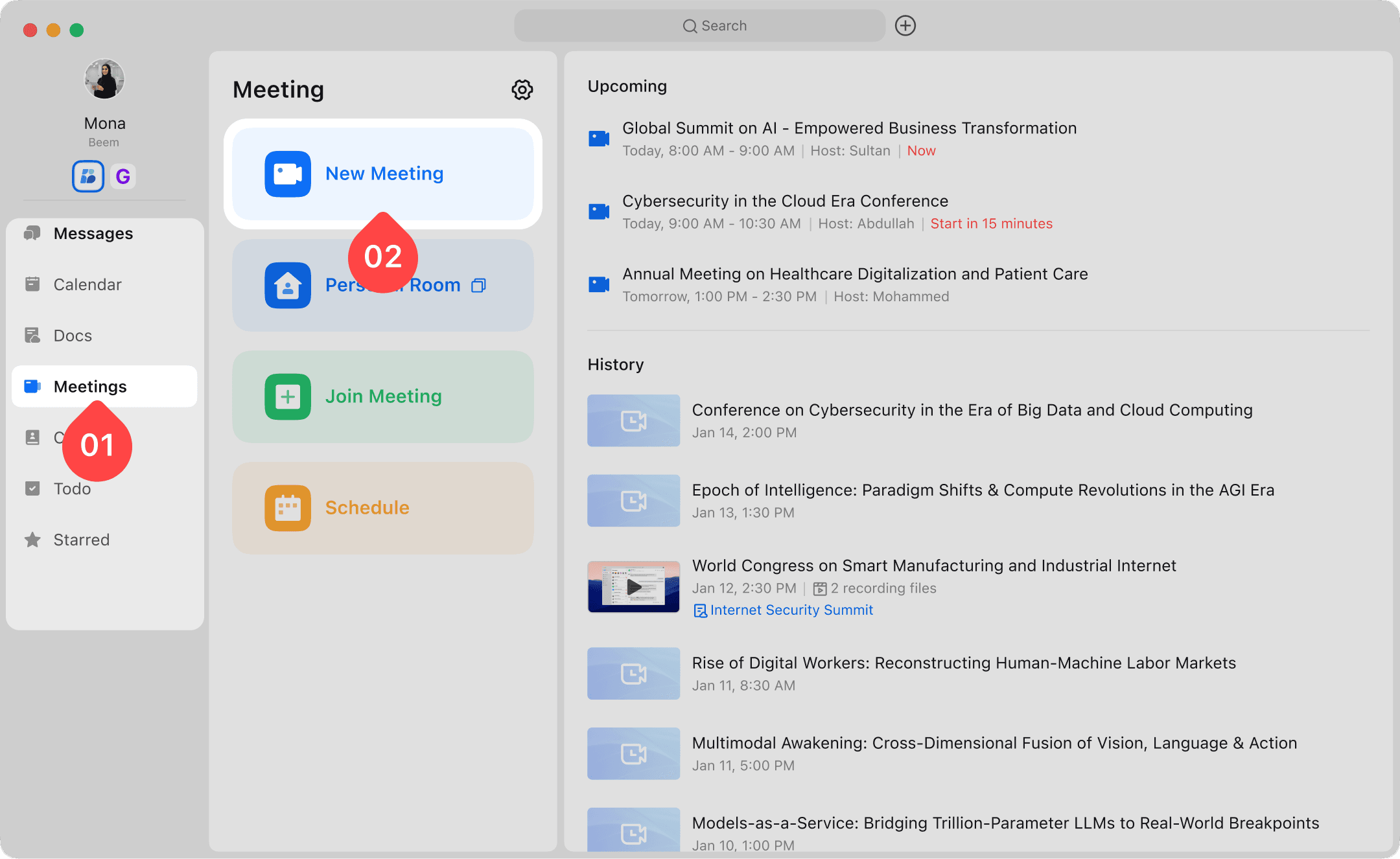
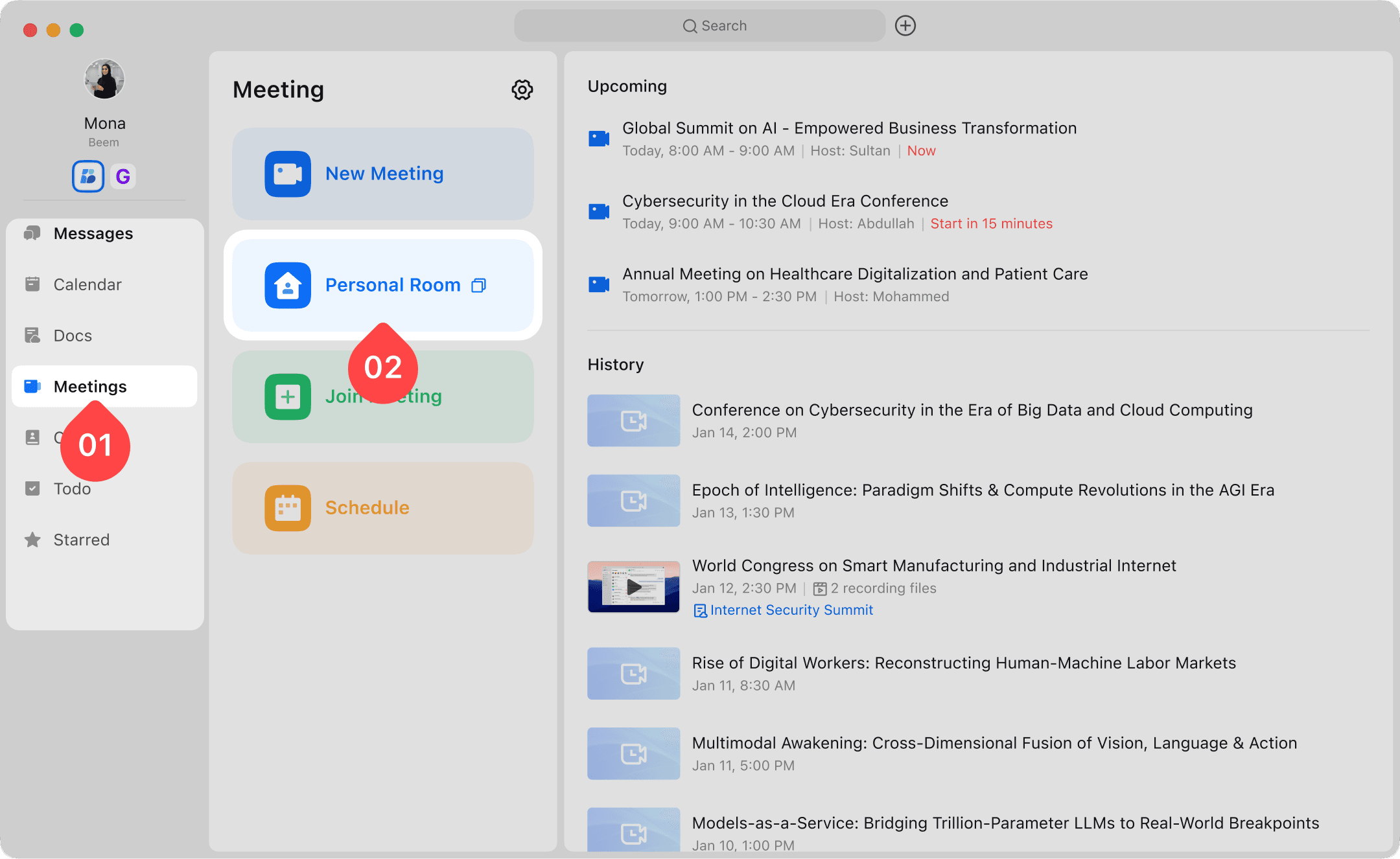
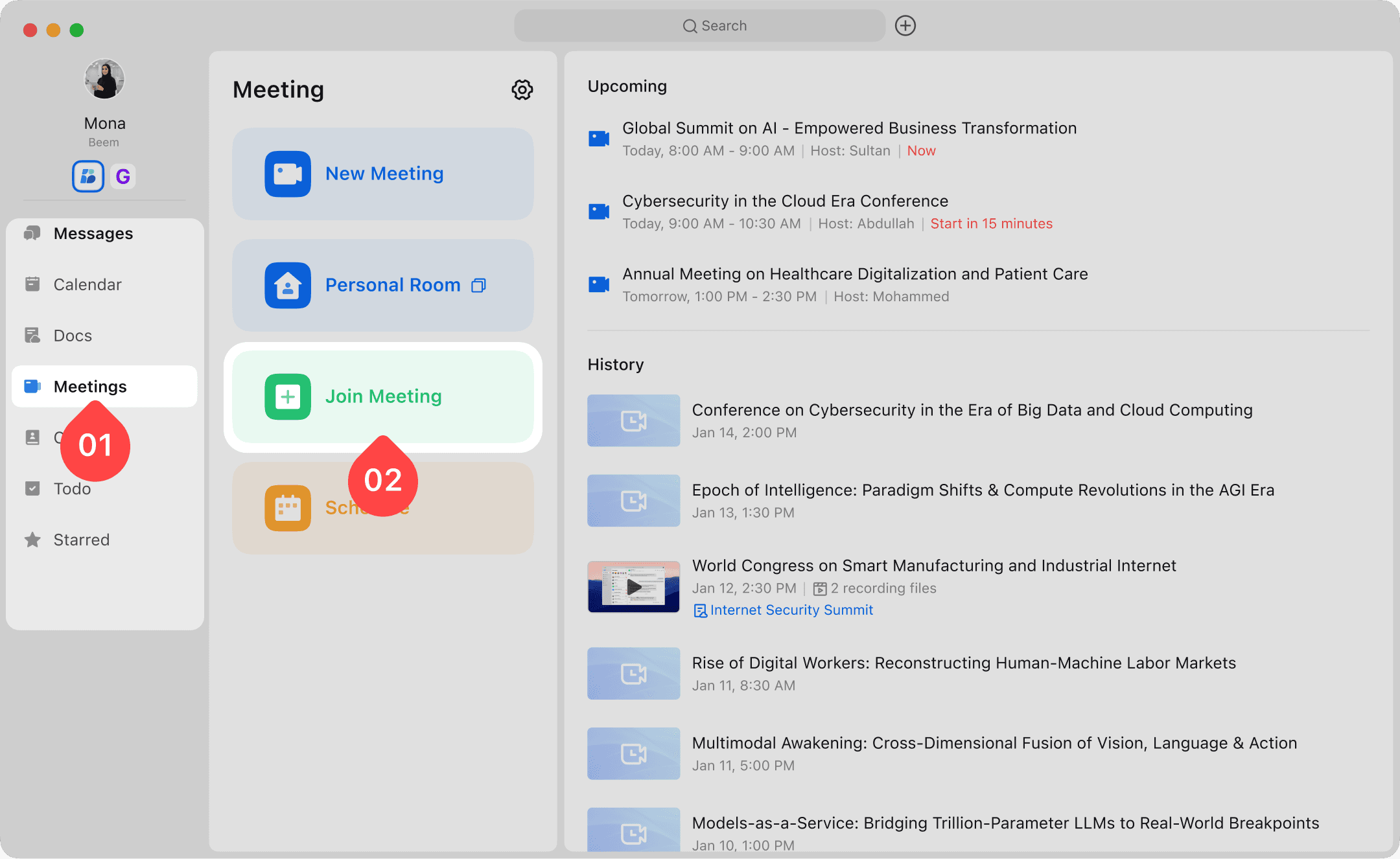
Click the "Meetings" icon in the navigation bar, then select "New Meeting" to create a meeting using a random meeting room, or select "Personal Room" to create a meeting using a personal room.
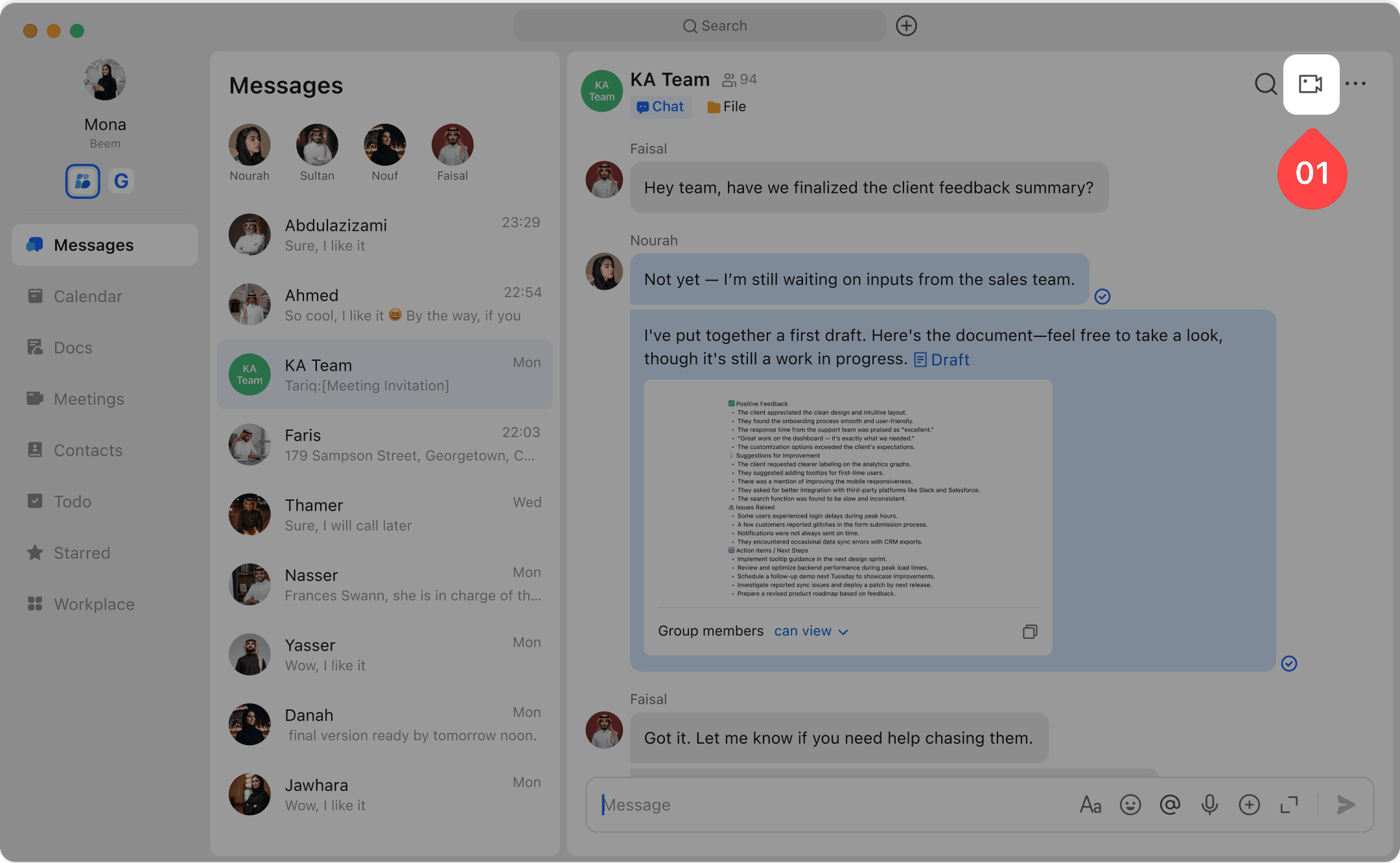
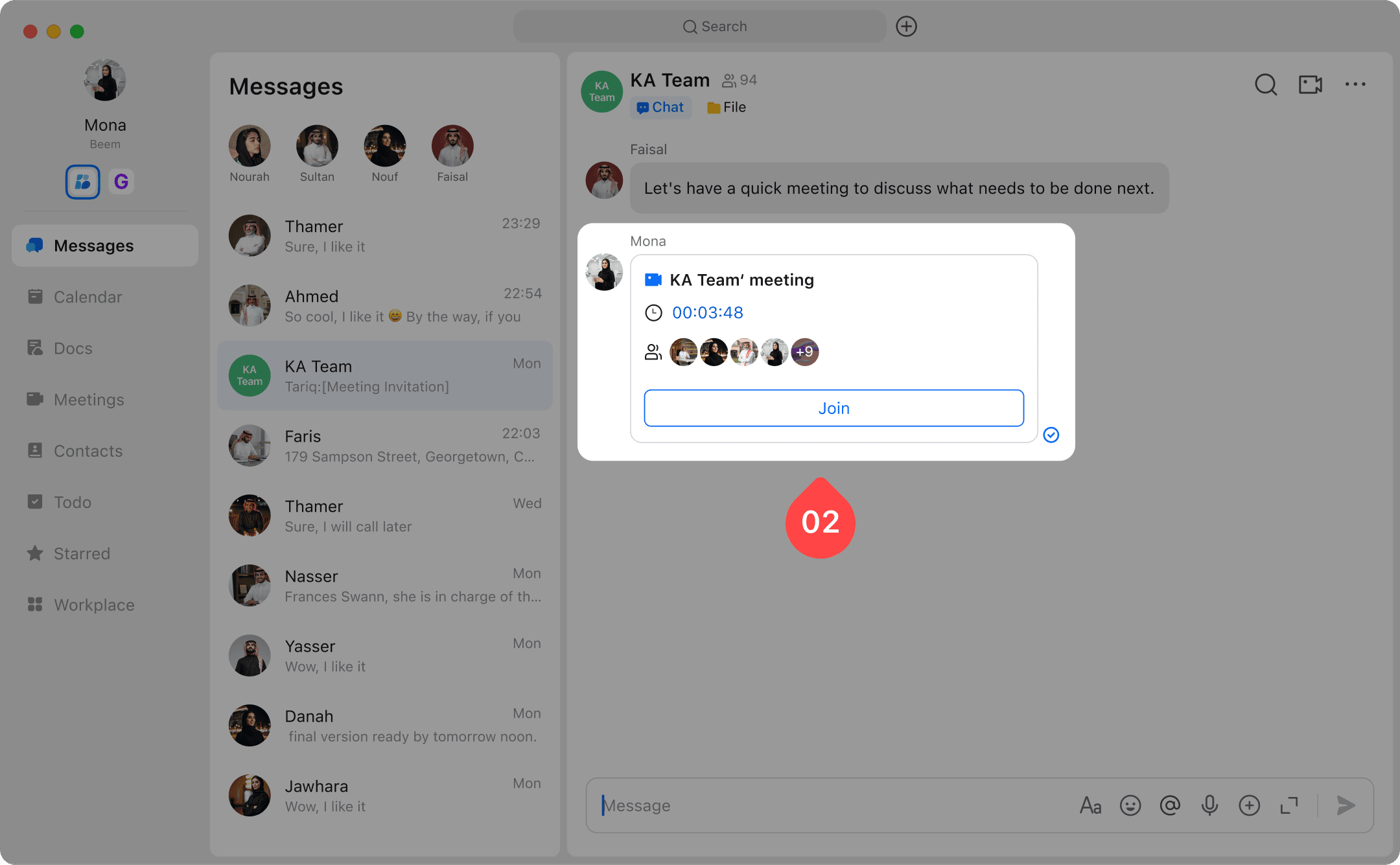
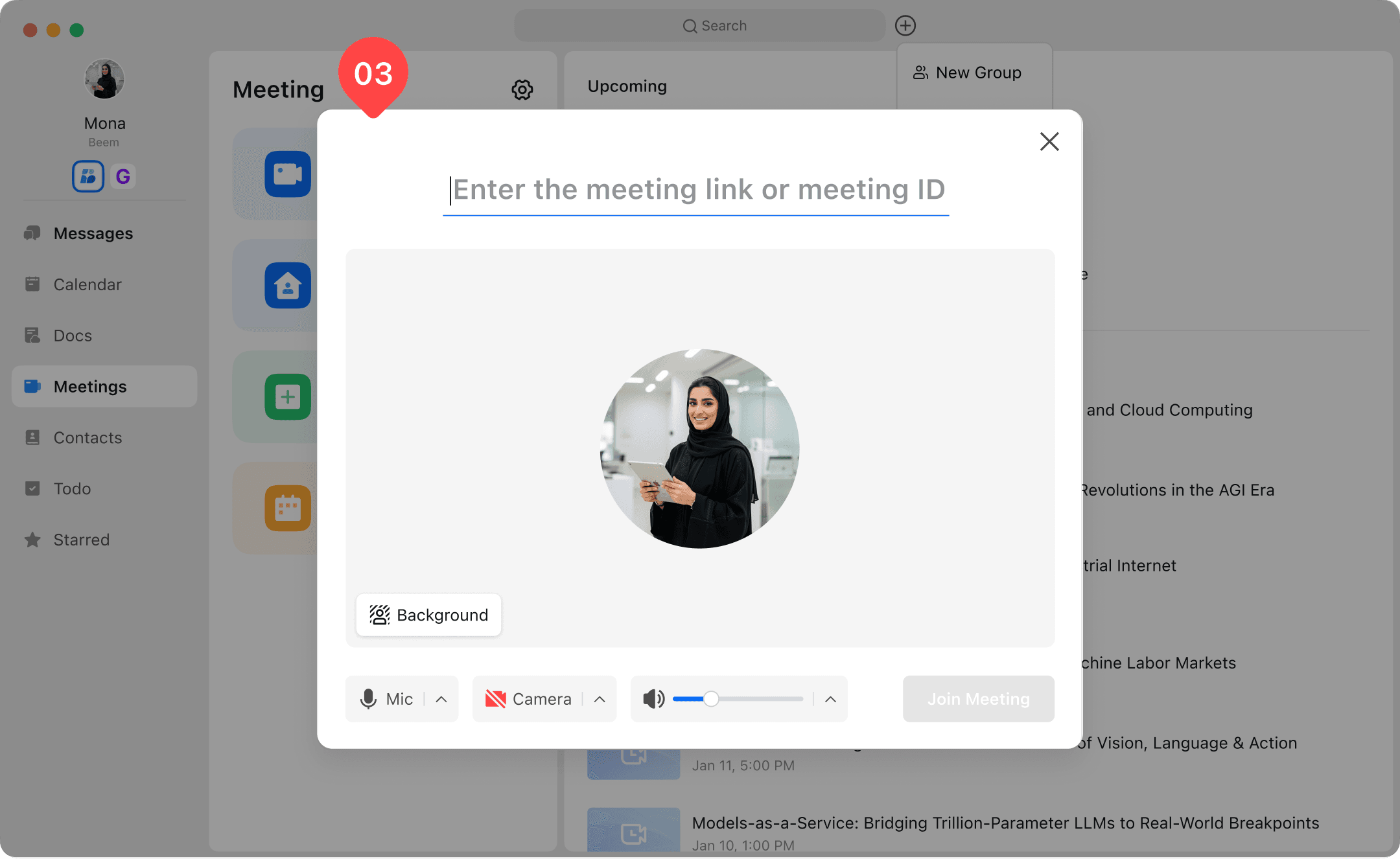
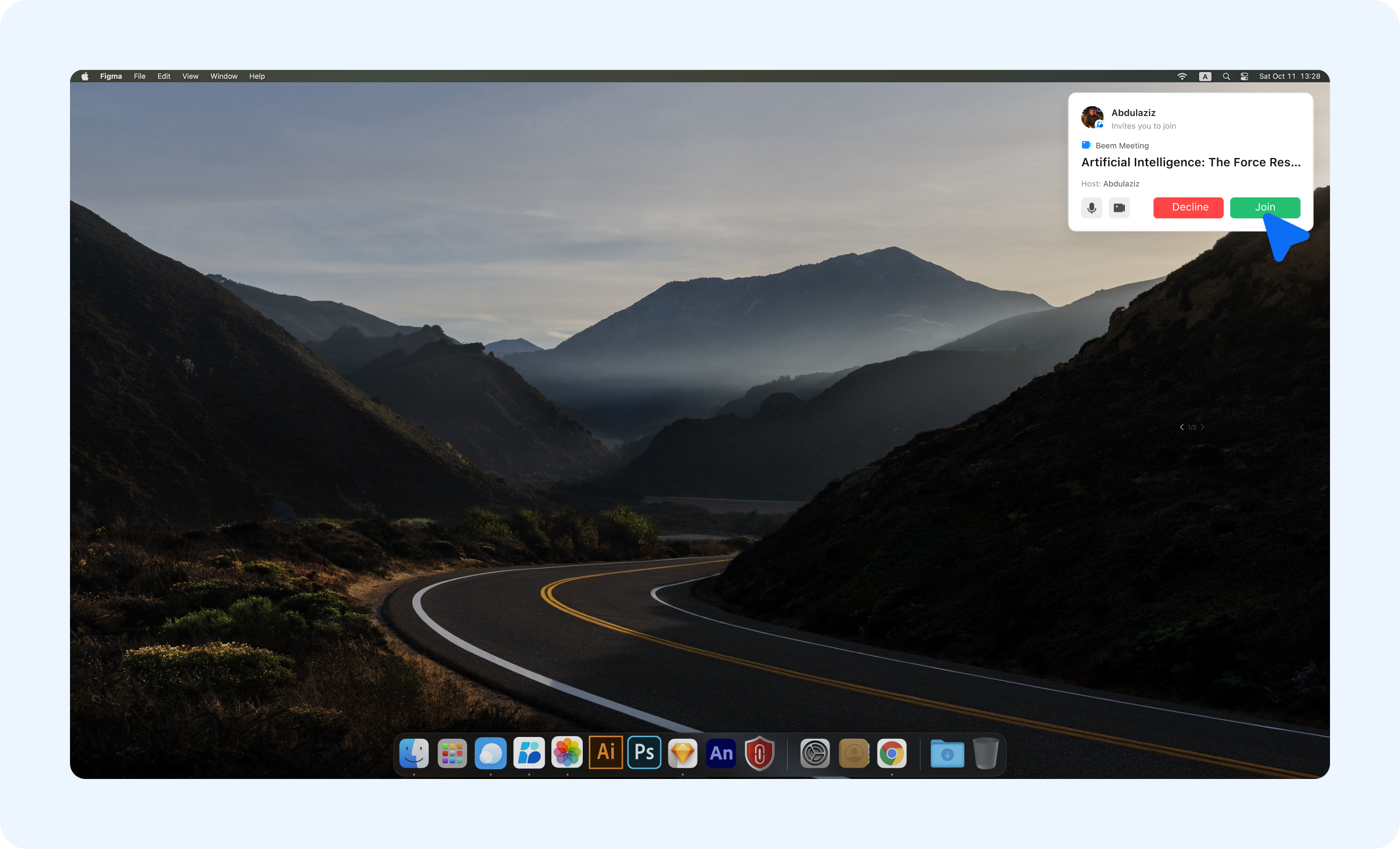
Open the group where you need to initiate a meeting, click the "Initiate Meeting" icon in the top right corner, click "Start Meeting" on the pre-meeting preview page, and you can initiate a meeting in the group chat. After the meeting starts, the meeting invitation card will be automatically sent to the corresponding group, and group members can click "Join" on the meeting card to join the meeting.