Skip to content

Get to Know Beem Calendar

Estimated reading time for this article: 15 minutes

Beem Calendar helps you stay organized by managing your schedule, meetings, and important deadlines all in one place. With intuitive views, reminders, and integration with tasks and meetings, it allows you to plan your day efficiently and never miss important events. Learn how to navigate, customize, and make the most of your Beem Calendar.

Understanding the Calendar Interface

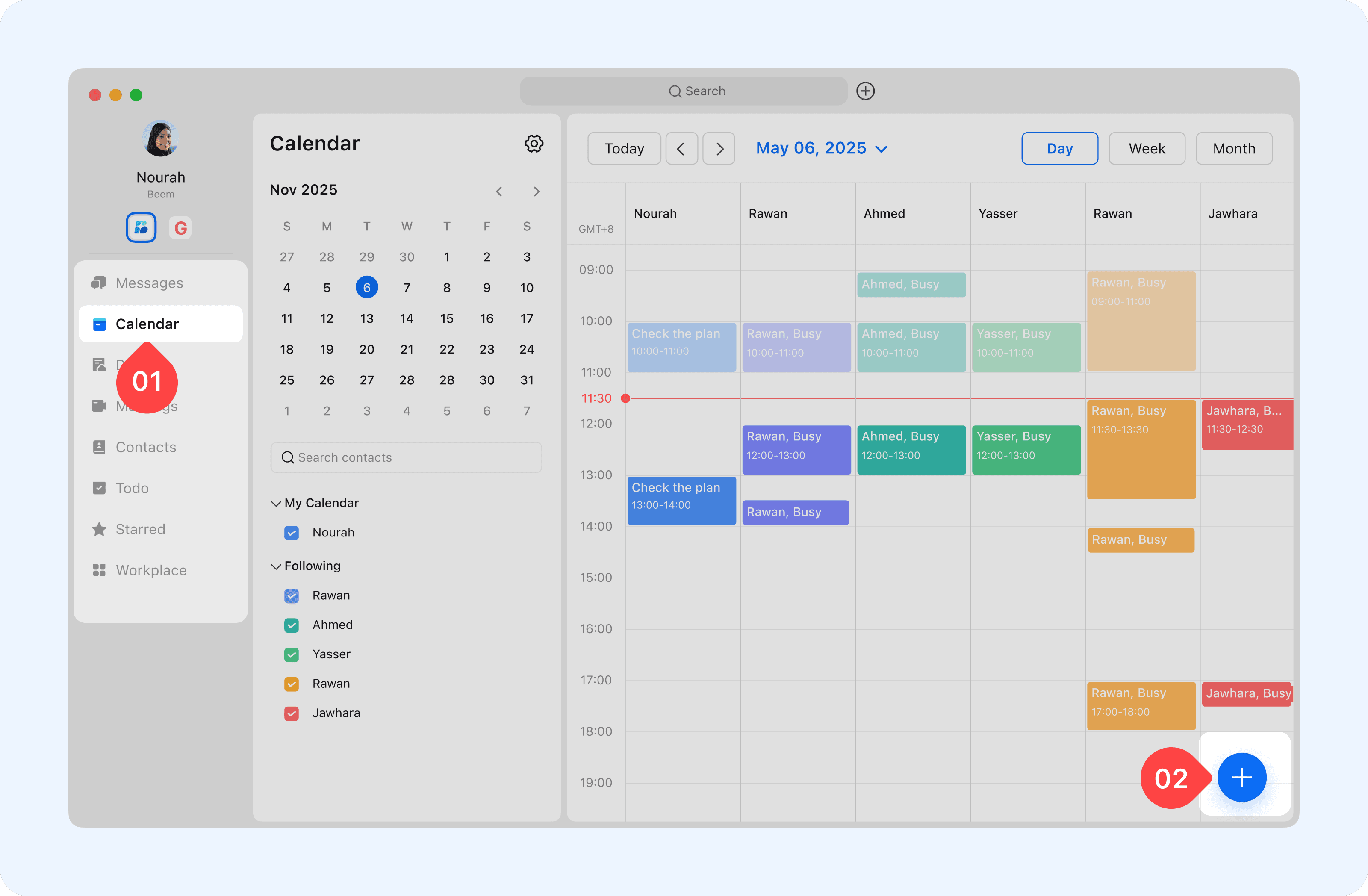
The following is a brief introduction to our Calendar main interface, where you can create and edit events.

  1. Calendar Tab: You can create, edit, and manage your own events. You can also browse other people's calendars as well.

  2. Create Event: Access the event creation page directly from the calendar.
undefined

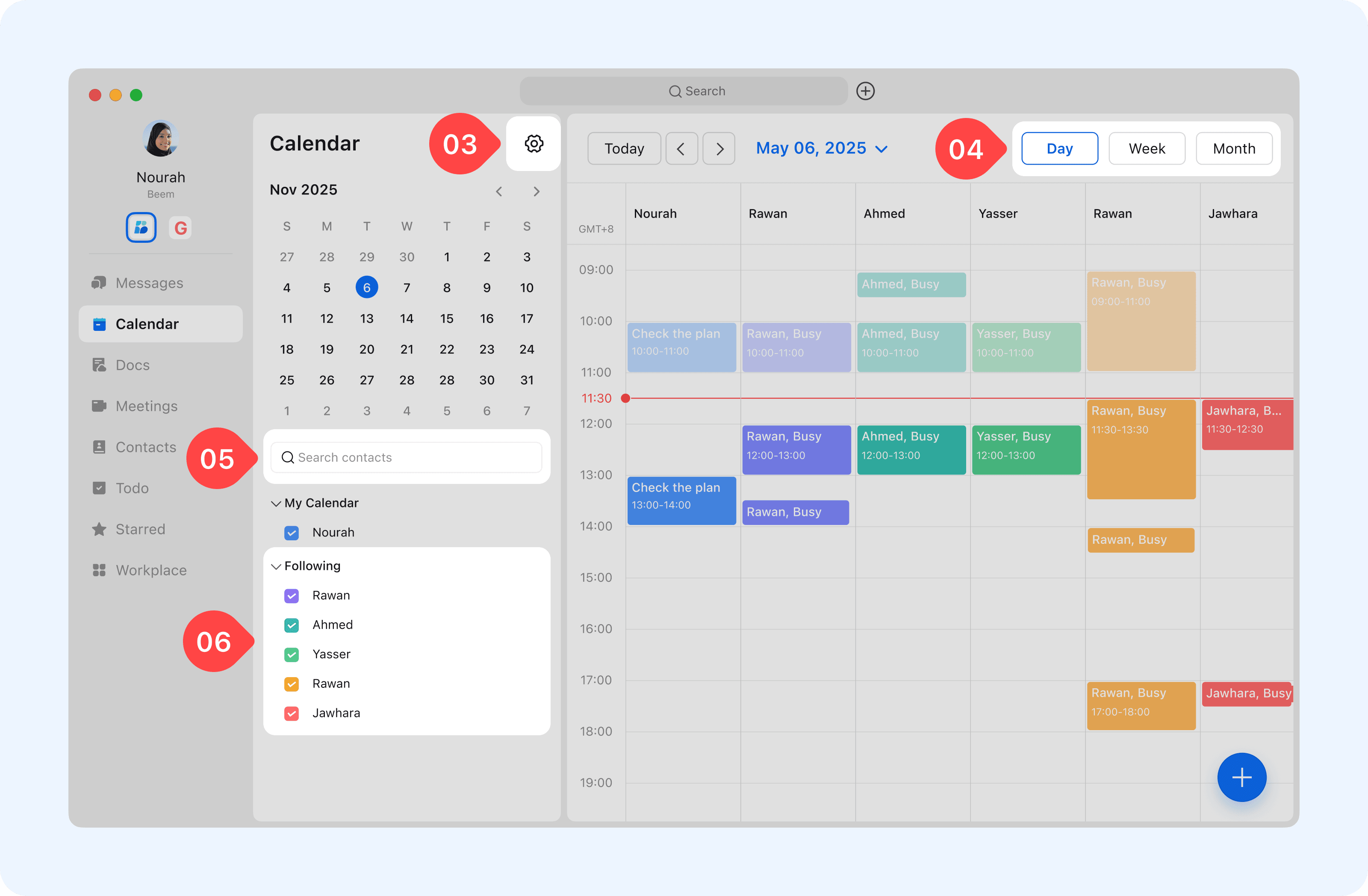
  1. Settings: Customize your calendar’s look and feel, add extra time zones, and more.

  2. Calendar View: Choose how much time you want to see by day, 3 days, month or agenda view.

  3. Add calendar: Search and subscribe to other's calendars to view their schedules and availability.

  4. Followed Calendars: View the calendars you follow and choose which events to show on your calendar.
undefined

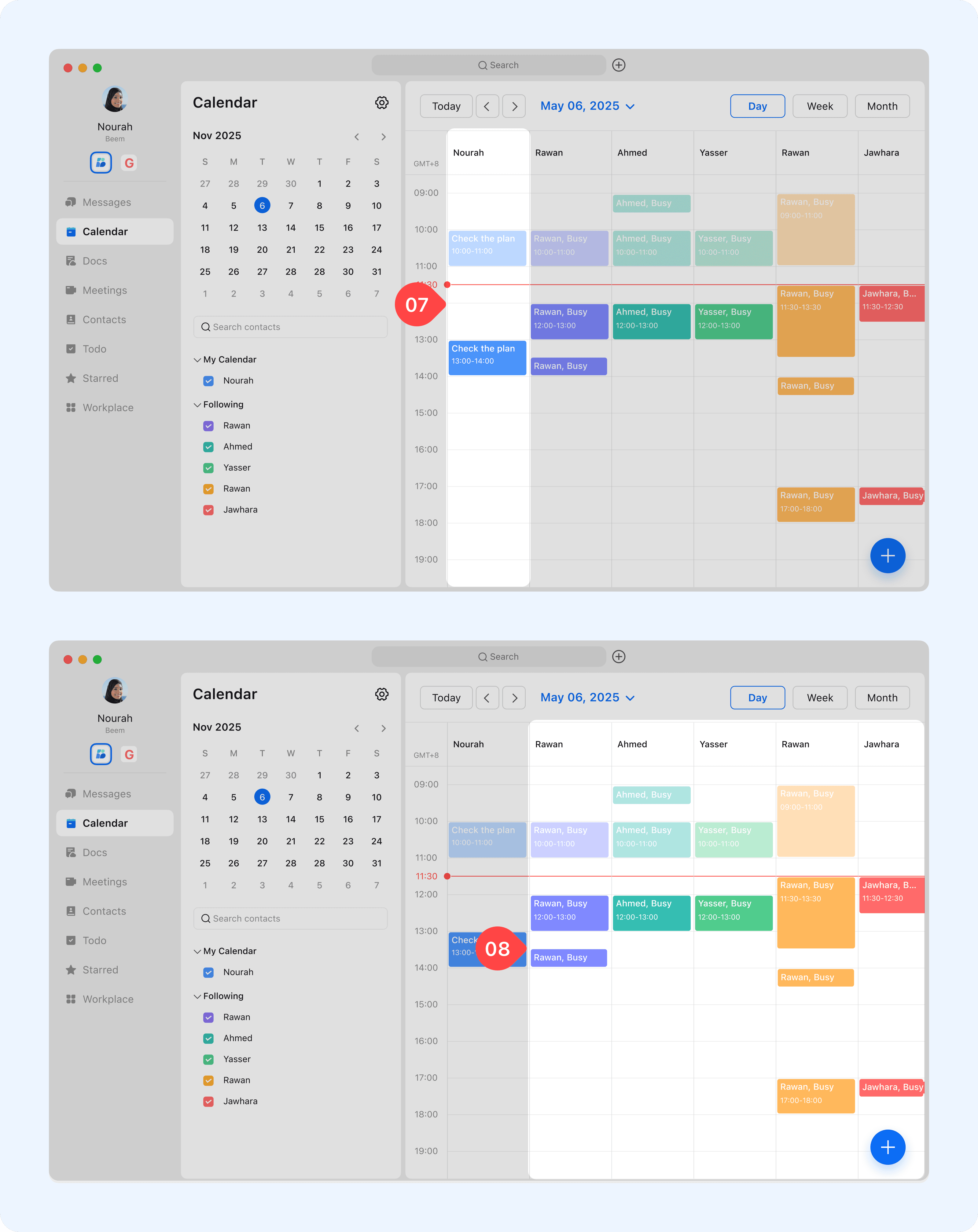
  1. Your Calendar Events: View a list of events that you are involved with.

  2. Events in other people’s you subscribe to: View events from calendars you have followed.
undefined

Create events

You can create events directly on your calendar and invite participants, sending notifications to ensure no one misses them.
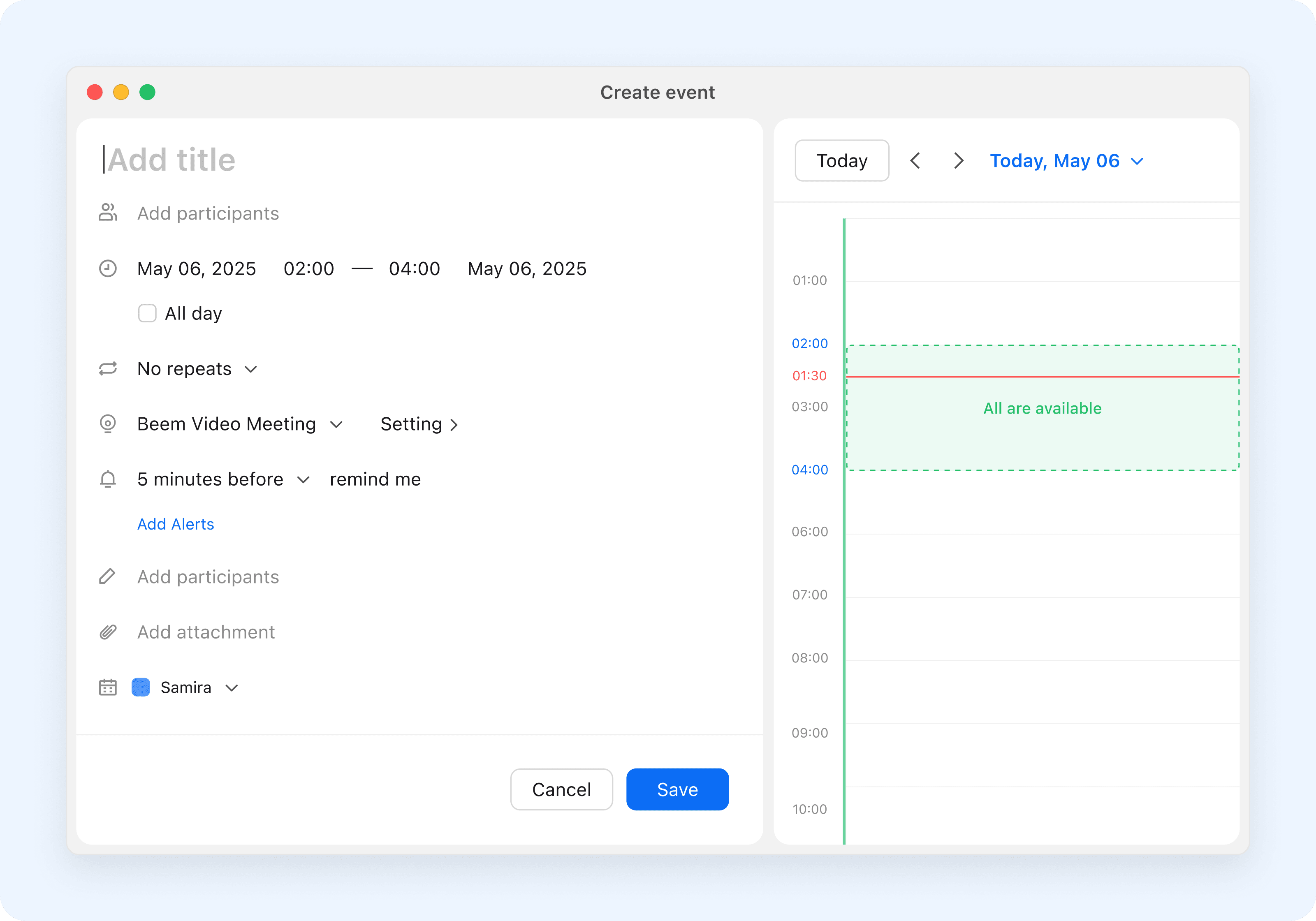
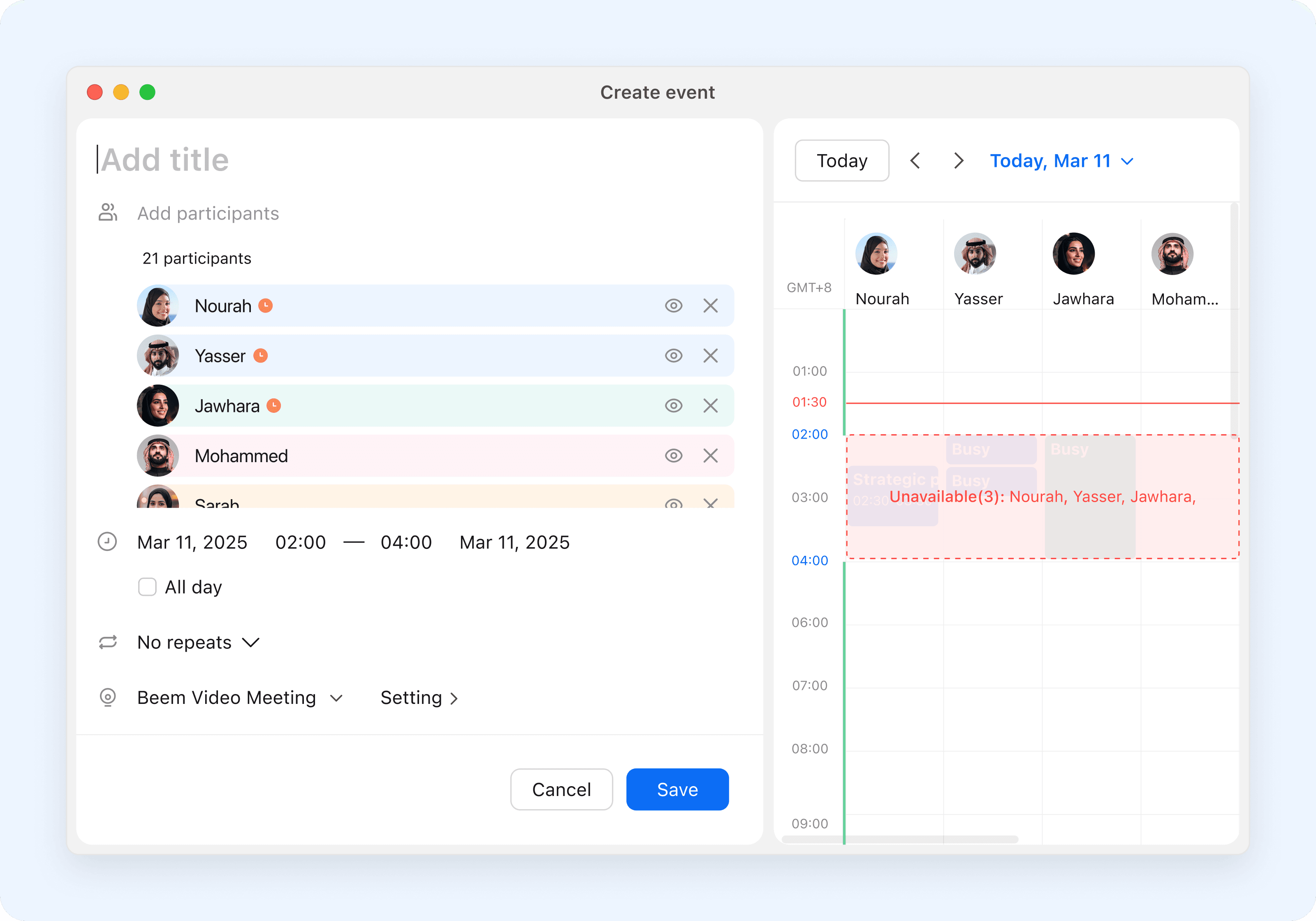
  • Create events and invite participants: Set time, place, attendees, and other details. Search for and select individuals or groups on the event editing page.
  • Create recurring events: Set events to repeat daily, weekly, monthly, or annually according to your needs, with customizable recurrence rules.
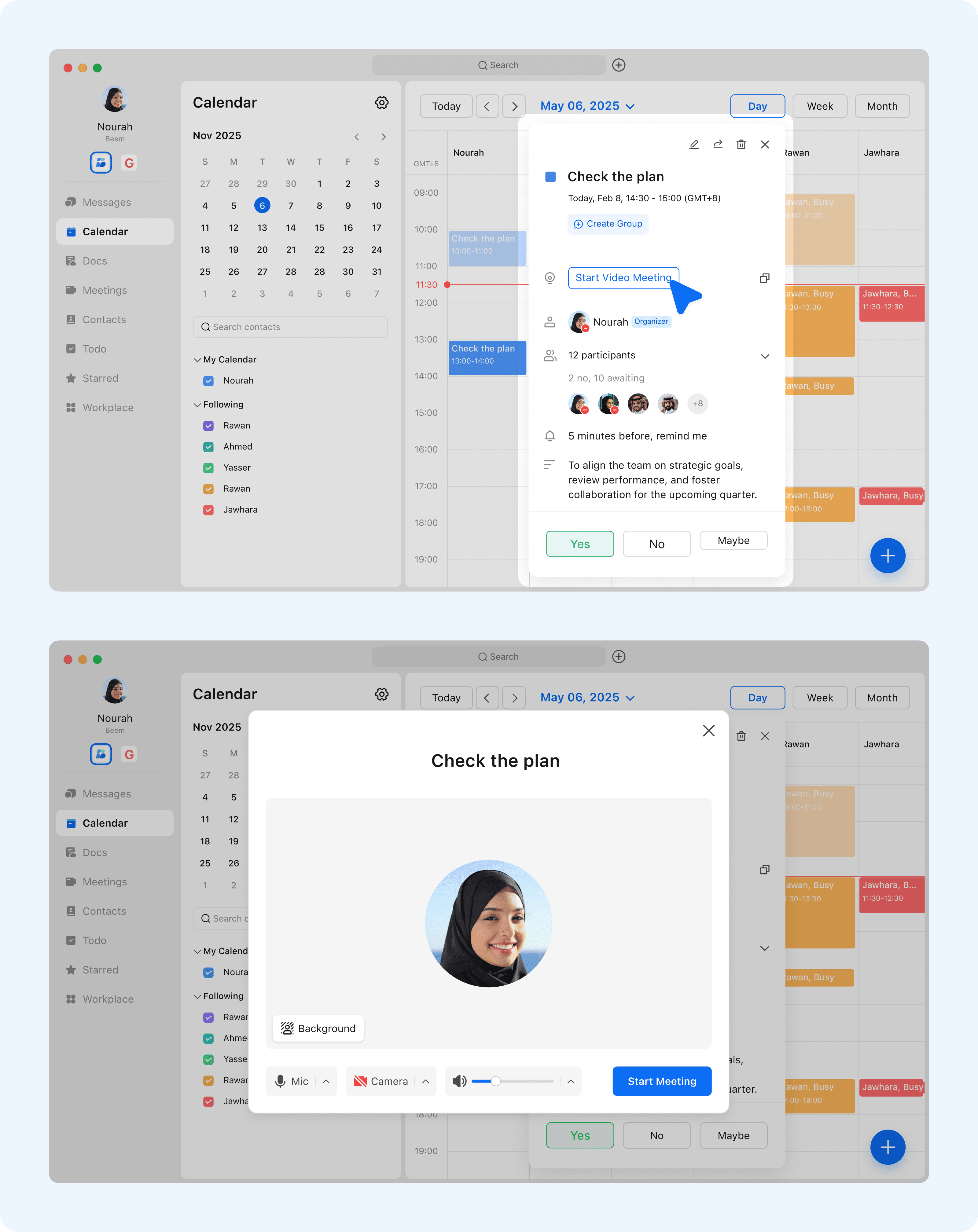
  • You can start Beem Video Meeting with any calendar event

undefined

  • View Others’ Availability: Check colleagues’ free times via chats or their calendars to quickly find a meeting time that works for everyone.

undefined

View existing calendar events details

Once a calendar event is being created, you can:
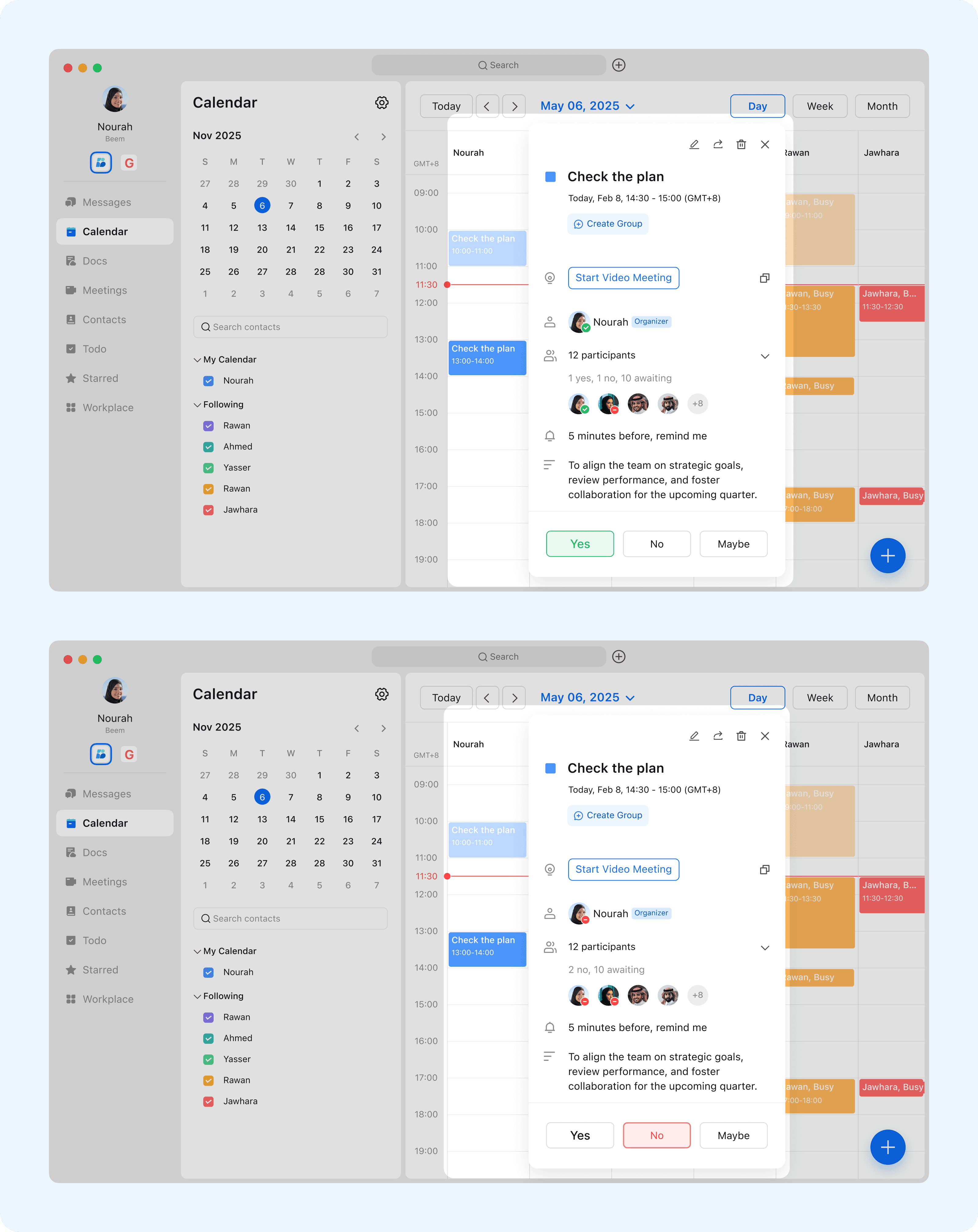
  • Check the Participants: know who is attending the event.
  • View event description and attachments, understand the event in advance
  • Create group chat linked with the event, discuss with other relevant users about the event.
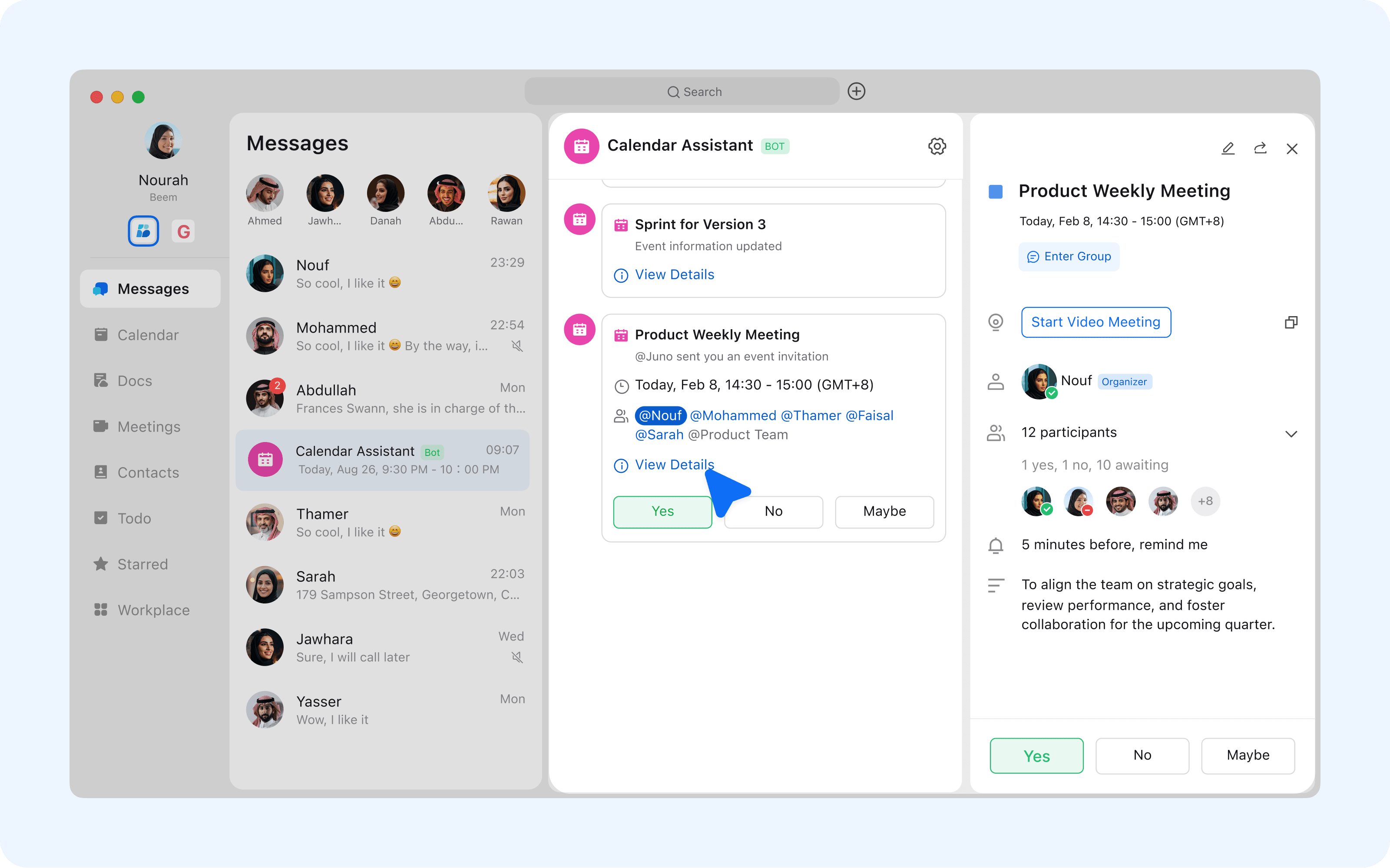
  • Let others know if you are attending by selecting Yes/No/Maybe.

undefined

  • Start or Join Beem Video Meeting whenever you are ready.

undefined

Join an event created by others

  • Calendar bot message sent immediately when someone has added you to an event
  • Others can share with you a calendar event message, you can join the event directly.
  • You will be able to see the new event immediately on your Calendar, and view the event details

undefined

Follow different calendars

Subscribing to other members’ calendars is an easy way to stay updated on important events. Subscribed calendar events will appear in your personal calendar, and you can hide them anytime. Others can also subscribe to your calendar, with control over how much detail they see.
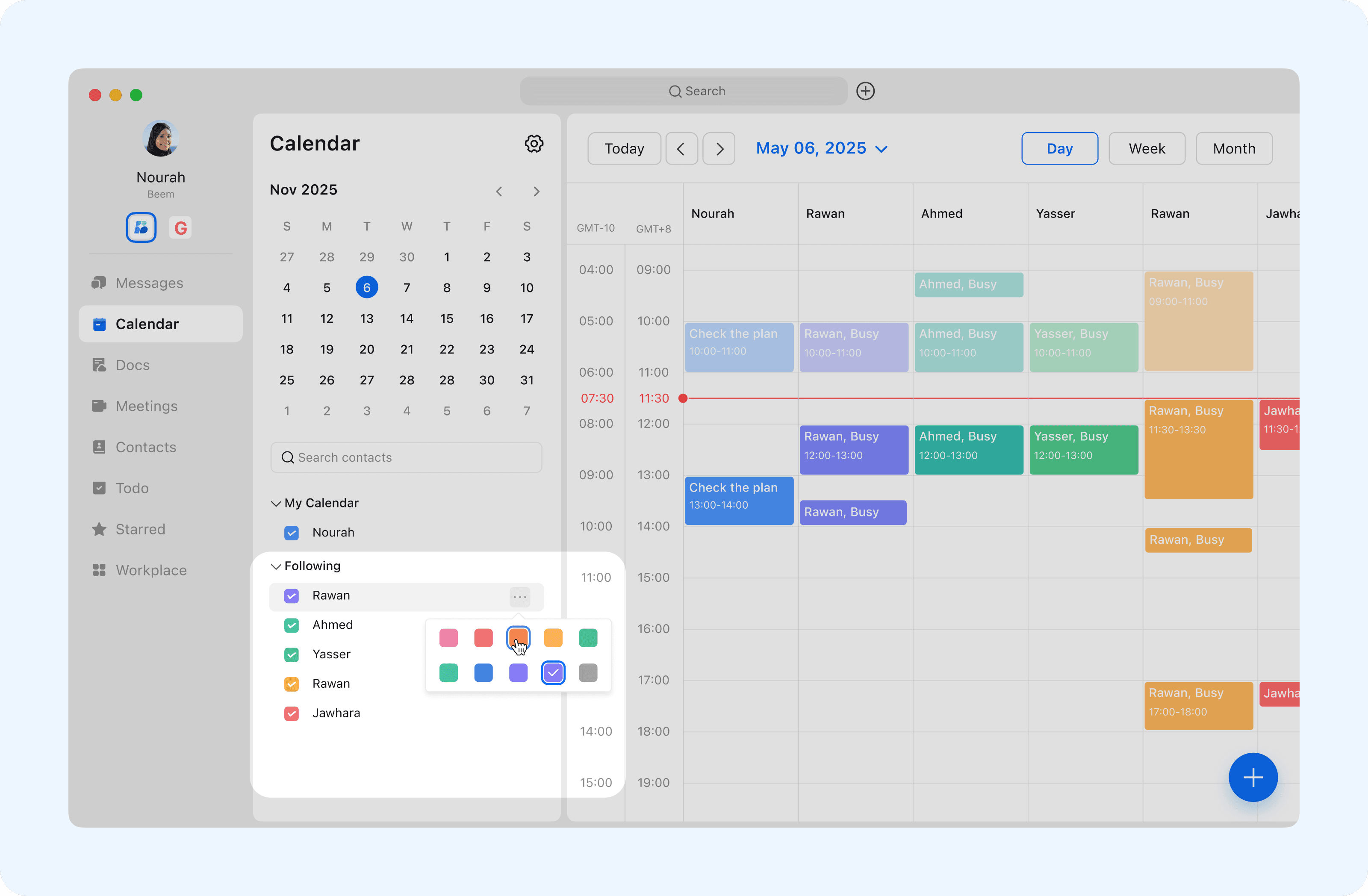
  • Subscribe to Stay Informed: Follow members‘ calendar to get all the scheduling details you need at a glance.
  • Change the color of your subscribed calendars, identify other's events easily.

undefined

Personalize Your Calendar

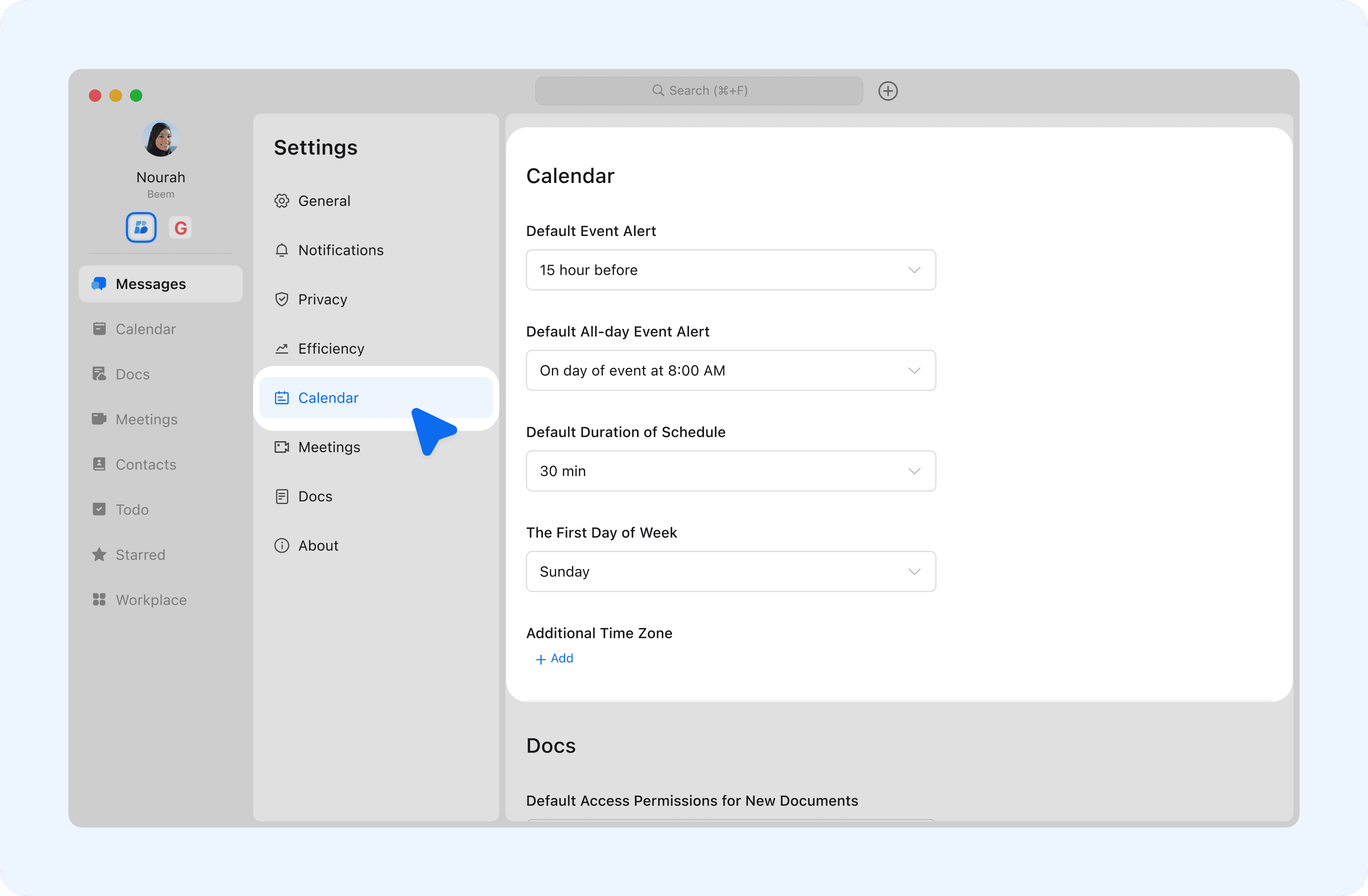
Customize your calendar and manage your schedule by adjusting alert times, event colors, time zones, and more through Beem Calendar settings.

In the Beem desktop app, click your profile picture > Settings > Calendar to access these options.
undefined

Set Event Alert Times

Set notification times for all-day and non-all-day events.
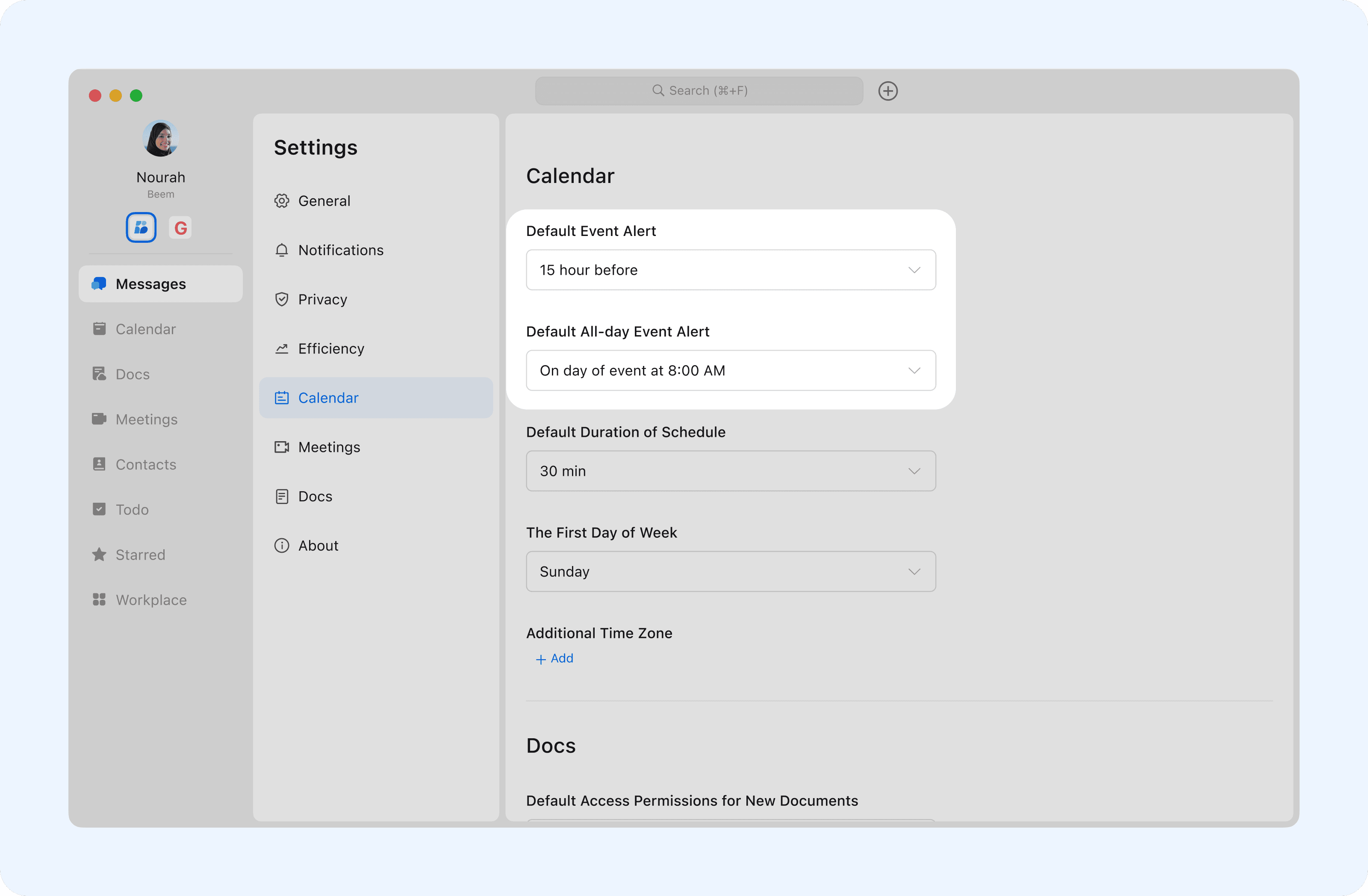
  • For non-all-day events, you can set alerts anywhere from two weeks before the event up to its start time.
  • For all-day events, you can choose fixed alert times at 8:00, 9:00, or 10:00 on the day of or day before the event.
  • Note: Setting alert times to None disables event reminders. To restore notifications, simply set the alert time again.

undefined

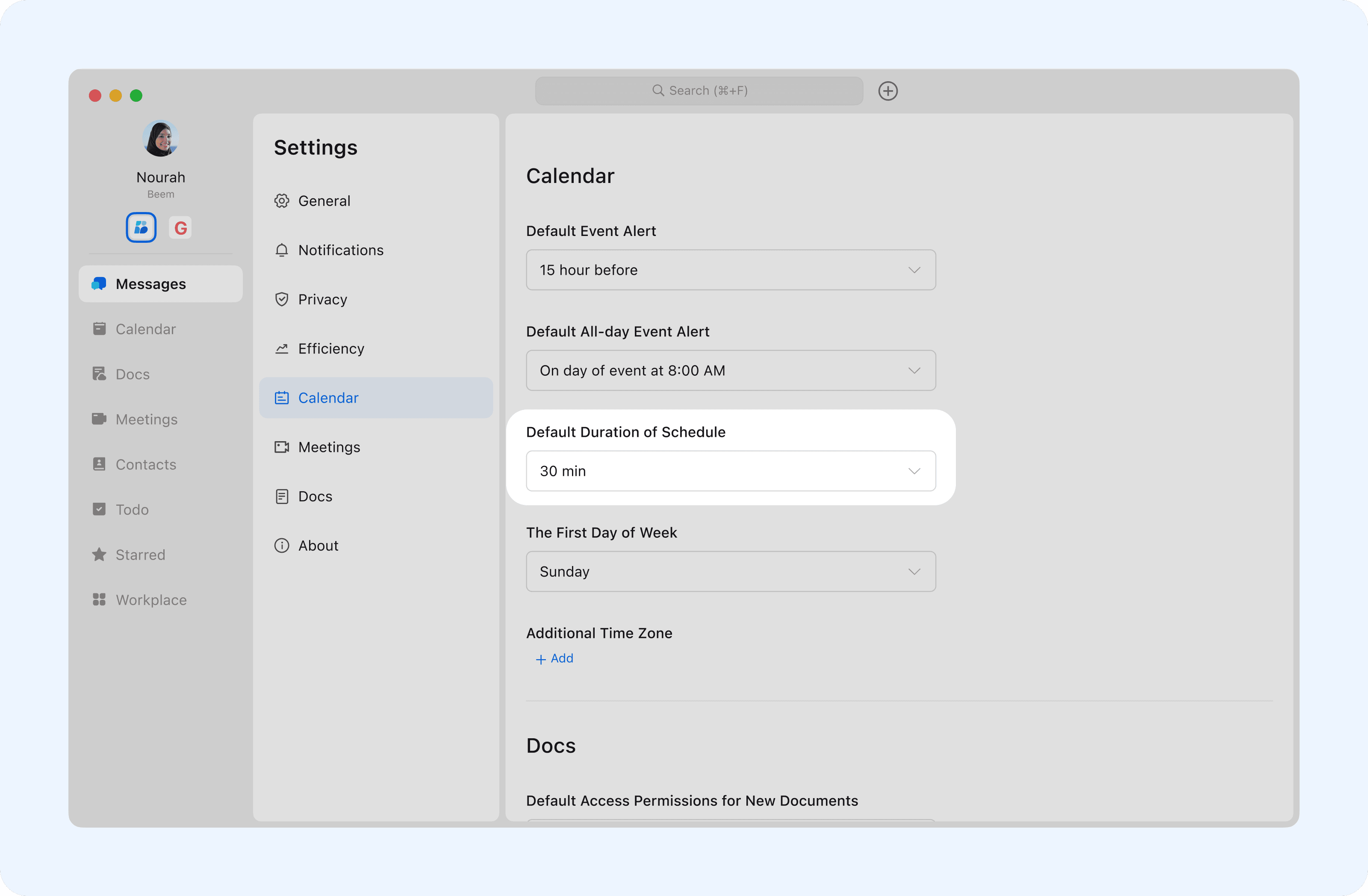
Set Default Event Duration

Choose the default length of your events. When creating an event, the end time will automatically be set based on this duration. Options include 15, 30, 45, 60, 90, or 120 minutes.
undefined

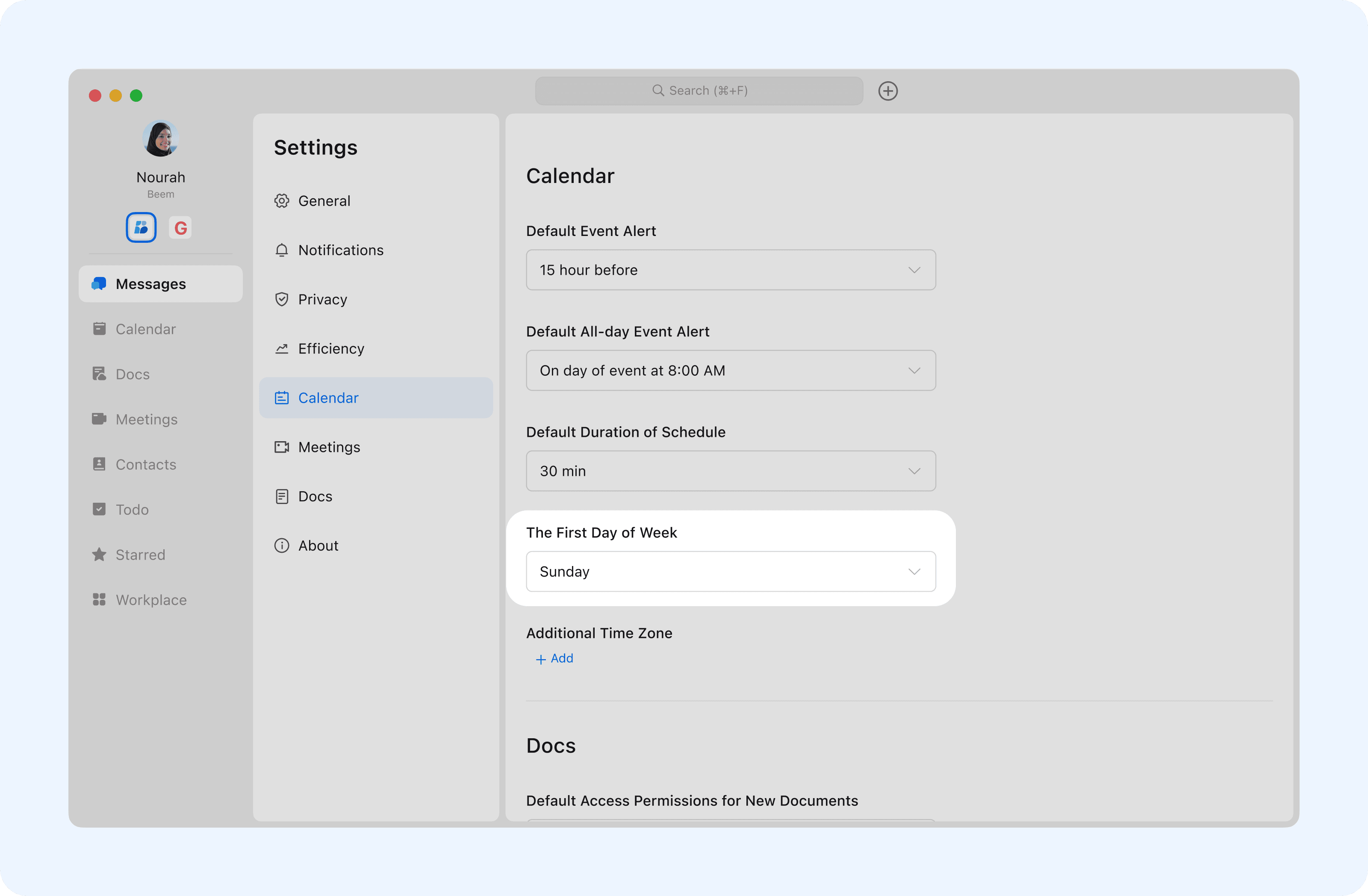
Set the First Day of the Week

The default first day of the week is Sunday. You can also select Saturday or Monday according to your preference. The chosen day will appear as the leftmost column in your week view.
undefined

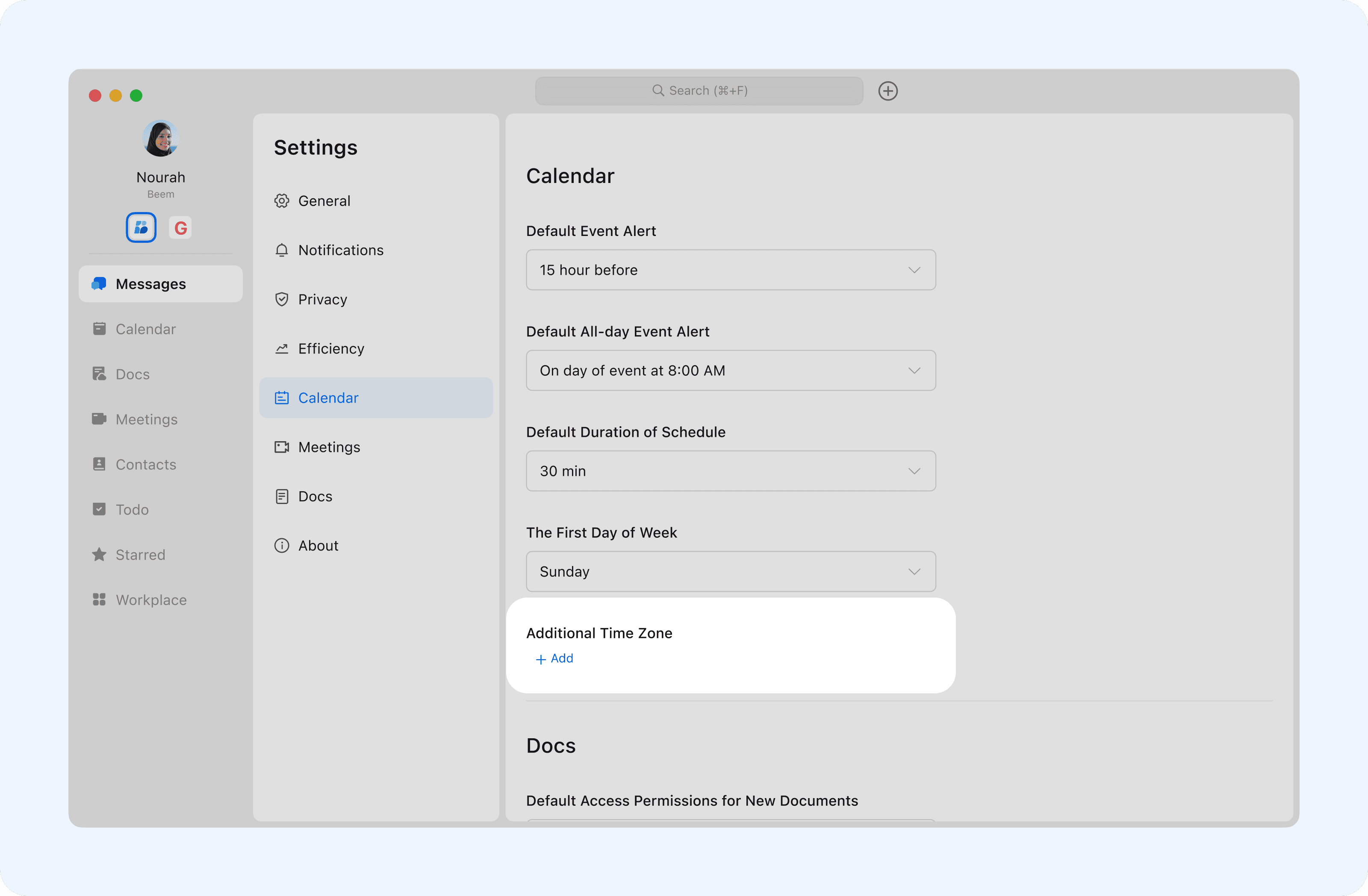
Set Time Zones

Add additional time zones to your calendar, which will be displayed alongside your main time zone for easier coordination across regions.
undefined