Skip to content

Get to Know Beem Todo

Estimated reading time for this article: 10 minutes

Beem Todo is a powerful task management tool designed to help teams organize, collaborate, and efficiently complete their work.

Todo Interface

The Todo interface in Beem helps you organize, track, and manage tasks efficiently, whether they are assigned to you, created by you, or shared with your team. It provides flexible views that allow you to focus on priorities, deadlines, and progress at any time.

Viewing and Organizing Your Todos

  1. View by role

You can filter Todos based on your role in each task to quickly identify your responsibilities and contributions.
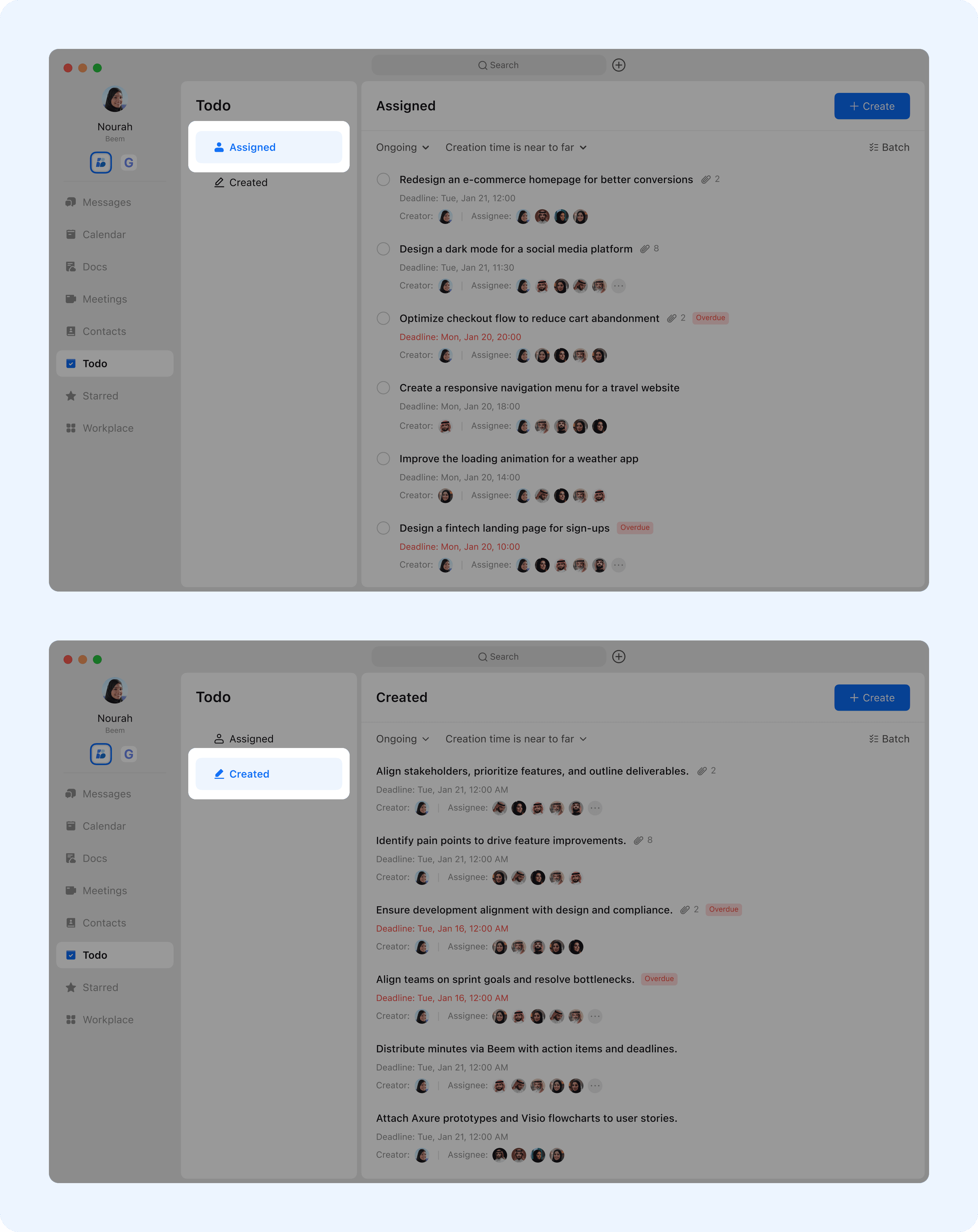
  • Assigned: Todos that have been assigned to you, either by yourself or others.
  • Created: Todos you have created, whether for yourself or others.

undefined

  1. View by status

You can organize your Todos based on their current progress and completion status.
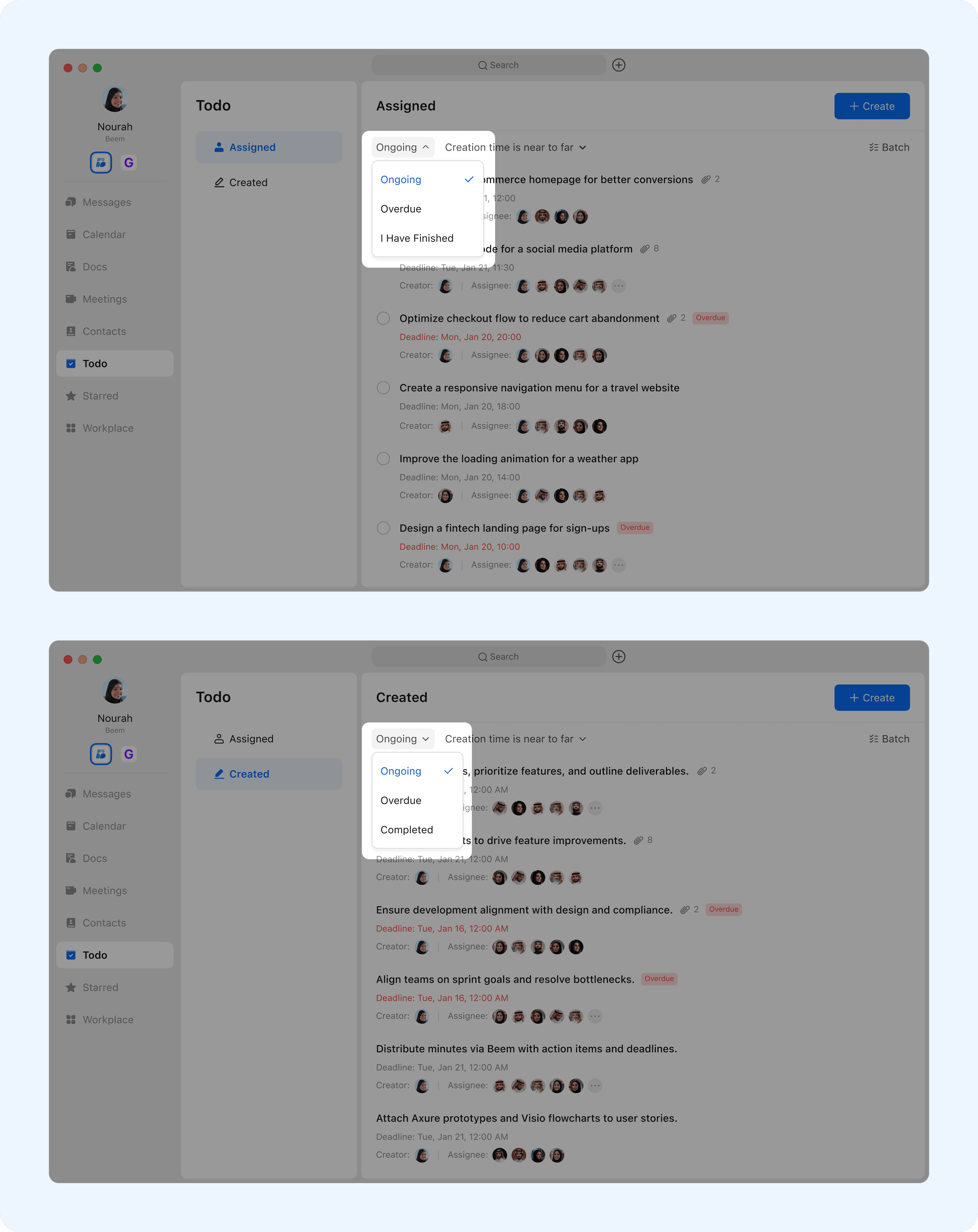
  • Ongoing: Todos currently in progress.
  • Overdue: Todos that have passed their deadline and have not yet been finished.
  • Completed: All completed Todos, including tasks you created, were responsible for, or assigned to others.
  • I Have Finished. A todo has been assigned to you, and you have marked your part of the task as completed.

undefined

Create Todo

Creating a Todo allows you to clearly define tasks, assign responsibility, and track progress from start to completion.

  1. New Todo
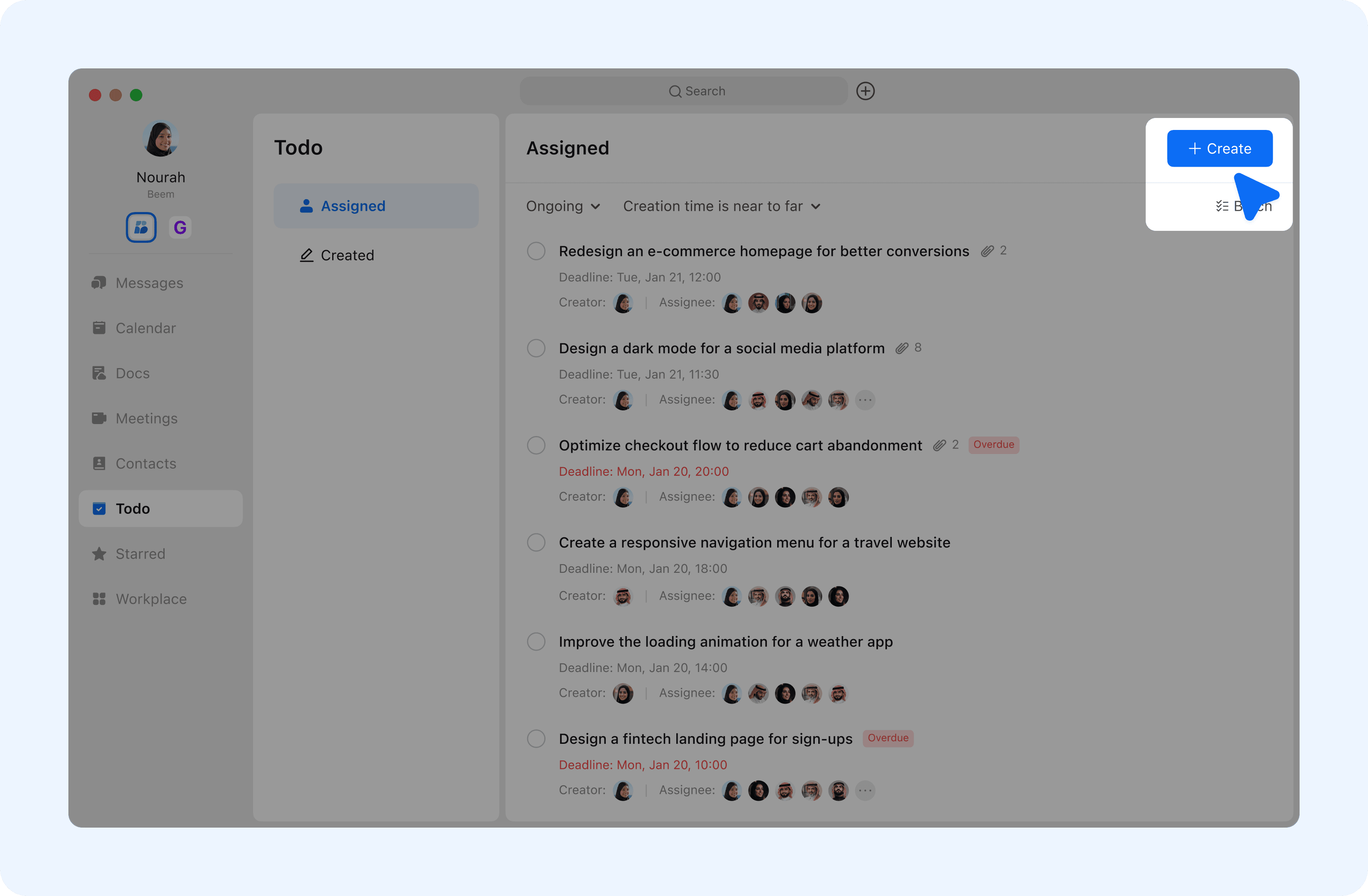
  • Click New Todo and enter the task name.

undefined

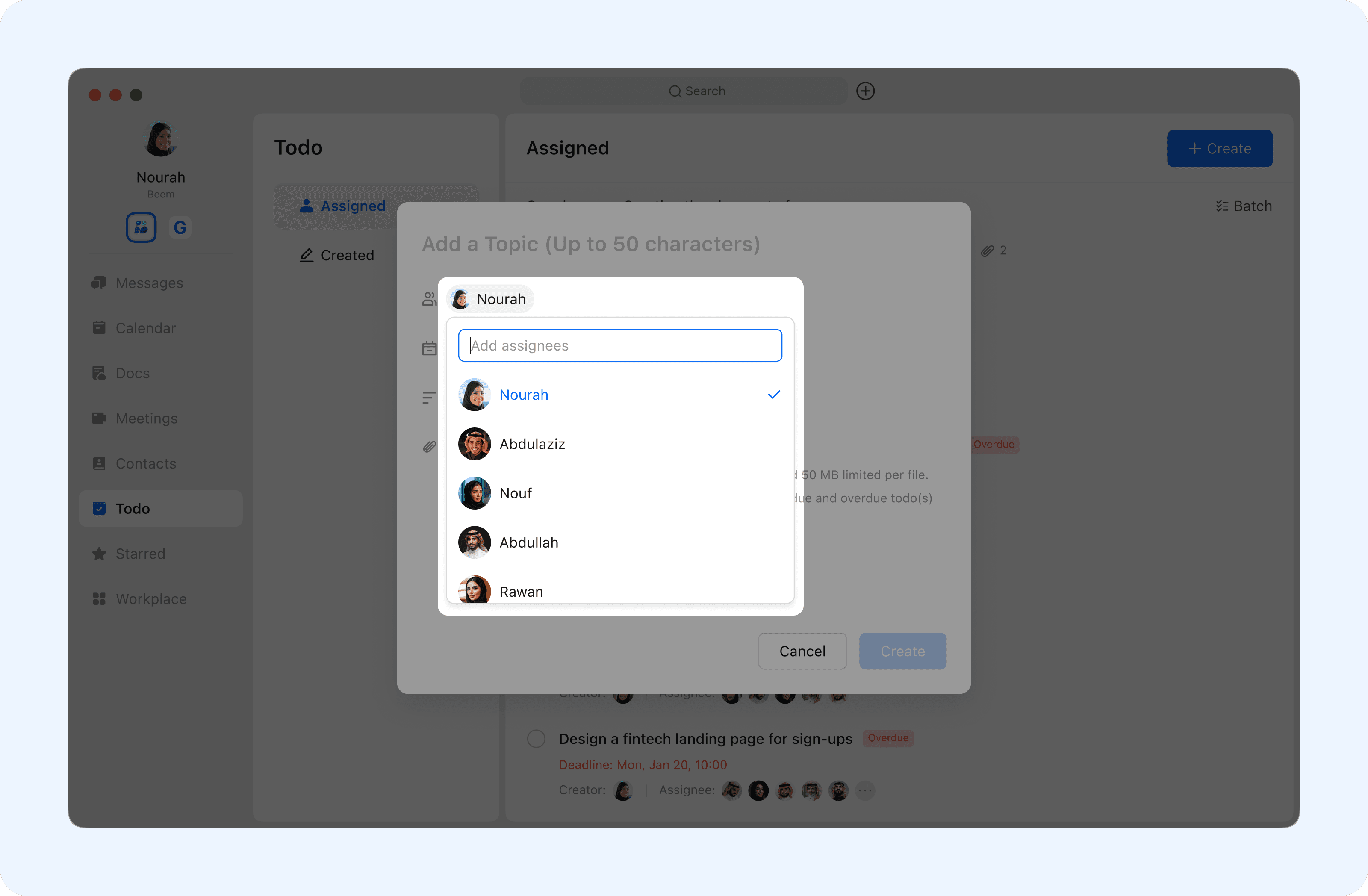
  1. Assign Owners and Subscribers

When you create a Todo, you are assigned as the owner by default. To assign ownership to someone else, hover over your name in the Owner field, then select a member from the suggested menu or type the assignee’s name in the search bar to select them.
undefined

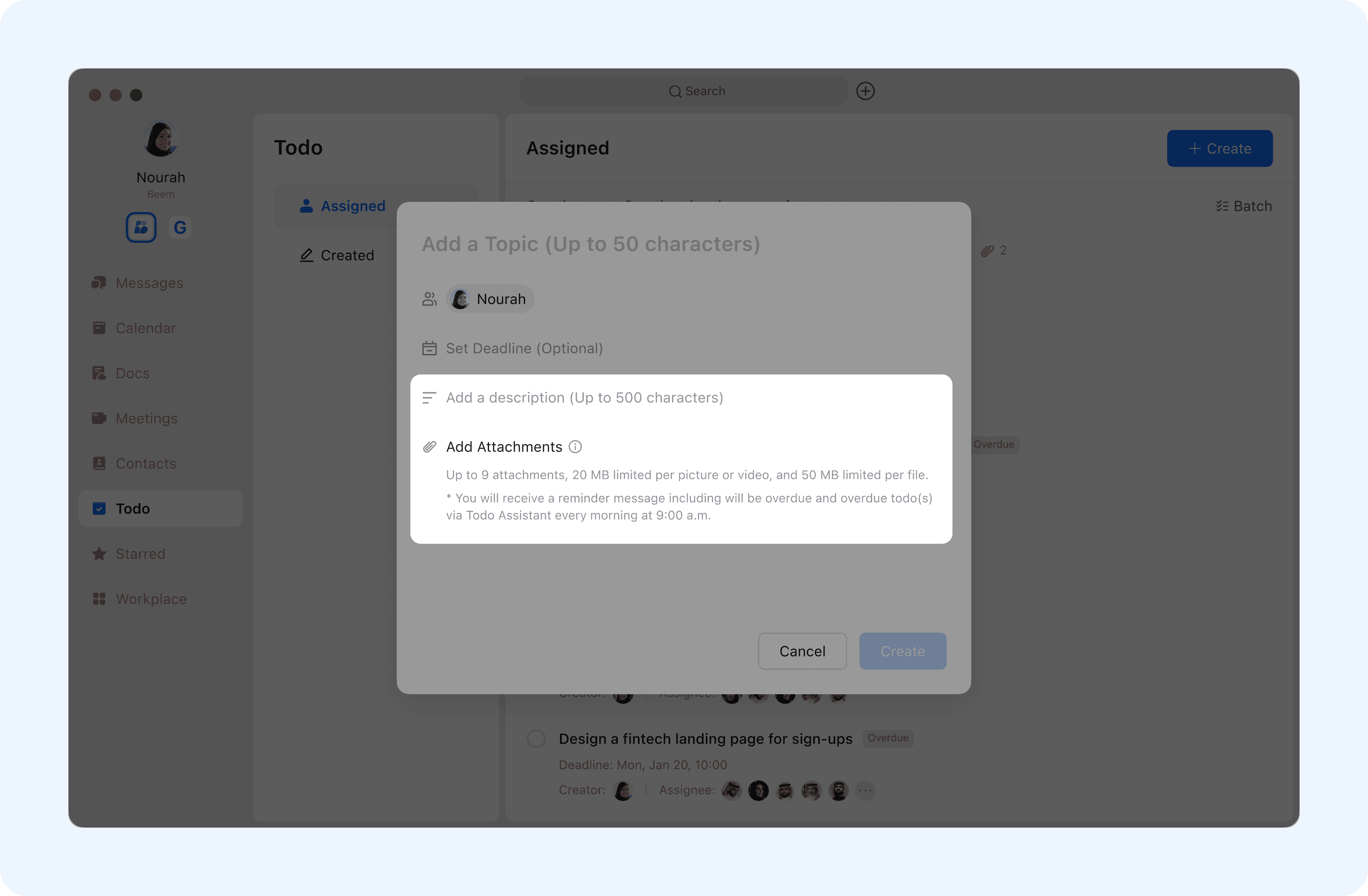
  1. Add Description and Attachments
  • You can add a detailed description and attach relevant files to provide context and clarity for the task.

undefined

  1. Set a Deadline
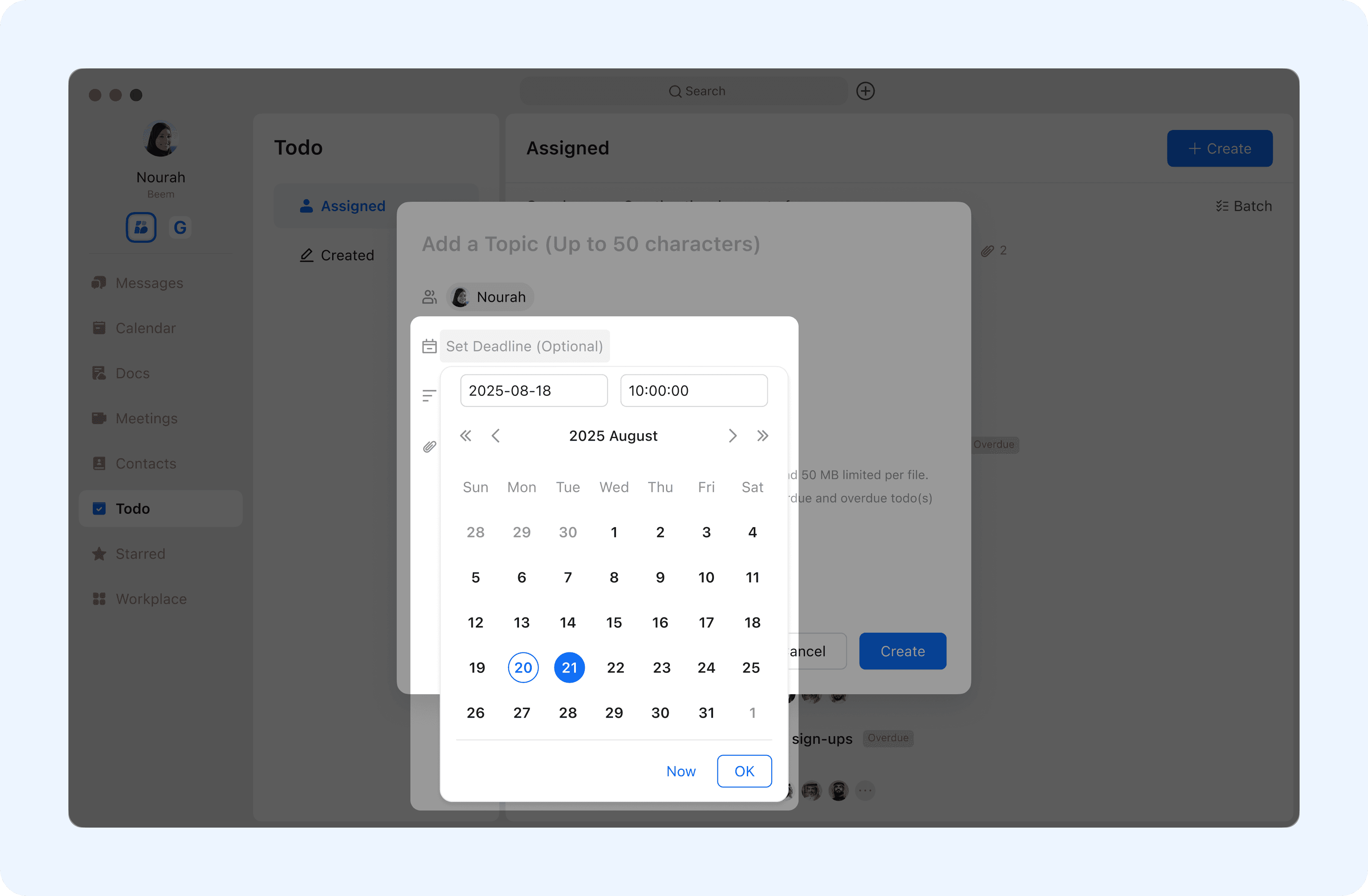
  • Set a deadline for the Todo so all members know when to complete it. If no time is specified, the system will automatically set it 3 hours later.

undefined

  1. Reminders and Notifications
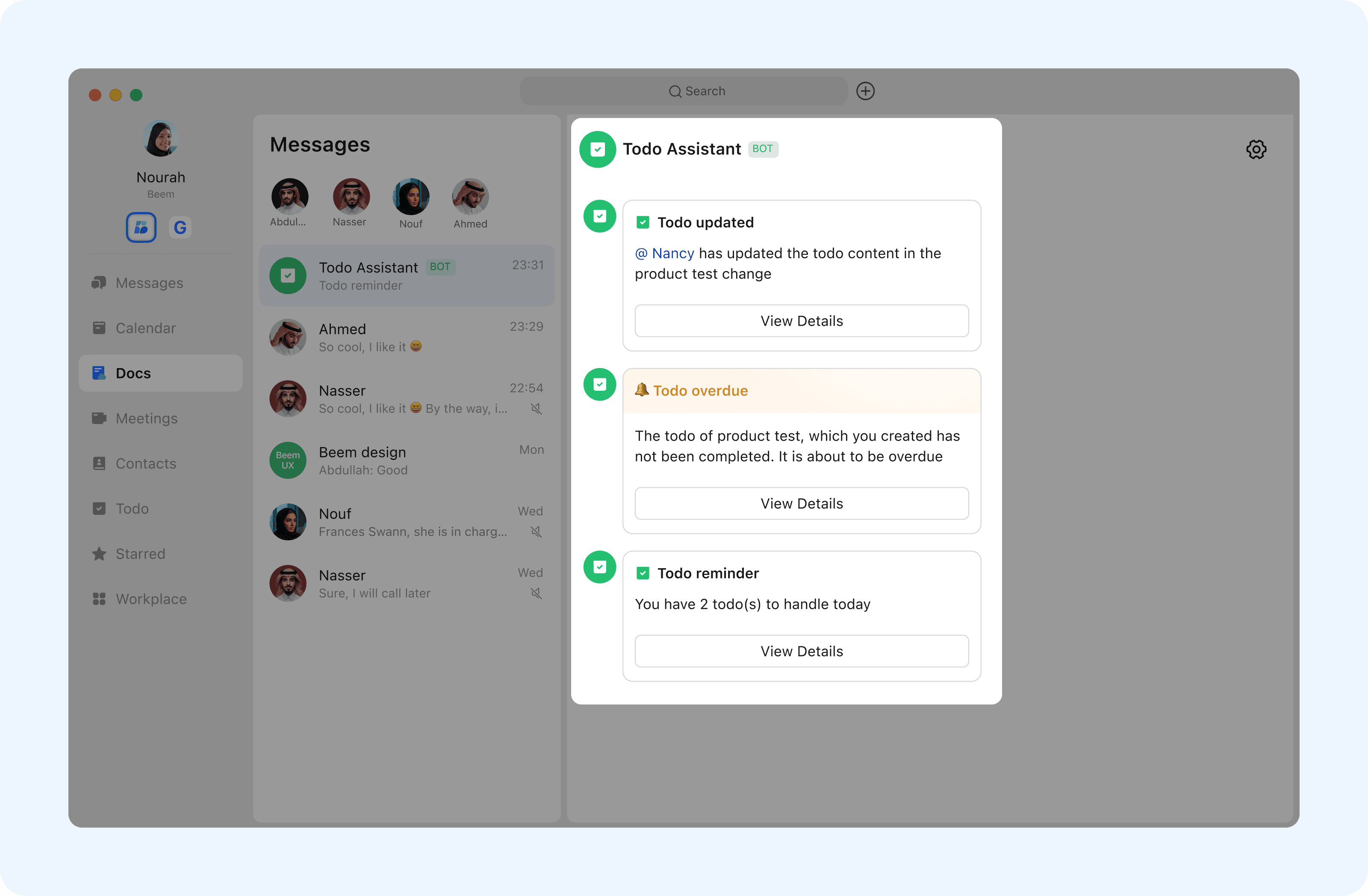
  • You will receive daily reminders showing how many Todos are still incomplete.
  • You will also receive reminders when a Todo is approaching its deadline and has not yet been completed.

undefined