

English (EN)
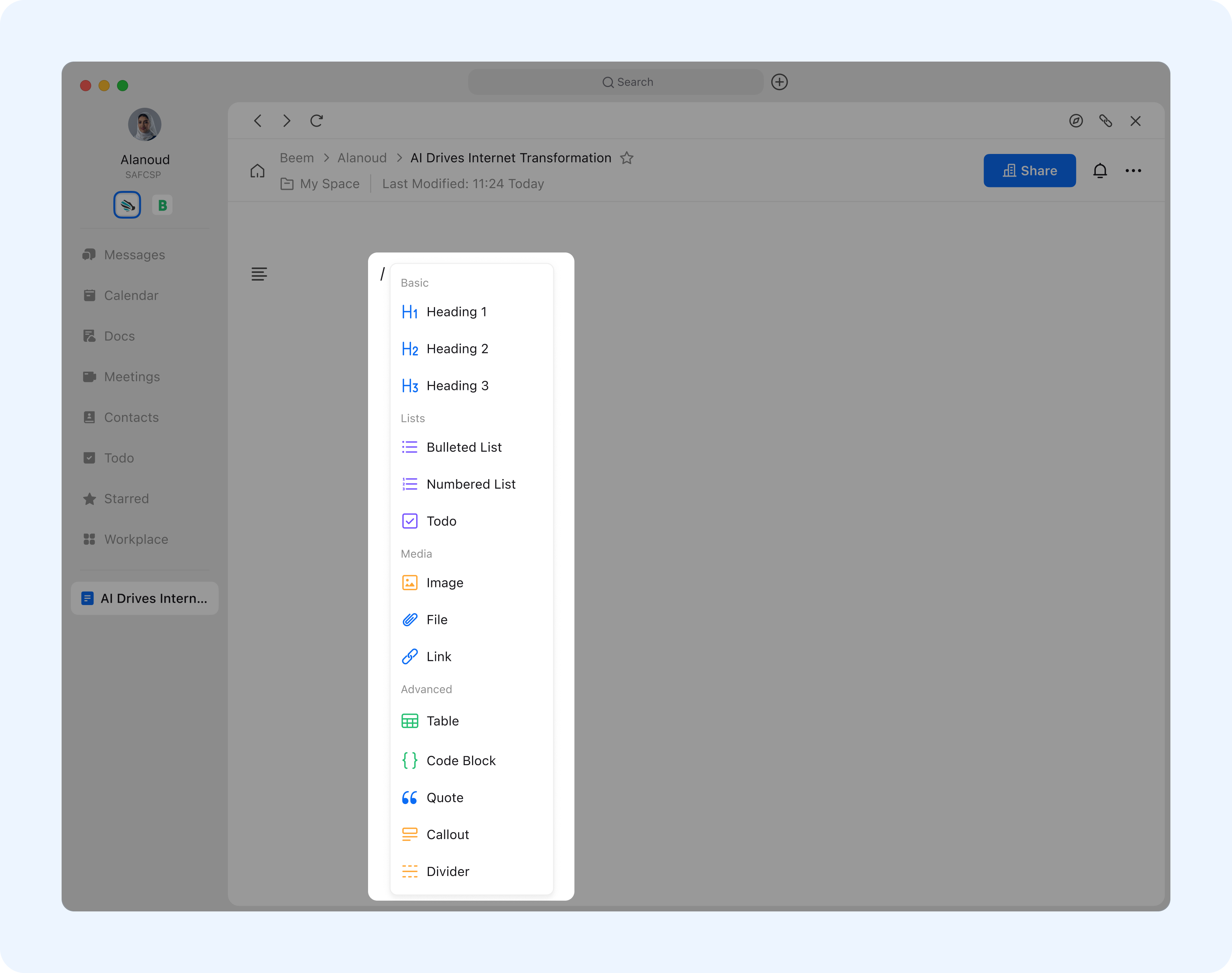
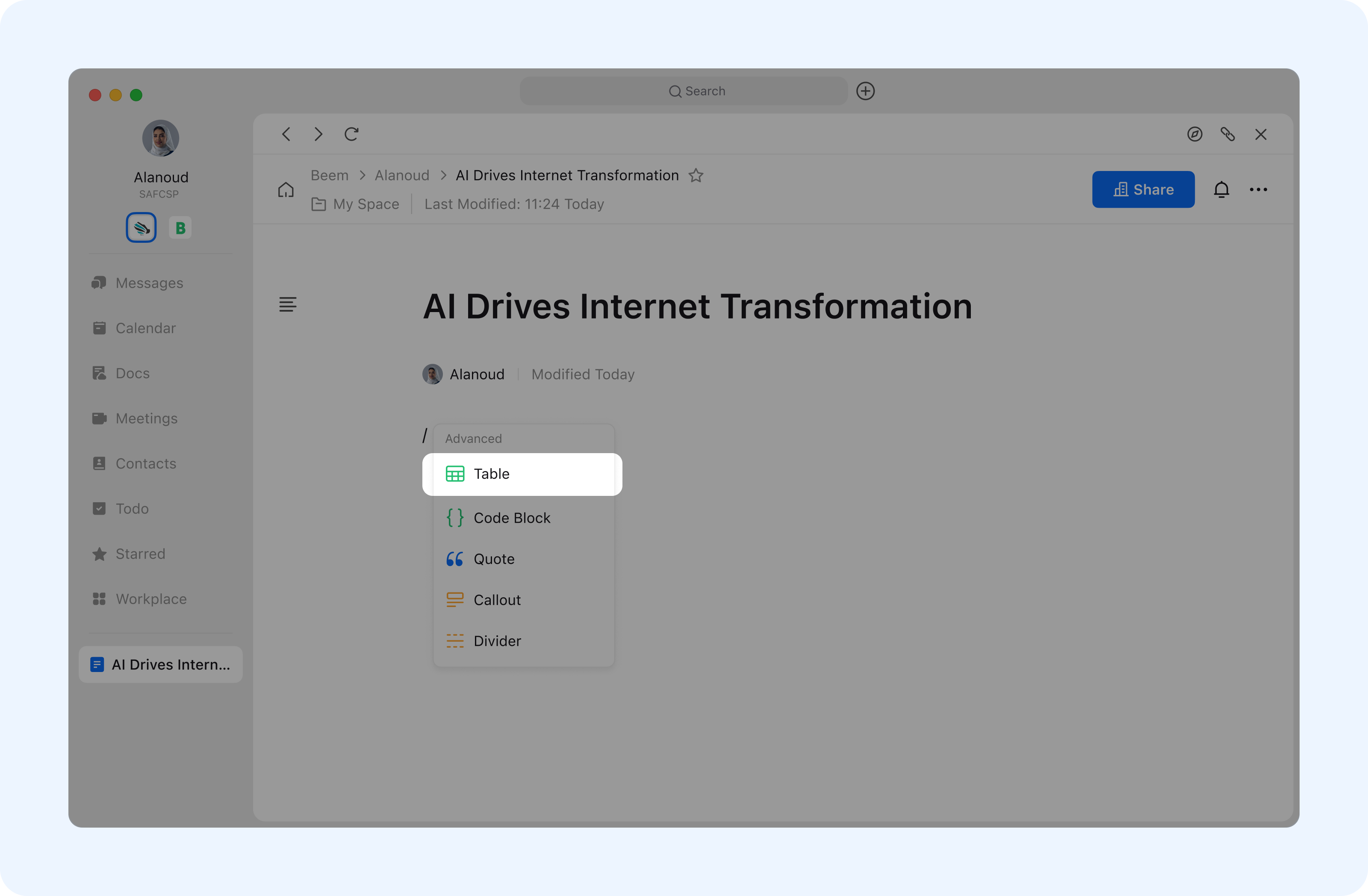
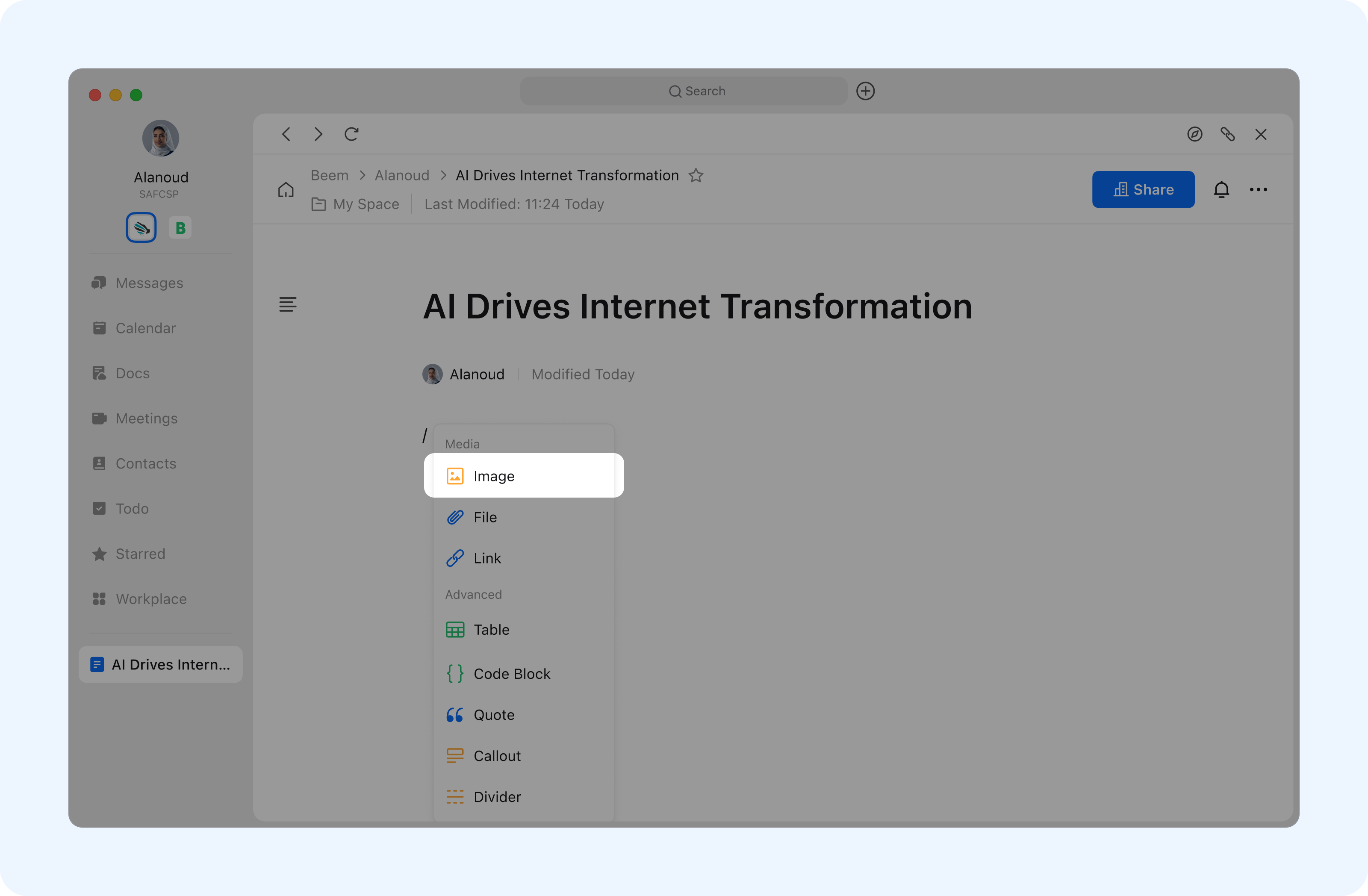
العربيةWhen editing a document on desktop or web, typing / at the beginning of a line or after a space brings up the Quick Insert toolbar. This toolbar allows you to quickly insert content types such as images, videos, and tables.
The / Quick Insert toolbar supports fuzzy search. After typing /, you can continue entering the pinyin, abbreviation, or English name of a content type to quickly locate it, improving search efficiency.
You can insert images into your document using the following two methods:
Method 1:Drag and drop a downloaded image file directly into the document, or copy and paste an image into the document.
Method 2:Type /image at the beginning of a line or after a space, click Image, then choose the desired image from your local files and click Open.
Drag and drop a local file directly into the document;
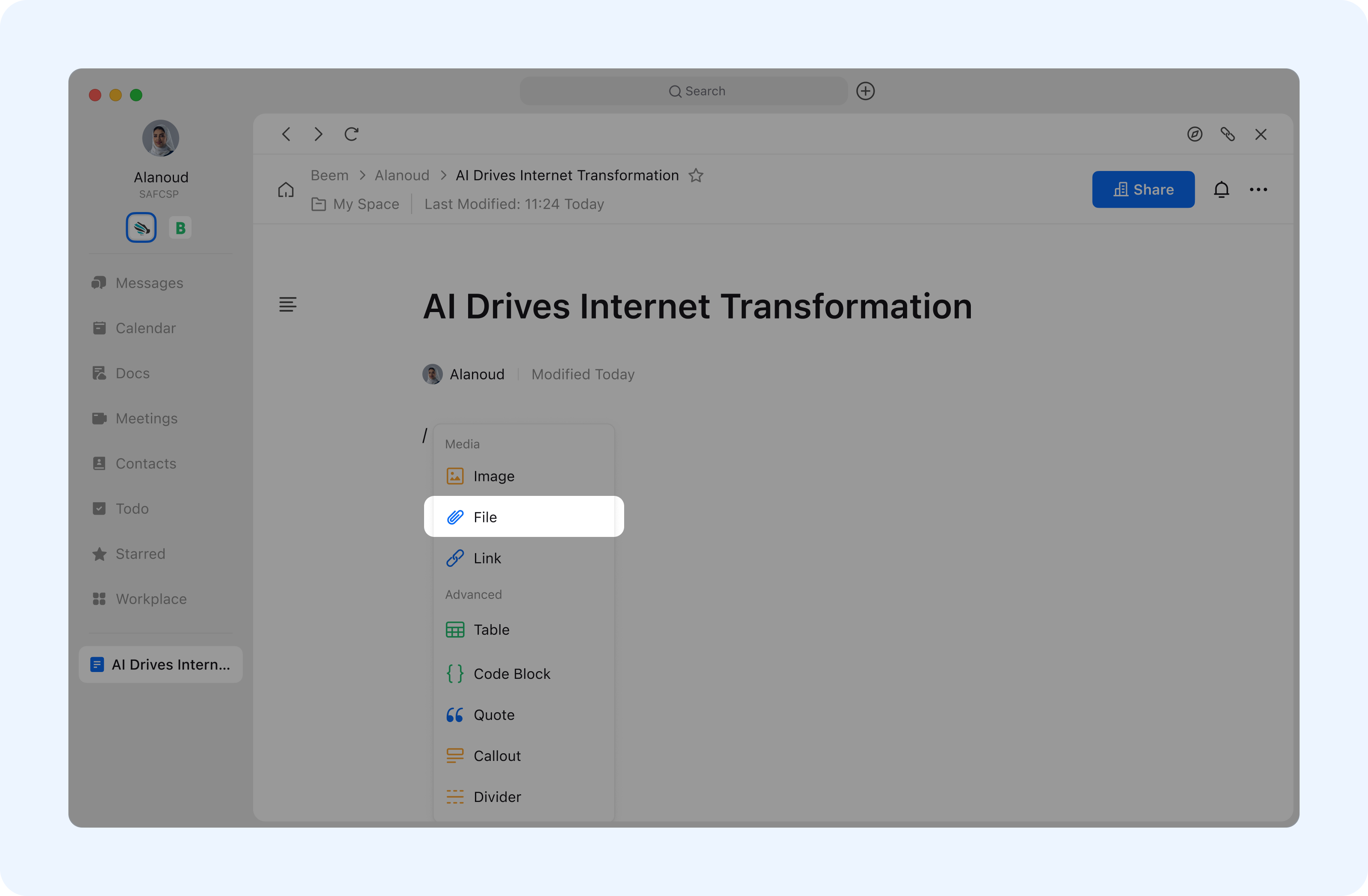
Type / at the beginning of a line or after a space, then select File from the pop-up tools menu. Choose the file you want to insert from your device and click Open.
| Shortcut Effect | Mac System | Windows System |
|---|---|---|
| Select All | ⌘ + A | Ctrl + A |
| Center the title | ⌘ + Shift + E | Ctrl + Shift + E |
| Title Left | ⌘ + Shift + L | Ctrl + Shift + L |
| Title Right | ⌘ + Shift + R | Ctrl + Shift + R |
| Undo | ⌘ + Z | Ctrl + Z |
| Redo | ⌘ + Shift + Z | Ctrl + Y |
| Find | ⌘ + F | Ctrl + F |
| View shortcut | ⌘ + / | Ctrl + / |
| Bold | ⌘ + B | Ctrl + B |
| Italics | ⌘ + I | Ctrl + I |
| Underline | ⌘ + U | Ctrl + U |
| Insert Link | ⌘ + K | Ctrl + K |
| Strikethrough | ⌘ + Shift + S | Ctrl + Shift + S |
| Code | Ctrl + ⌘ + C | Ctrl + Shift + C |
| Level 1 Heading | ⌘ + ⌥ + 1 | Ctrl + Alt + 1 |
| Secondary Heading | ⌘ + ⌥ + 2 | Ctrl + Alt + 2 |
| Level 3 Heading | ⌘ + ⌥ + 3 | Ctrl + Alt + 3 |
| Plain text | ⌘ + ⌥ + 0 | Ctrl + Alt + 0 |
| Bulleted list | ⌘ + Shift + 8 | Ctrl + Shift + 8 |
| Ordered List | ⌘ + Shift + 7 | Ctrl + Shift + 7 |
| Line break within content block | Shift + Enter | - |
| Expand selected by one character | Shift + ←/→ | - |
| Expand selected by one row | Shift + ↑/↓ | - |
| Style Effect | Grammar |
|---|---|
| Heading 1 | # Space |
| Heading 2 | ## Space |
| Heading 3 | ### Space |
| Level N Heading | # + spaces |
| Note: Supports up to 9 levels of headings | |
| Ordered list | 1. Space |
| Bulleted list | - Space or * Space |
| Task list | [] Space |
| Increase indent | Tab |
| Decrease indent | Shift + Tab |
| Reference | ^ Space |
| Code | `` |
| Code Block | Space |
| Bold | ** Text ** Space |
| Italic | * Text * Space |
| Underline | _ Text_ Space |
| Strikethrough | |
| Separator Line | --- or *** |