
English (EN)
العربيةTo access and manage your organization’s settings, users, and permissions, you need to sign in to the Admin Suite. Follow the steps below to securely log in and start managing your organization.
WARNING
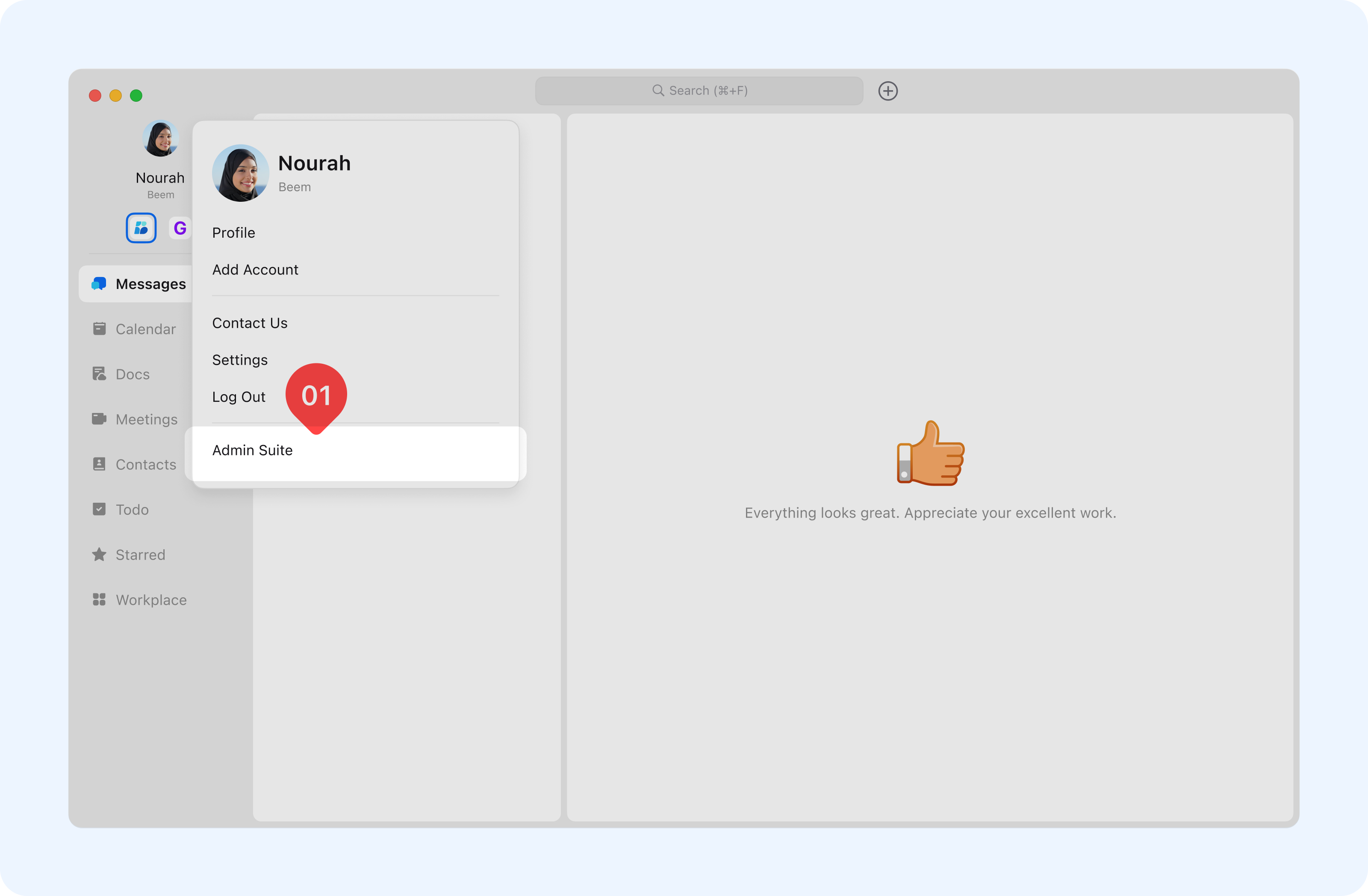
Tip: You can access the admin portal directly by clicking Admin Suite
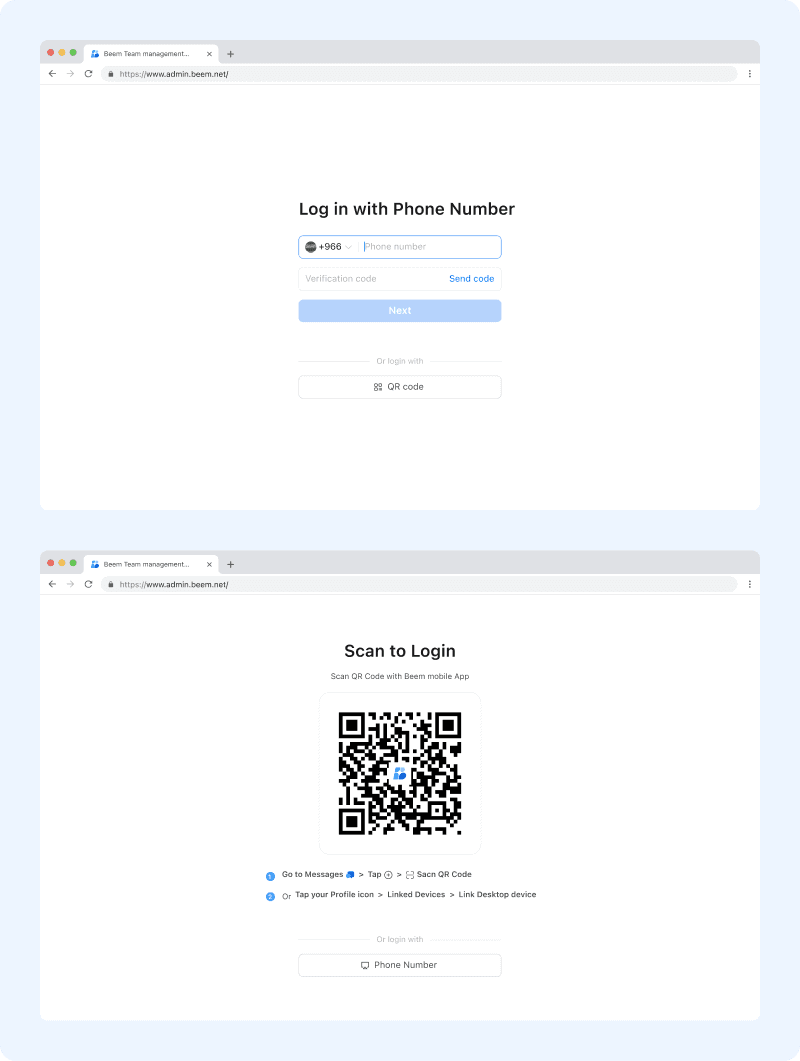
On the Admin login page, you will be asked to verify the registered organization using one of the following methods:
Once verification is completed successfully, you will gain full access to the Admin Suite to manage organization settings, users, and permissions.
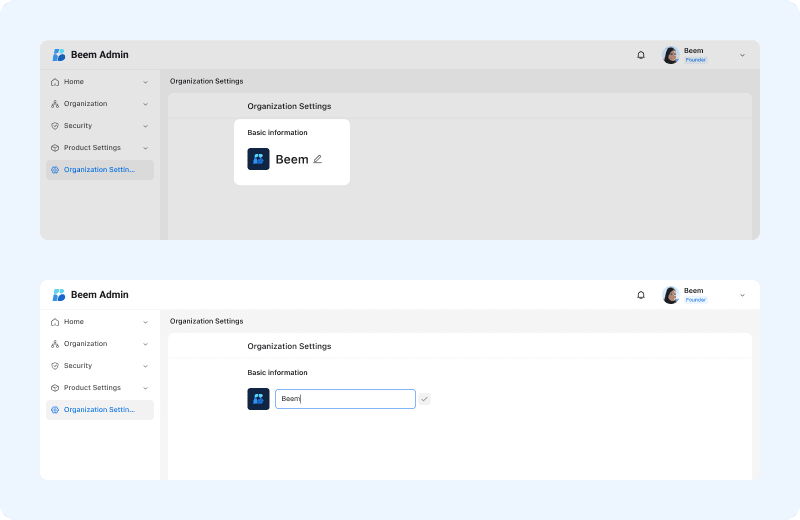
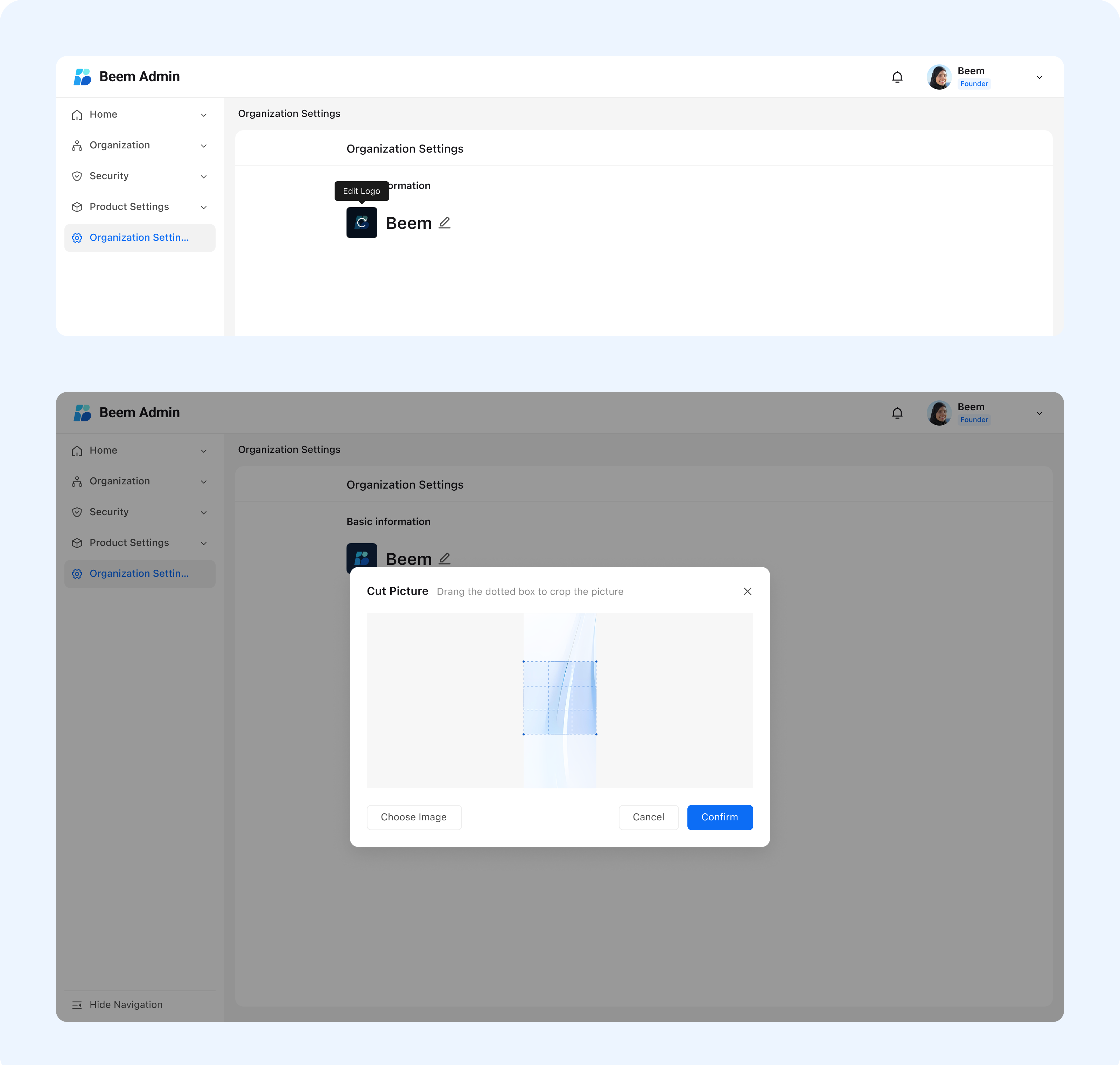
You can update your organization’s basic information, such as the organization name and logo, to ensure your workspace reflects your official identity.
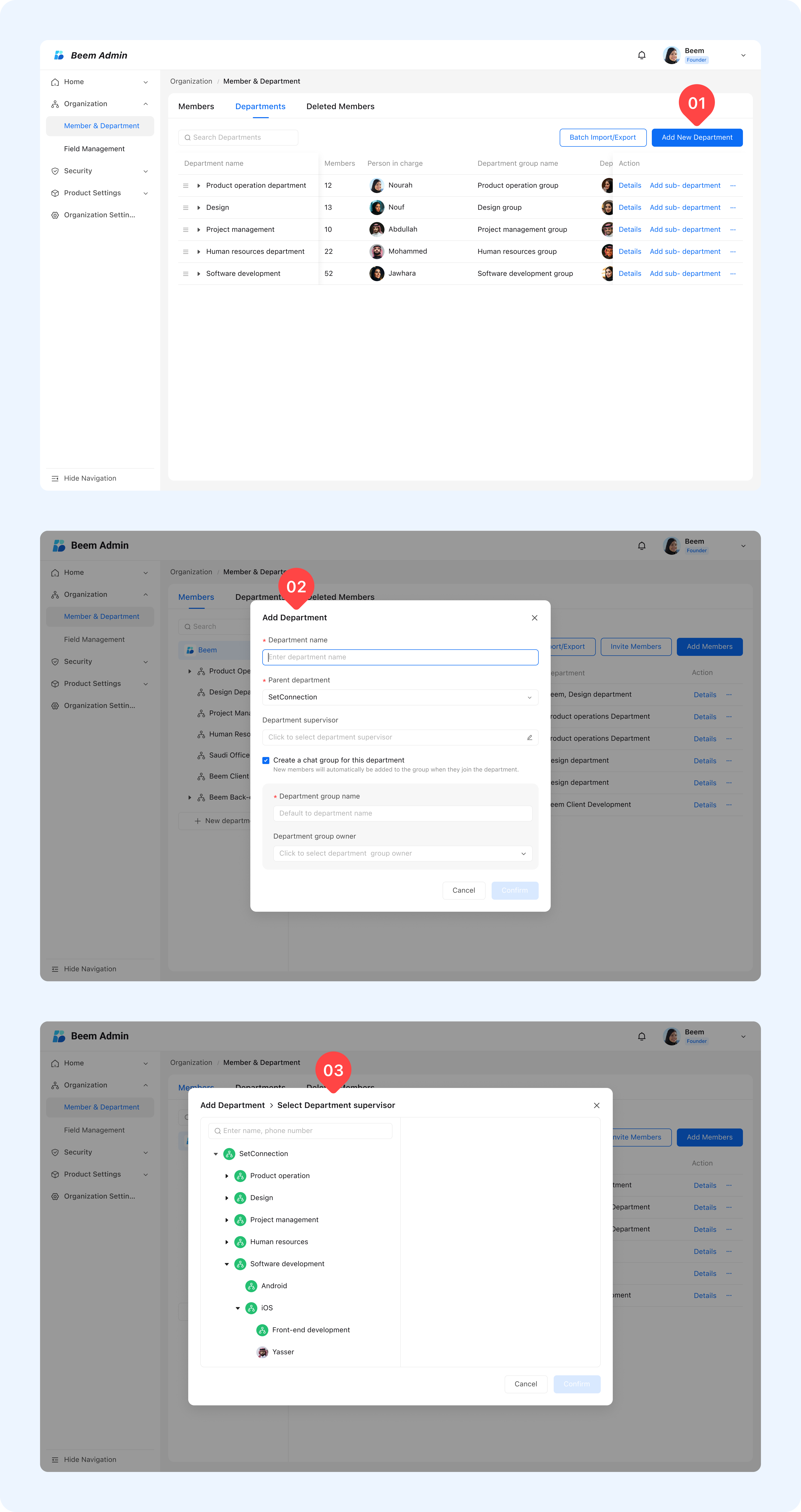
Departments help you organize members within the organization and structure teams more effectively.
WARNING
Tip: Each member must belong to at least one department to join the organization.
You can add members to your organization through Beem Admin Suite, depending on your preferred workflow.
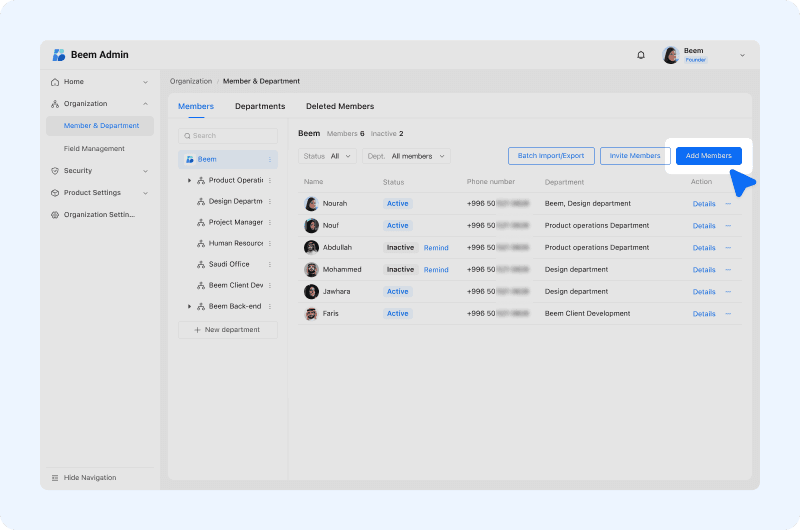
To Add Members, move to Beem Admin Suite, then select Members and Departments.
Click Add Members and fill all the requirements to invite the member and repeat the process as needed.
For organizations with a large number of users, bulk importing members using an .xlsx file is supported.
You can also Invite Members by clicking Invite Members and use the following methods: