access_timeEstimated reading time for this article: 5 minutes
Groups provide a flexible way to organize members for communication, permission management, and collaboration, enabling administrators to ensure messages, tasks, and resources reach the intended audiences efficiently at both the organizational and departmental levels, and this section explains how administrators can create, edit, and manage groups with automatic synchronization to streamline workflows.
Organization groups are designed to encompass all members within the organization, enabling centralized communication and management. These groups are ideal for announcements, organization-wide tasks, or policy dissemination.
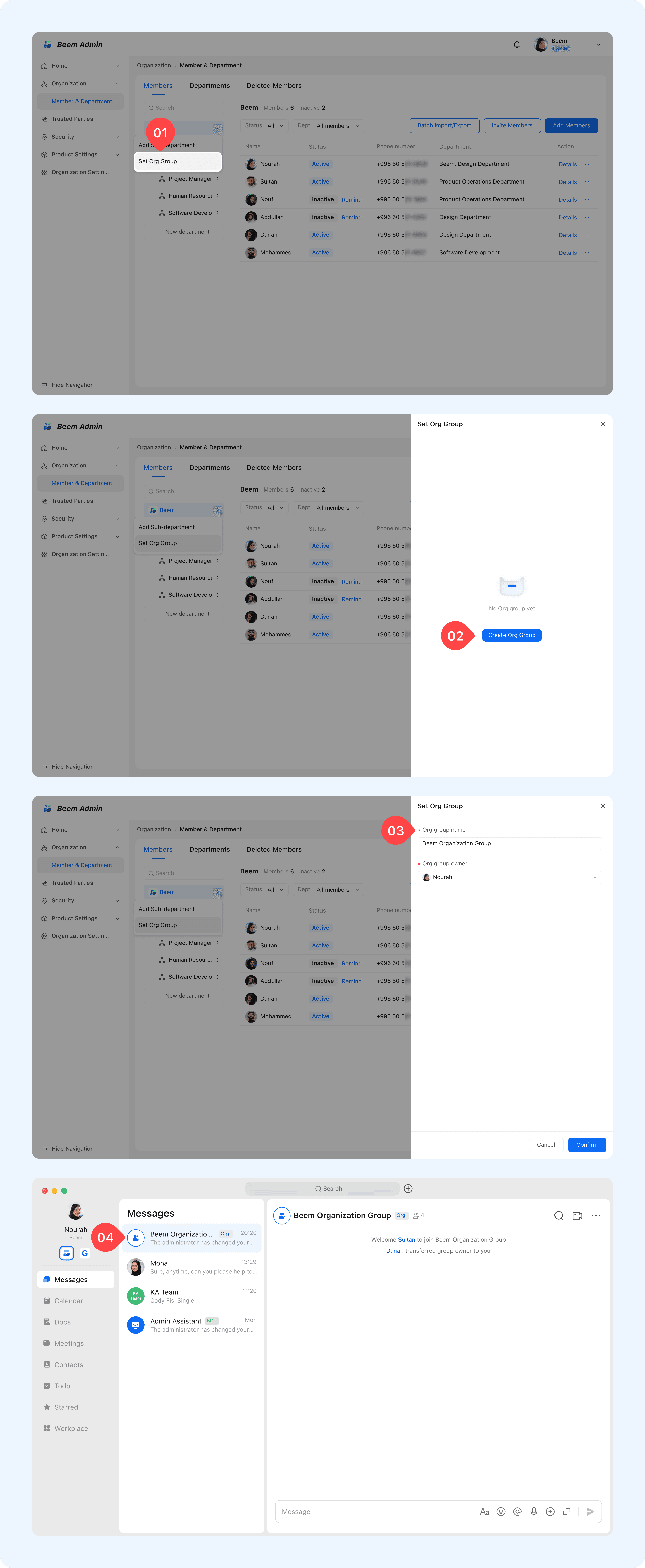
Administrators can create or edit organization groups by following the steps below:
Go to the Members & Departments page, select the organization name, then click the three dots ":" and choose Set Org Group.
The group will be created automatically, and all the organization members will be invited to the group automatically.
Member lists are updated automatically when members join or leave the organization.
WARNING
Tip: If the HR department wants to announce a new company policy to all employees, they can use an organization group to reach every member without manually adding them.
Department groups allow administrators to organize members based on their department hierarchy. These groups are ideal for department-specific announcements, tasks, or collaboration.
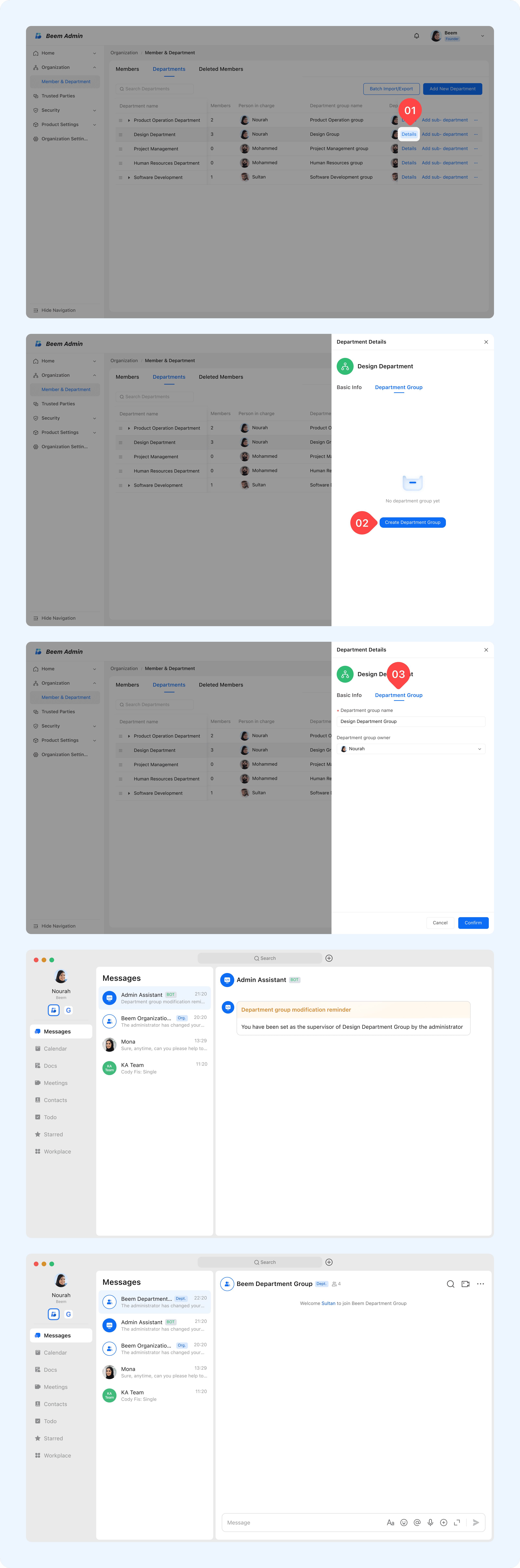
Administrators can create or edit department group by following the steps below:
From the Members & Departments page, go to Departments, select the department you want to create a group for, click Details then navigate to Department Group, and choose Create Department Group.
Fill in the required fields, such as the department group name and department group owner.
The group will be created automatically, and members will be invited to the group, including all direct members of the department and members of subordinate departments automatically.
Member lists are updated automatically when members join, leave, or change departments.