English
Managing members is a core function for administrators to ensure the organization operates smoothly by granting the right people access to the right resources, enabling efficient communication, and maintaining accurate organizational structures, and this guide provides step-by-step instructions to manage members and perform individual and batch operations efficiently.
Add New Members
Adding new members allows administrators to expand the team within the organization, assign roles, and ensure proper inclusion in departments and workflows. This process is critical for onboarding new employees efficiently.
Steps
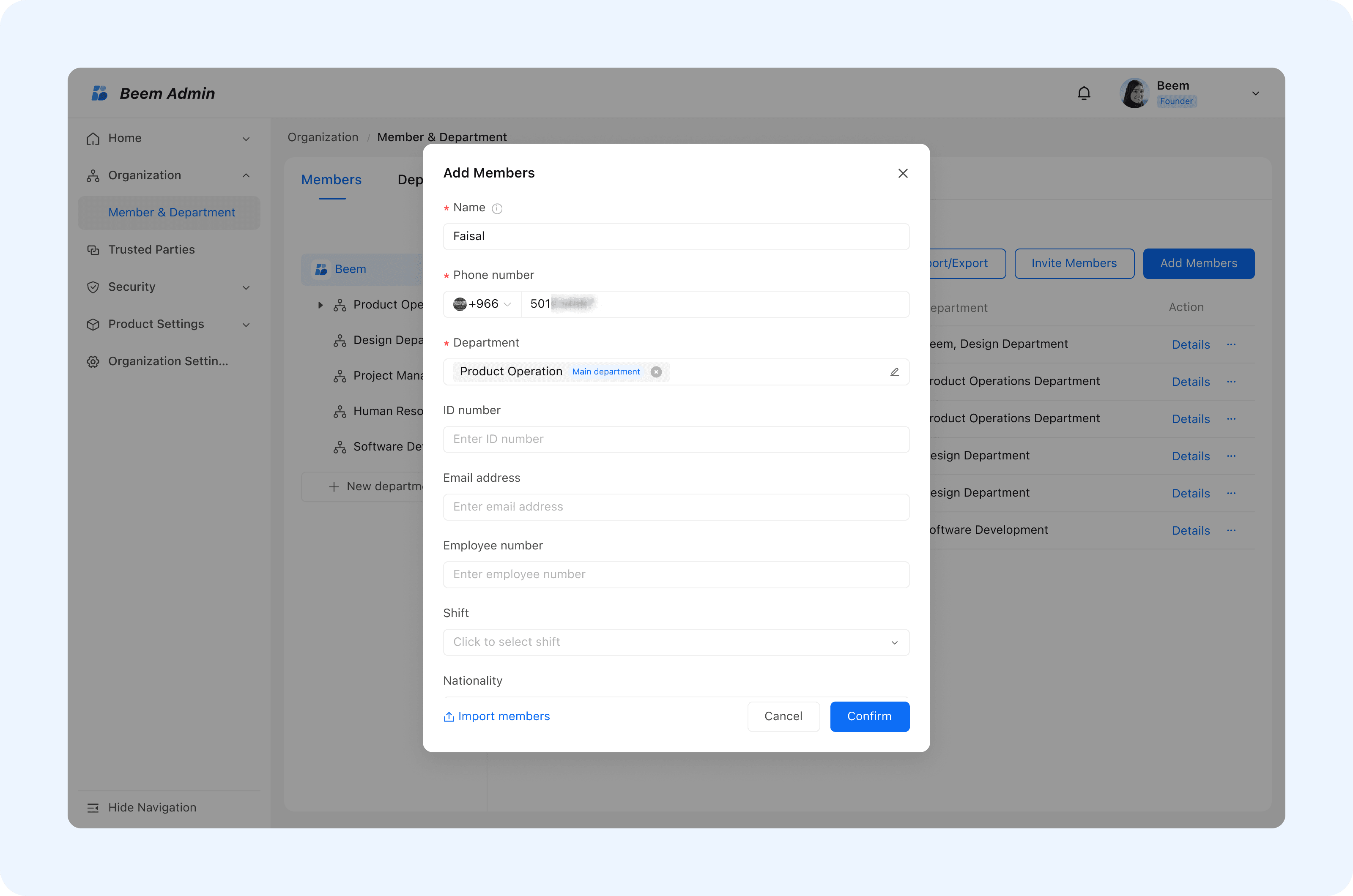
- From the Admin Suite navigate to Members & Departments then choose Add Members.
- When you click Add Member, a form will appear where you need to fill in the required fields such as : Name, Phone Number, Department.
- You can also provide optional details to enrich the member profile, such as Job Title, Direct Manager, ID Number, Email, Employee Number.
- Click Confirm to finalize adding the member then member will receive a notification via the Beem Bot informing them that they have been invited to join the organization.
WARNING
Tip: Always assign the correct department and manager to ensure members receive relevant communications and permissions.
Search and Filter Members
Searching and filtering allow administrators to locate members quickly, especially in large organizations. This ensures that updates, communication, and reporting are performed efficiently.
Steps
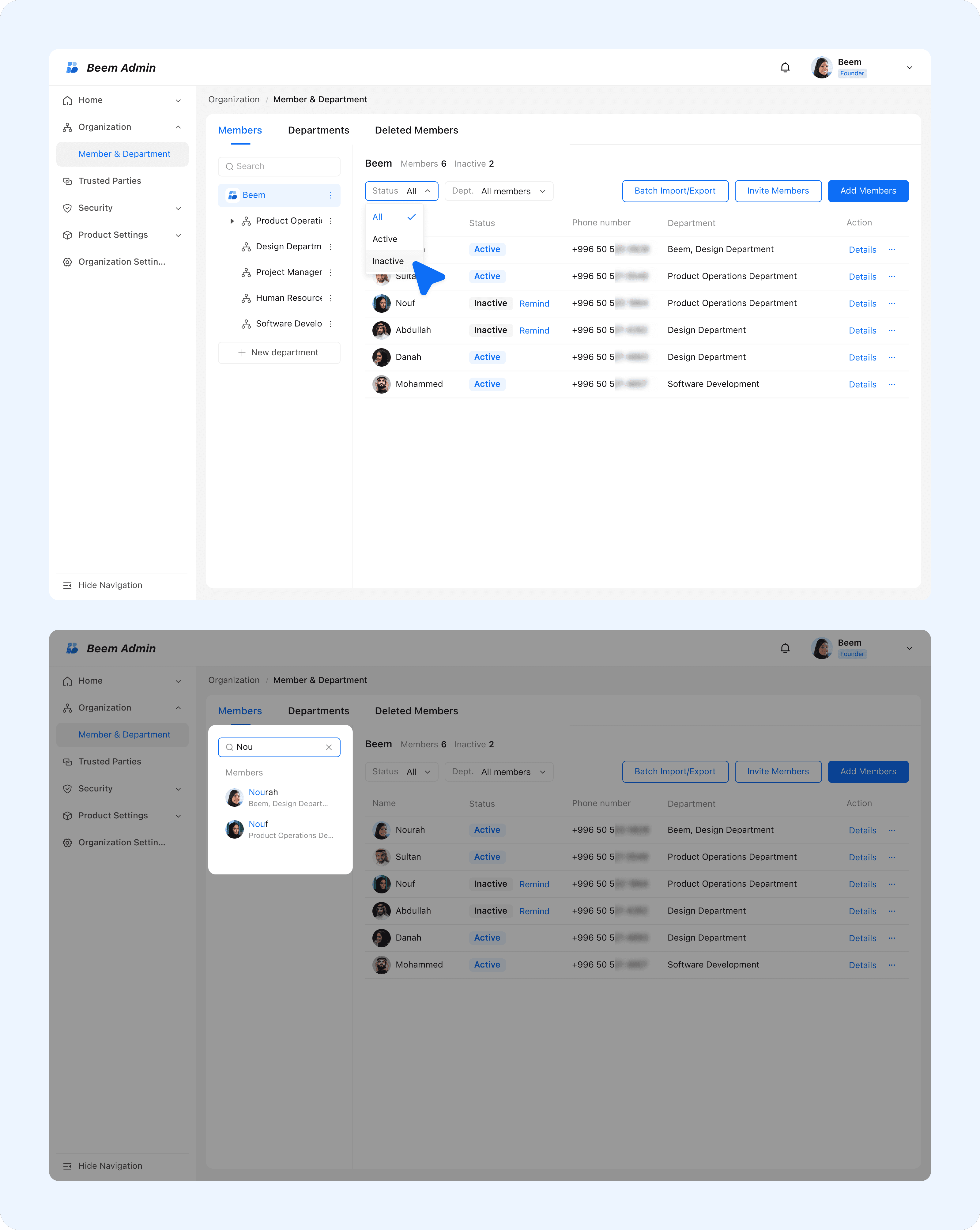
- From the member list page use the search bar to type a member’s name for a fuzzy search.
- Apply filters based on status (Active, Inactive) to narrow down results.

Edit Member Information
Editing member information ensures that records are up-to-date, accurate, and aligned with organizational changes. It also supports communication accuracy and proper role assignment.
Steps
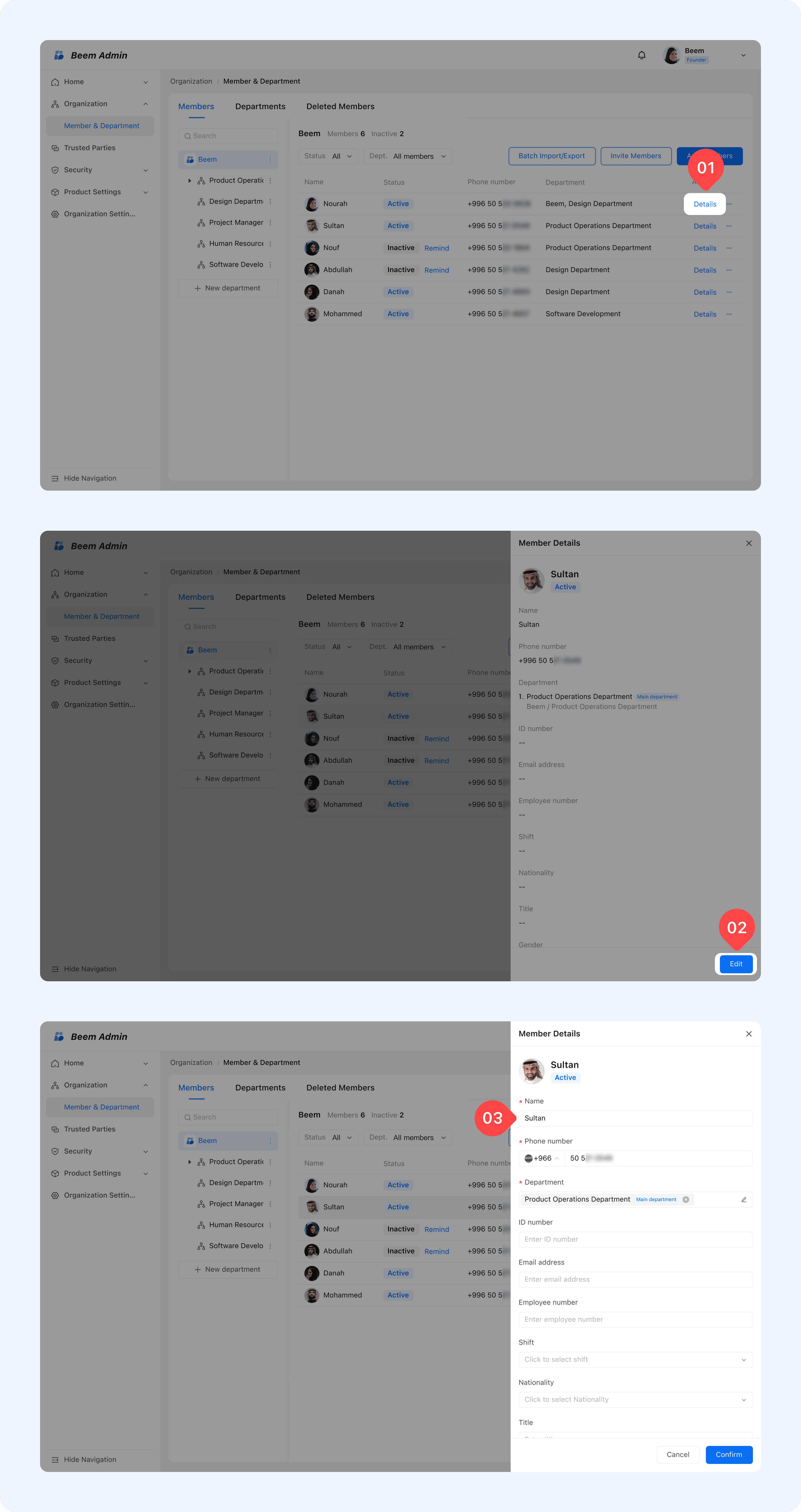
- From the member list page select Member then choose Edit
- Update any fields as needed (Name, Phone Number, Department, etc.).
WARNING
Tip : Regularly review member profiles to ensure that all information remains current, especially for managers and department heads.
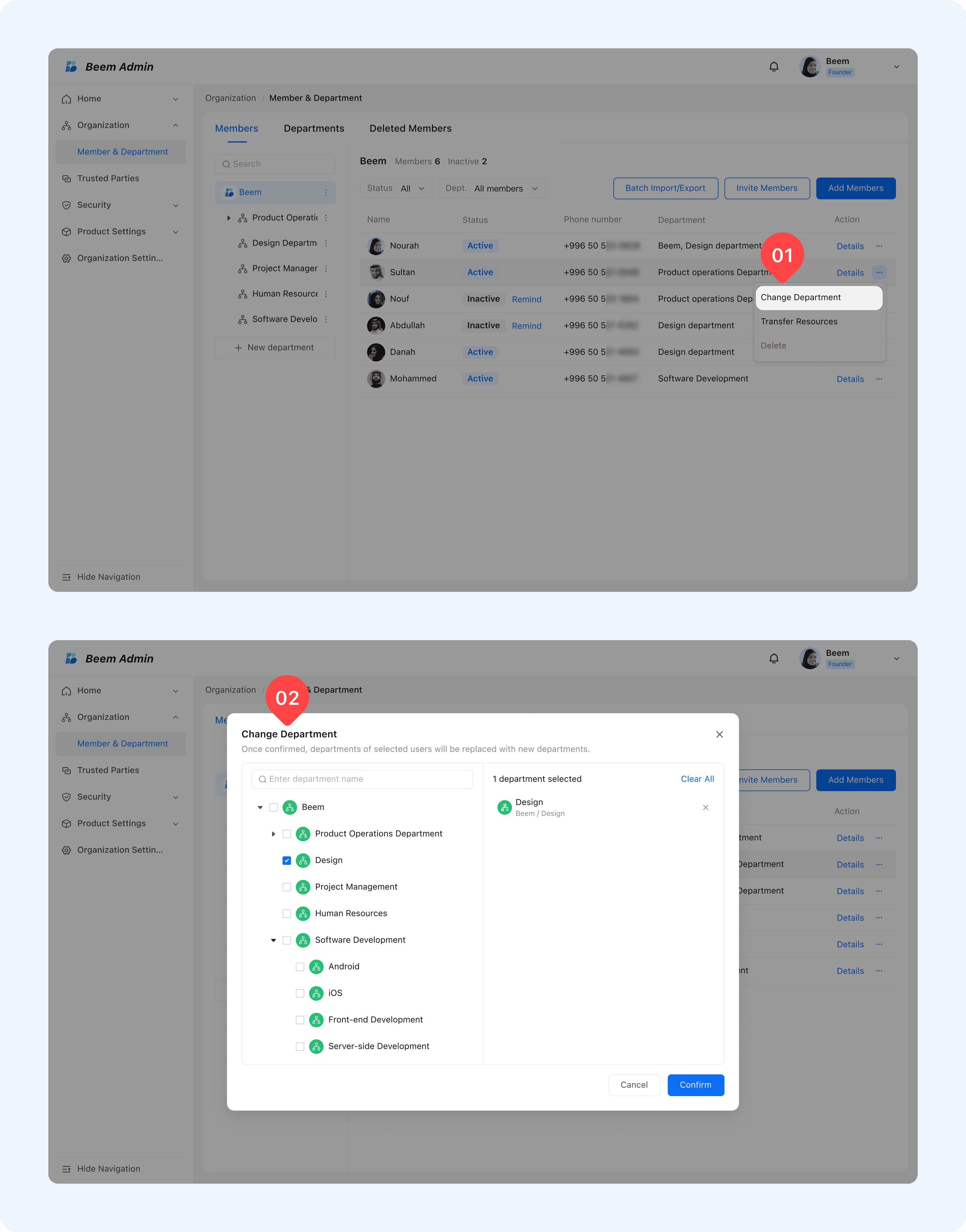
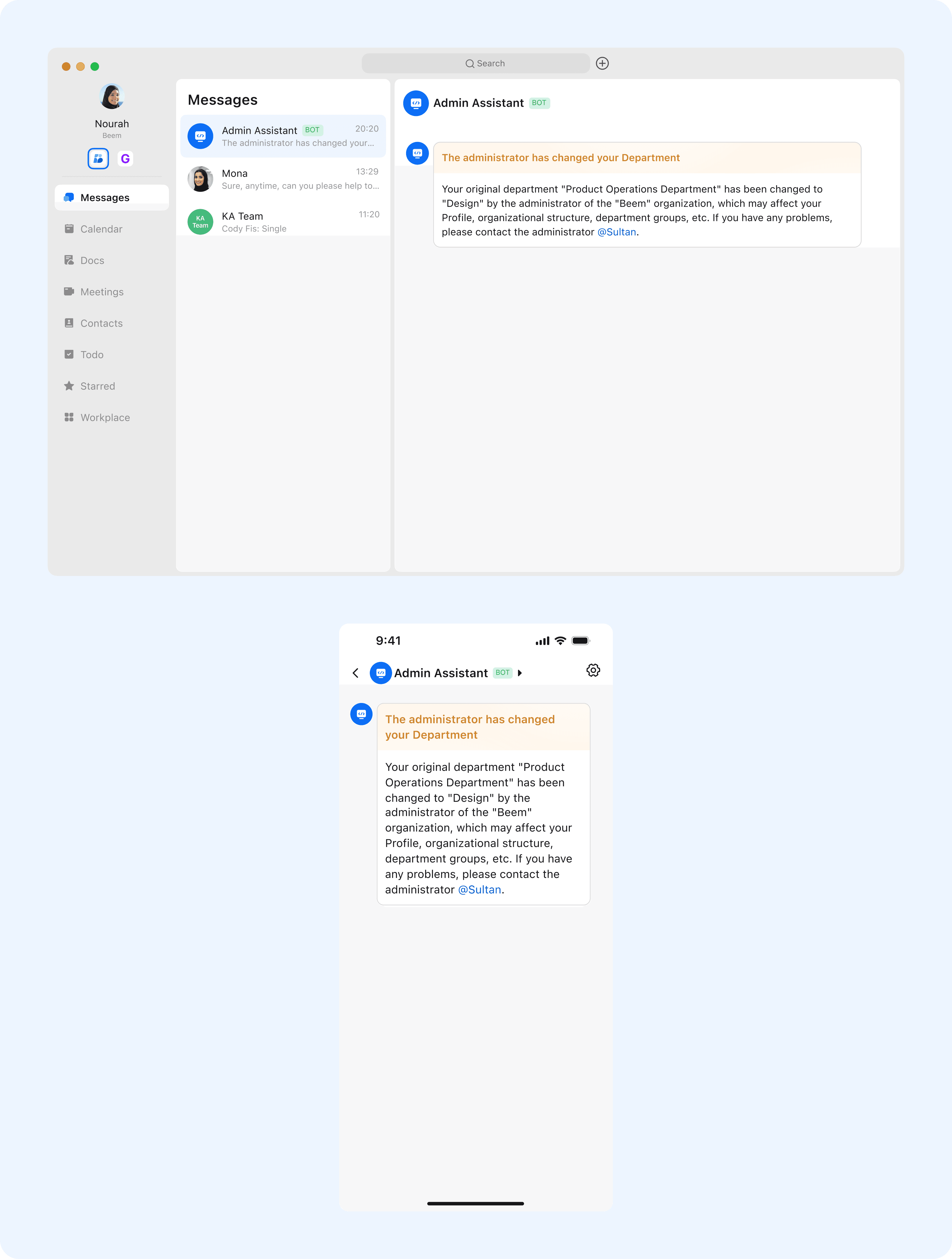
- For quick department changes, use Change Department for streamlined updates.

- Upon completion of the modification, the system will synchronize the updated information and notify the member.

Delete Members and Transfer Resources
Deleting members is necessary when employees leave the organization. Proper resource transfer ensures continuity, security, and compliance with organizational policies.
Delete Member
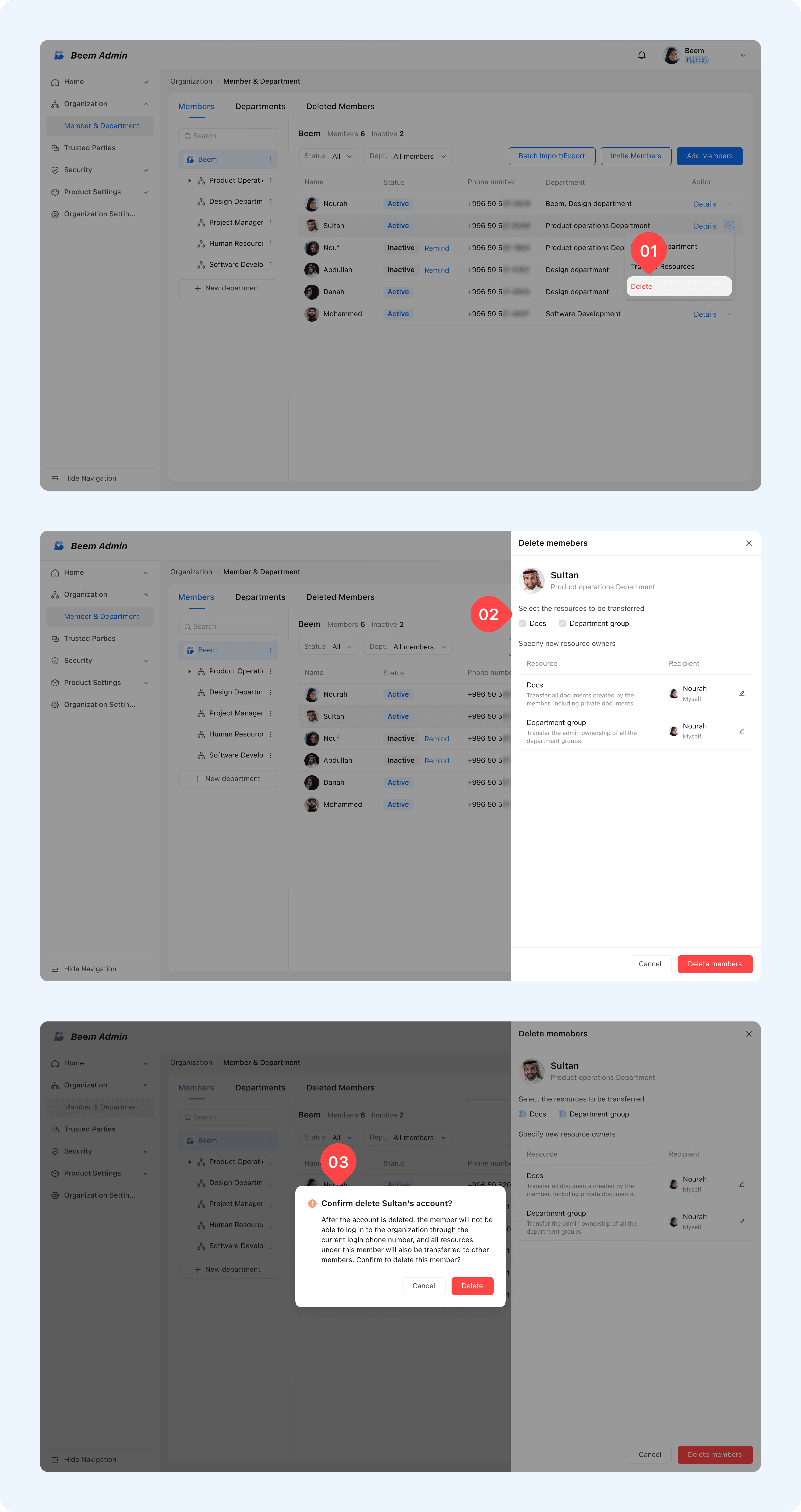
- From the member list page select Member then choose Delete
- Upon deletion,the system automatically will suggest to reassigns documents, groups, and permissions to prevent data loss.

Transfer Resources
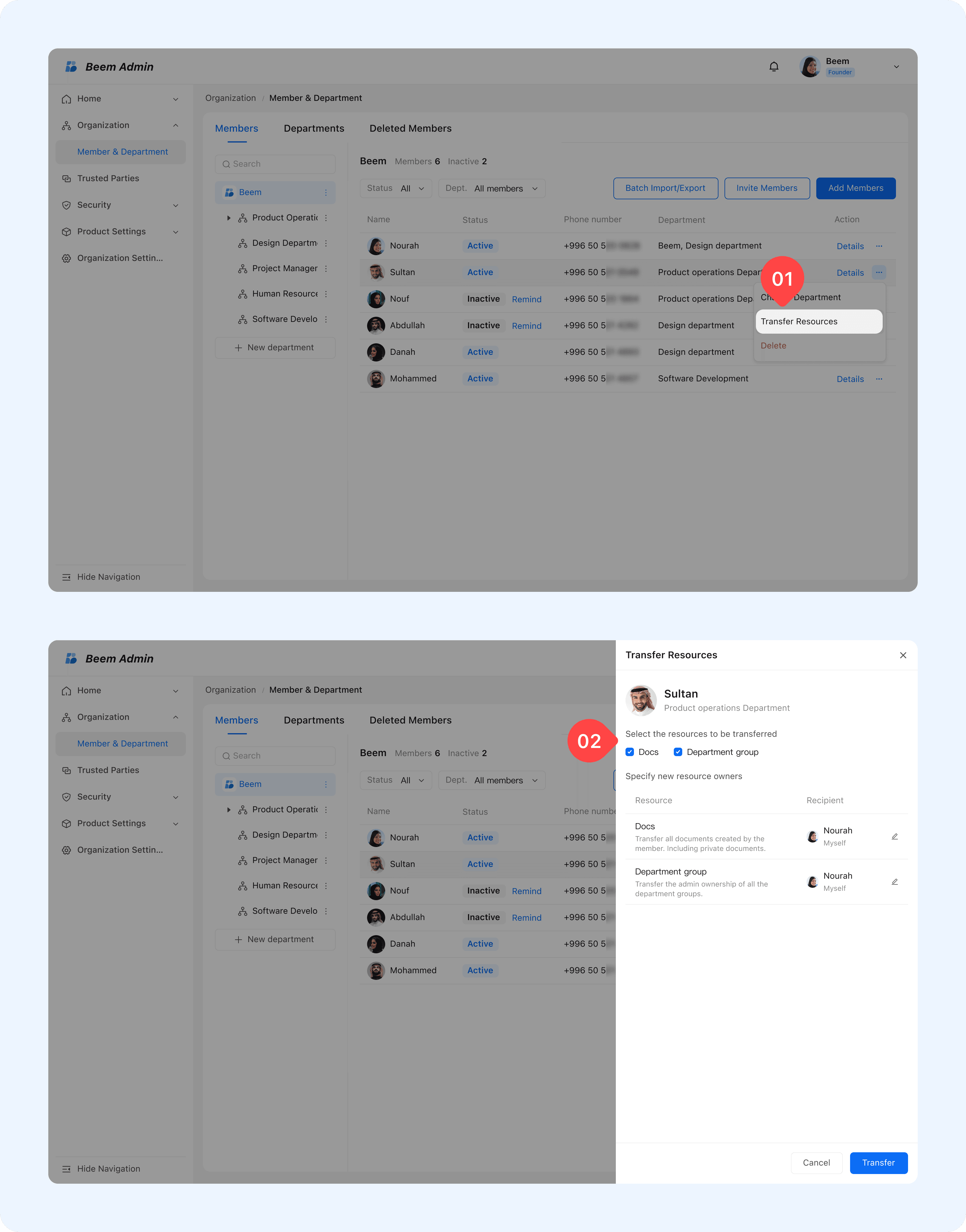
- Use Transfer Resources to reassign member documents or groups during structural or permission changes.
- Verify correct allocation to maintain workflow continuity and data integrity.

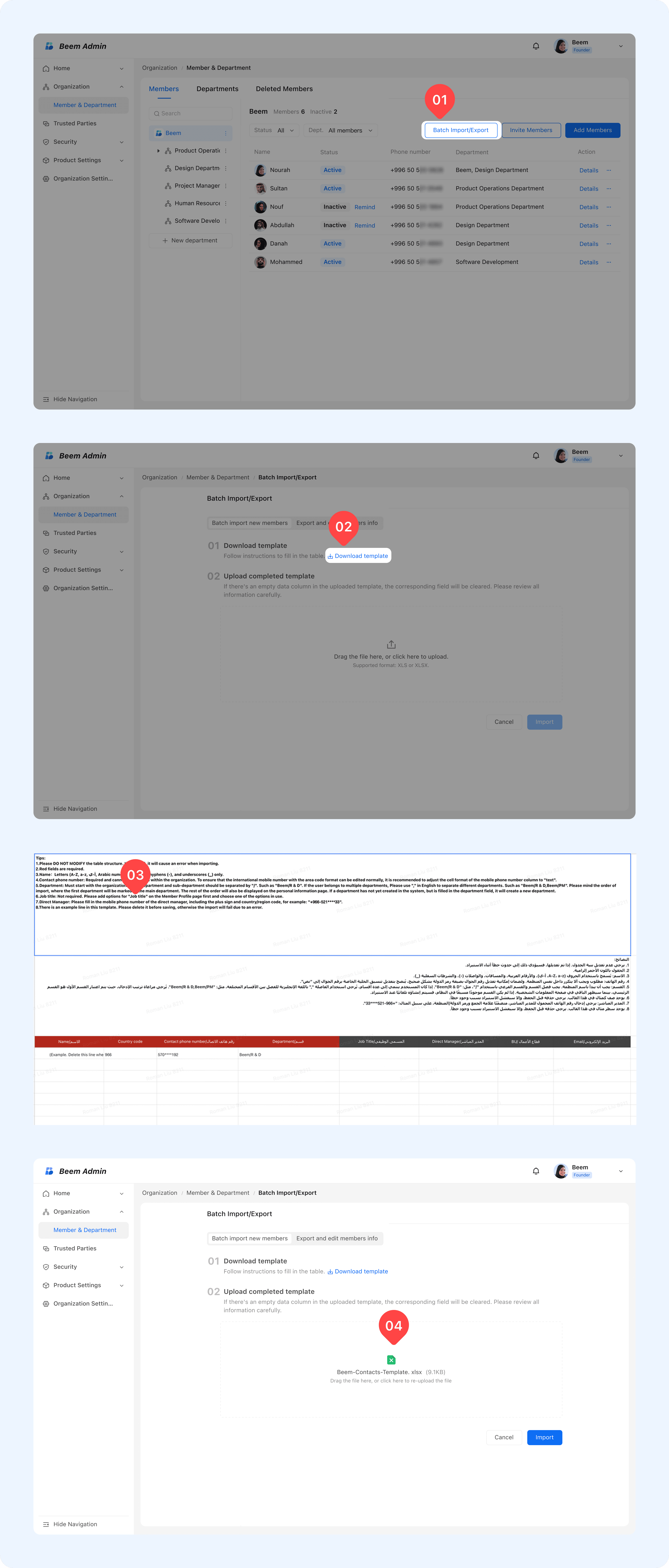
Batch Import Members
Batch operations save time and reduce manual errors by allowing administrators to handle multiple members at once. This is especially useful during onboarding, restructuring, or large-scale updates.
Steps:
- From the member list page select Batch Import / Export.
- Download the system-provided import template.
- Fill in the required member details according to the template.
- Upload the template and the system will validates the data and initializes members and departments efficiently.

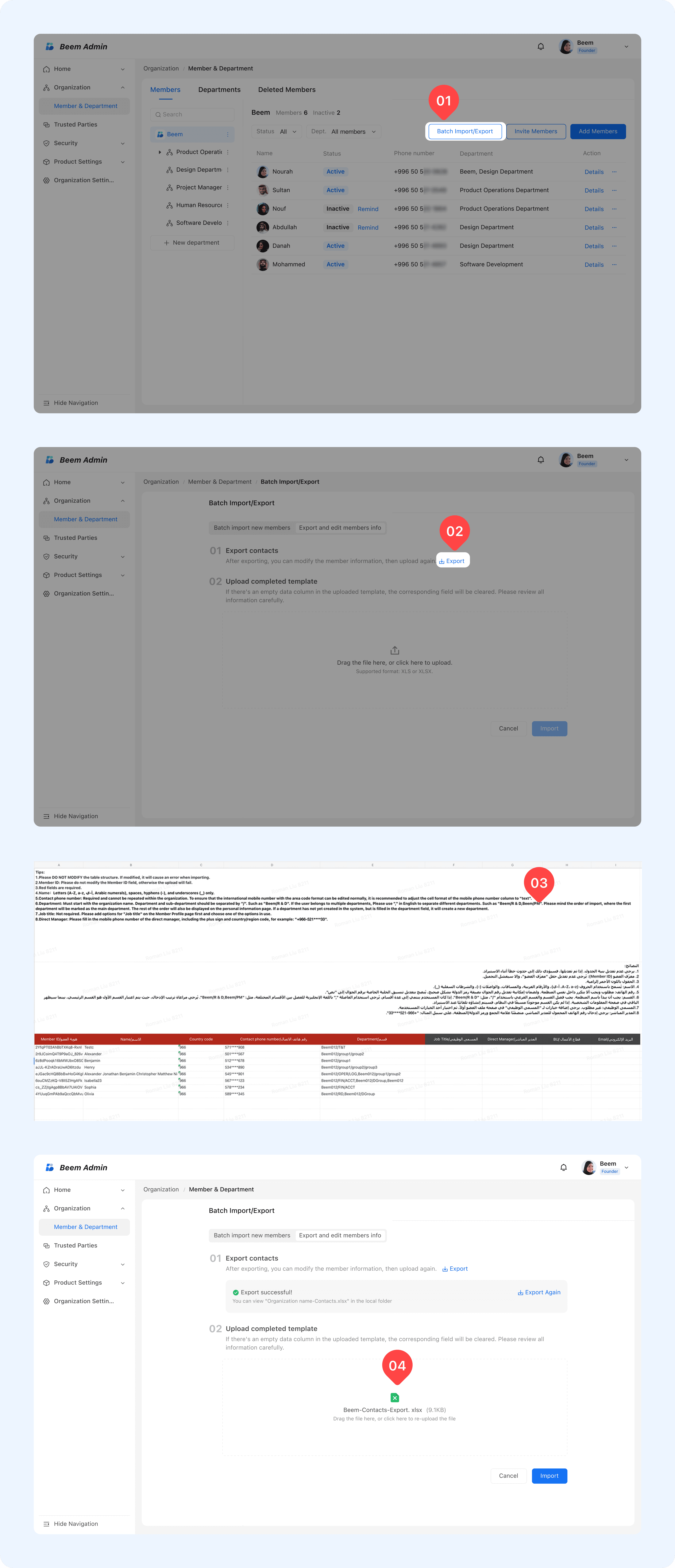
Batch Export and Modify Members
With this functionality, admins can export member data in bulk for reporting or backup purposes, and make mass updates to member information, roles, or department assignments without having to edit each member individually.
Steps:
- From the member list page, select Batch Import/Export then choose Export and Edit Member Information.
- Export members data in XLS or XLSX format.
- Modify the fields offline, such as Name, Phone Number, or Department.
- Then re-upload the file, and the system will validate the data and apply updates automatically, ensuring consistency and saving time.

Common Errors and Solutions
- Batch importing members is designed to accelerate large-scale onboarding and updates. However, to ensure data integrity and successful processing, the system applies strict validation rules. When the uploaded file does not meet these requirements, the system will return detailed error messages to guide administrators toward resolution.
WARNING
Tip: Maintain a master template with updated department and standardized naming to reduce errors.
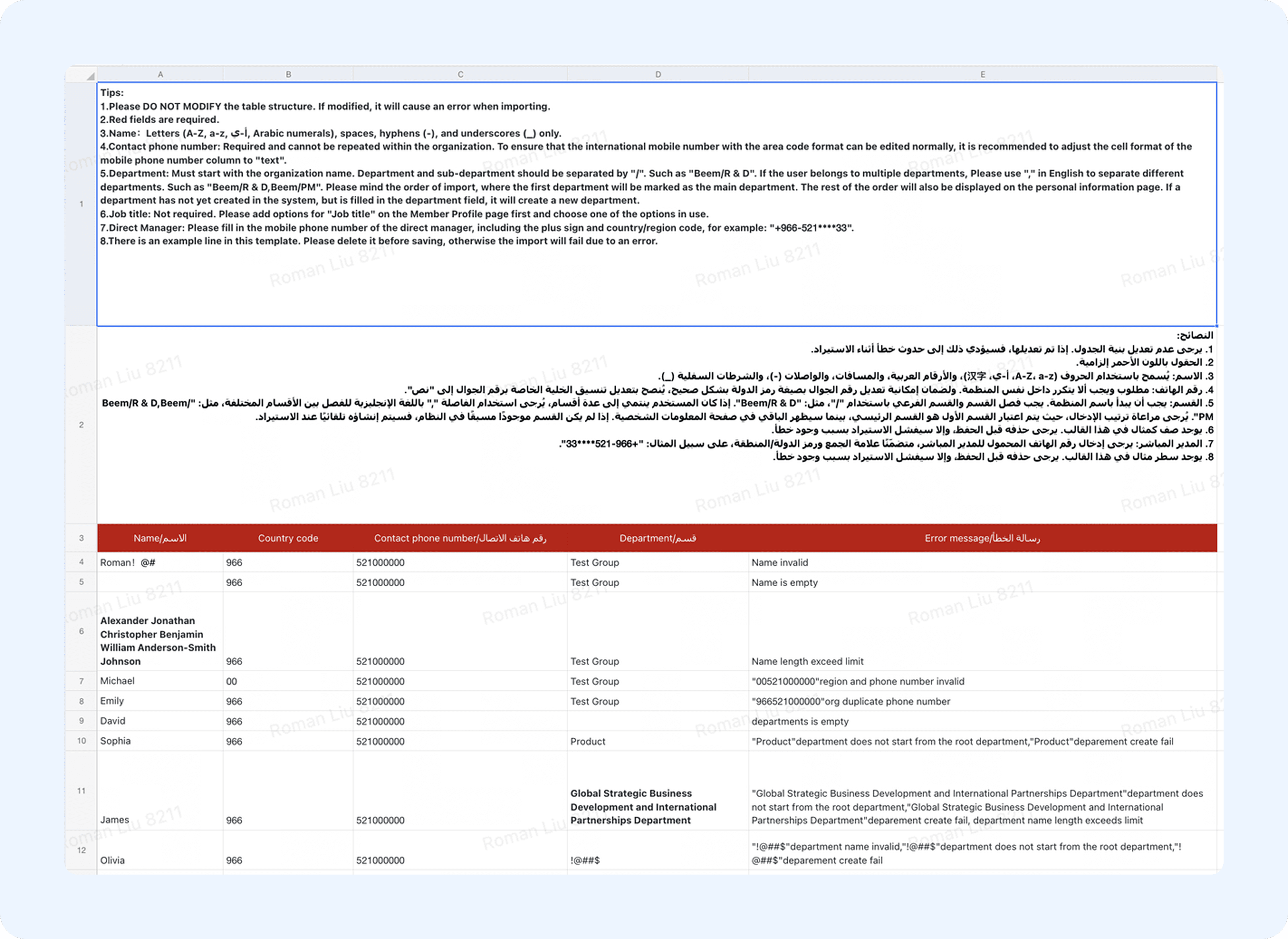
Below are the most common errors you may encounter during batch import, along with recommended solutions:
| Field | Errors | How to fix |
|---|---|---|
| Name | Name invalid | Letters (A-Z, a-z, ى-ي, Arabic numerals), spaces, hyphens (-), period (.), and underscores (_) only. |
| Name | Name is empty | Name can not be empty. |
| Name | Name length exceeds limit | The Name field can support up to 50 characters. |
| Country code/Contact phone number | invalid region and phone number | Fill in the correct country code and the corresponding valid phone number. |
| Country code/Contact phone number | country-code or phone number is empty | country-code or phone number can not be empty. |
| Country code/Contact phone number | org duplicate phone number | A matching phone number was found in the organization. This user may already be a member. |
| Country code/Contact phone number | user join org exceed limit | The user has reached the maximum number of organizations and cannot join a new one. |
| Country code/Contact phone number | excel duplicate phone number | Duplicate phone numbers found in the Excel file. Please review and upload it again. |
| Department | departments are empty | departments can not be empty. |
| Department | department does not start from the root department | Must start with the organization name. |
| Department | department name length exceeds limit | The department field can support up to 50 characters. |
| Department | department name invalid | Letters (A-Z, a-z, ى-ي, Arabic numerals), &, spaces, hyphens (-), period (.), and underscores (_) only. |
| Department | department create fail | Department creation failed. Please contact your administrator or report the issue to us. |
| Department | user join dept exceeds limit | This user has reached the maximum number of departments and cannot be assigned to additional ones. |
| Job Title | Job Title length exceeds limit | The Job Title field can support up to 50 characters. |
| Direct Manager | direct manager phone number invalid | Fill in the phone number of the direct manager, including the plus sign and country/region code, for example: "+966-521--". |
| Direct Manager | direct manager can't be set self | You cannot set yourself as your direct manager. Please select someone else as the direct manager. |
| Direct Manager | Direct Manager not exist | The direct manager’s phone number does not exist. Please verify and upload again. |
| BU | BU length exceeds limit | The Job Title field can support up to 50 characters. |
| The format of the email address is invalid | Fill in an email address in the correct format. |