English (EN)
العربيةThis article provides a comprehensive guide for deploying the LDAP CSV Directory Sync method within the organization. It outlines the technical requirements, configuration steps, and automate user data integration
Set up in Beem
- Follow the steps below to configure Directory Sync using the CSV method in Beem:
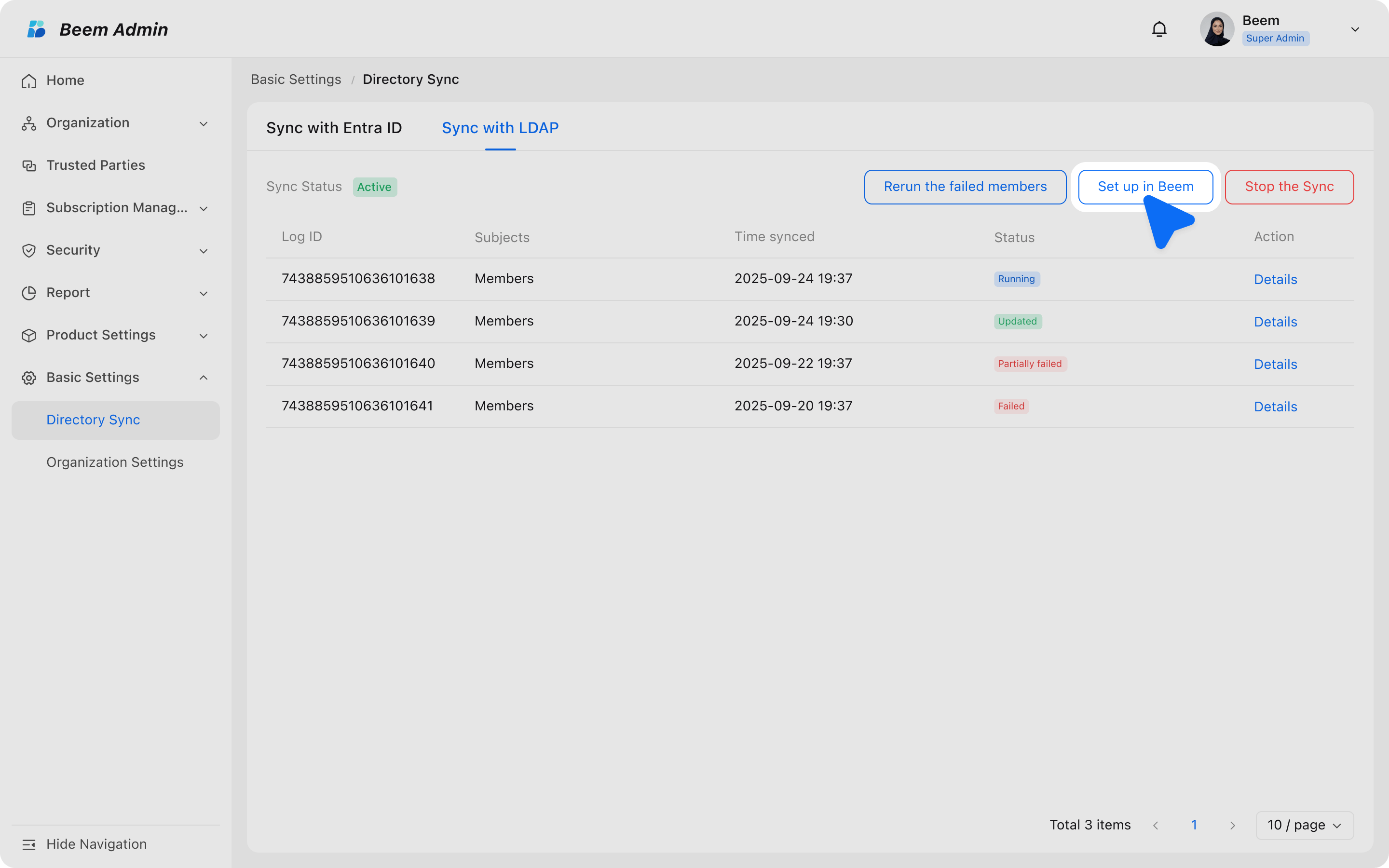
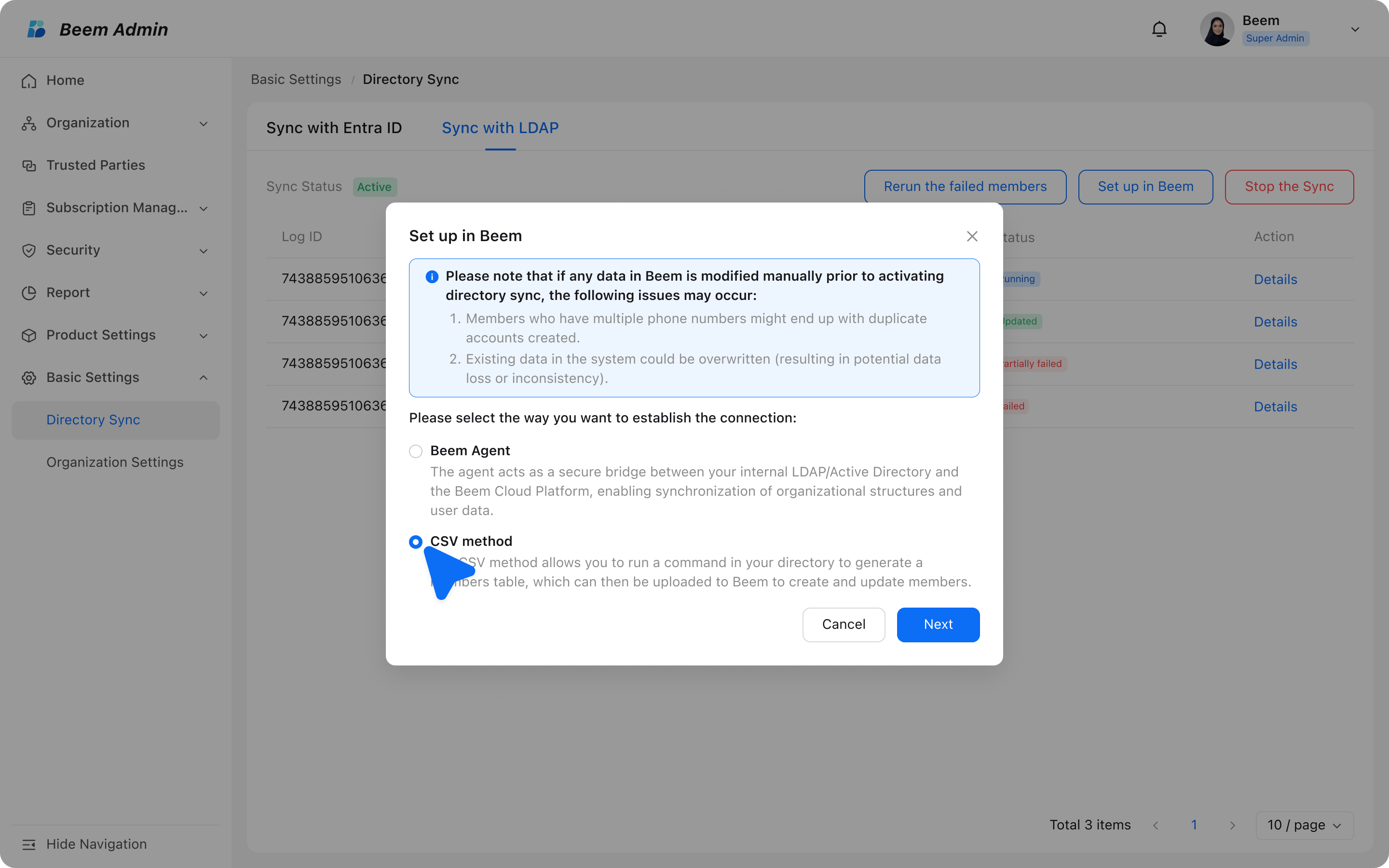
- Navigate to Beem Admin Suite → Basic Settings → Directory Sync → Sync with LDAP → Set up in Beem.

- A pop-up window would prompt you to select the way of building up the connection between your directory and Beem.
- Select "CSV method".
WARNING
Note You can only utilize one Directory Sync method, either "Sync with Entra ID", "Sync with LDAP - Beem Agent" or "Sync with LDAP - CSV method". Each method uses a completely distinct data structure. Switching between sync methods is currently not supported.
General Settings
- You will be redirected to the setup page. Please follow the sequential steps provided to complete all configuration sections.
Member deletion rule:
- "Delete members directly" is set as the default option in this version.
Select attributes for identifying existing users when creating new users:
- Choose either phone number or email address as the attribute to identify existing users when creating new users.
WARNING
Note: The Email Login feature is only available in versions 3.10.0 and above.
Set up the email domain validation:
- You can choose if any validation you want to add for specific domain of the emails, in order to avoid any wrongly added member.
- You can directly input the email suffix after "@". For example "beem.sa".
- Any member with email suffix other than "beem.sa" would not be synced to Beem.
- You can add 10 validation rules at maximum.
Select how you configured the 'department' attributes in the directory:
- If you maintain a complete department structure string in your directory, Beem Admin will automatically set the department display on user profiles to "Current department only" to avoid redundant names.
Select what to process when more than one duplicate departments are found:
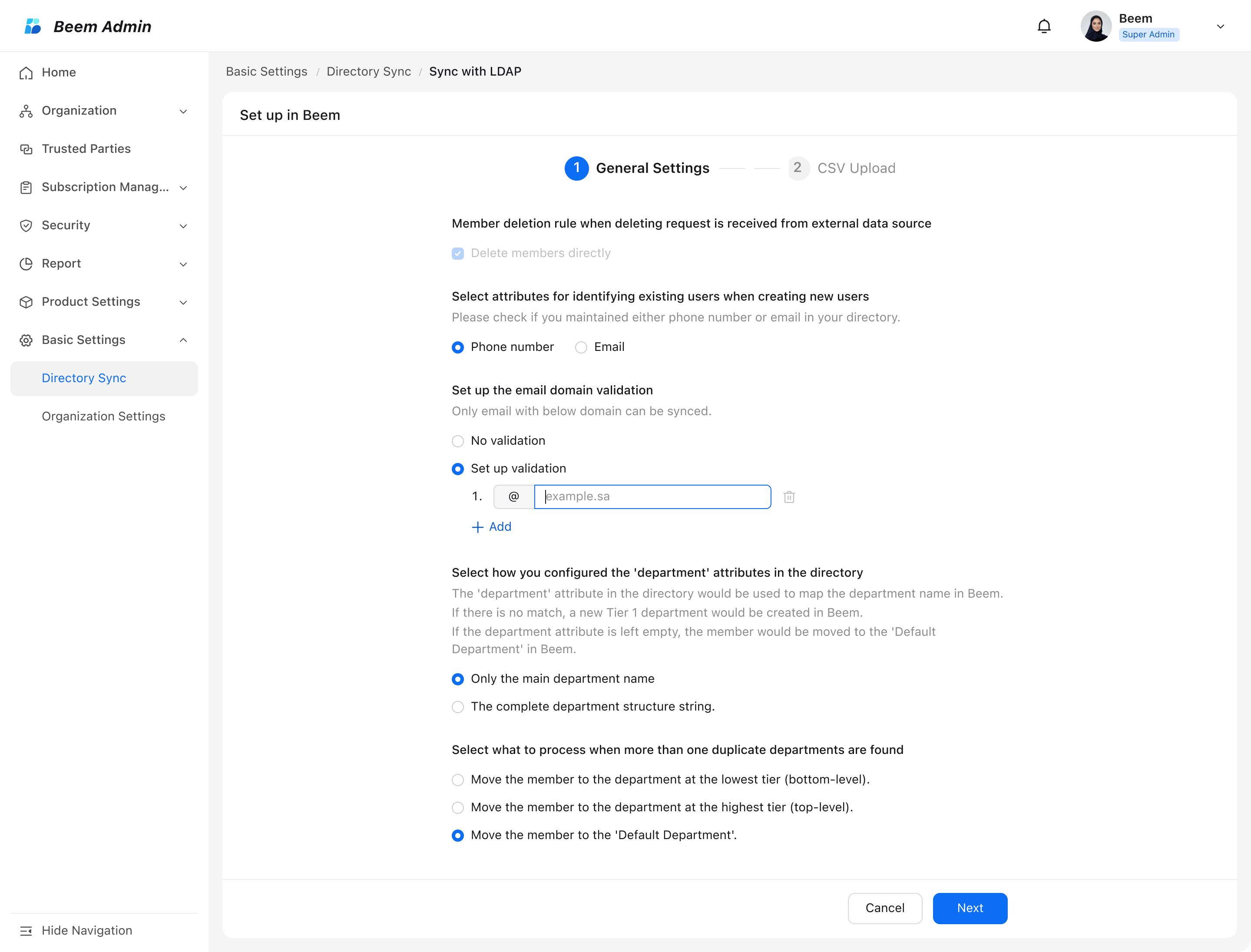
- 'Sync with LDAP' maps department attribute names from your directory service to department names in Beem Admin suite.
- If multiple duplicate departments exist for a member, you can specify the target department for the member (this can be modified later).

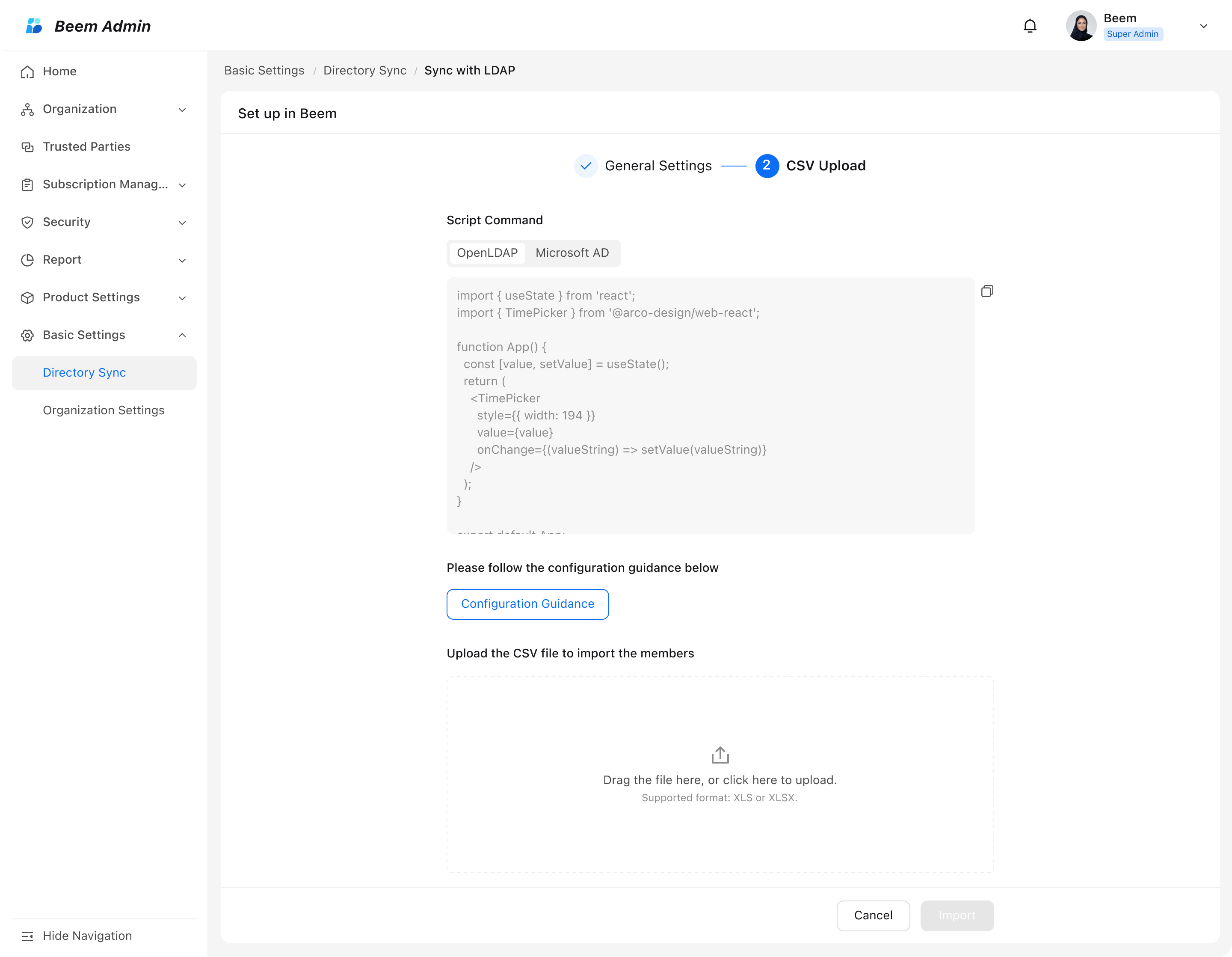
CSV Upload
- Script Command: Select the data structure used by your directory service. Different data structures correspond to different attribute mapping and processing rules.
- Copy the script.
- Following the attached (Configuration Guidance), run the script on your directory service and export the information as a CSV file.
- Upload the CSV file.

- Click on 'Import'.
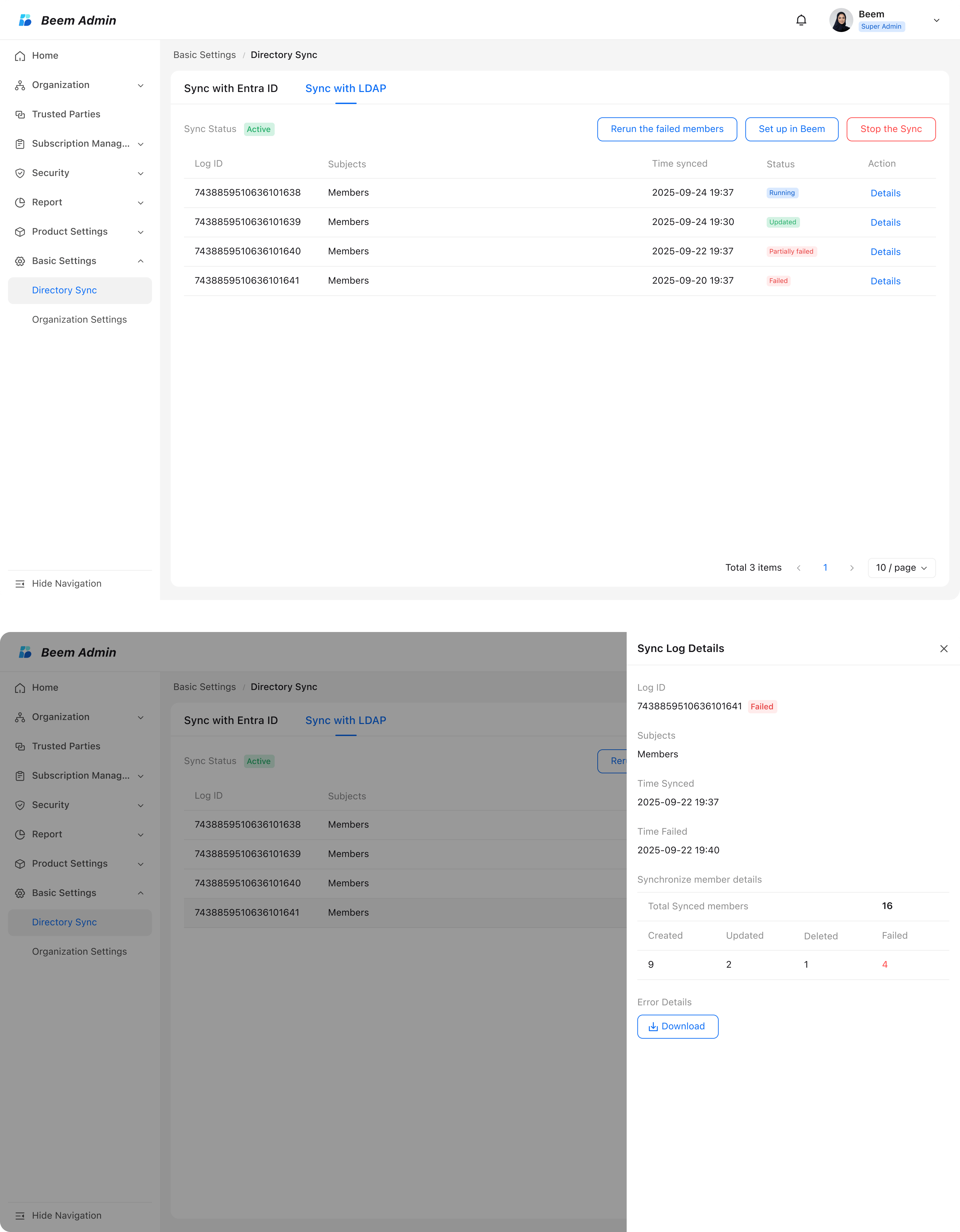
- Return to the main page to view all synchronization logs. Click Details to see a sync overview and access attachments with error details.
- You may edit the sync at any time by selecting Set up in Beem, completing the process outlined above, and activating the sync.

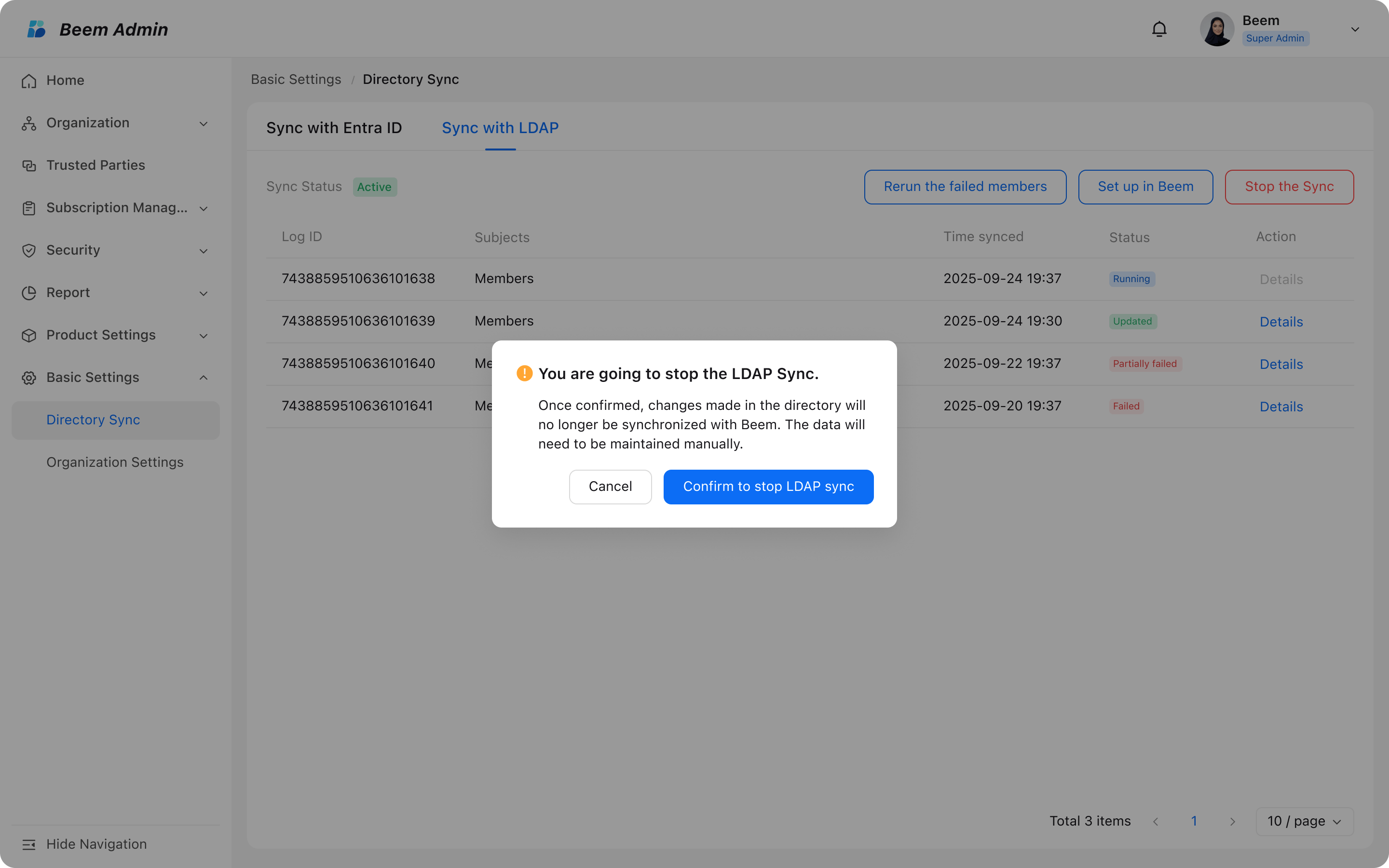
Stop the Sync
- When directory sync is deactivated, all changes must be managed manually.

Recommendations
- Ensure data accuracy before uploading:
- Any minor error in the CSV file (such as an incorrect email or duplicate number) may lead to partial sync failure or the creation of incorrect user records.
- Maintain data consistency:
- Make sure that the same field (such as phone number or email) is written in a consistent format across all users to avoid matching issues.
- Pay attention to Email Domain rules:
- If validation is enabled, any user outside the specified domain will not be synced even if they exist in the directory.
- Review logs after each import:
- Do not rely solely on a successful operation status; always check the Details, as there may be partial errors.